
Overview
Track exactly how long learners spend inside your LearnDash courses — on course, lesson, topic, and quiz pages — and put that time to work: show it on screen, add it to your reports, require a minimum time before a quiz unlocks, or automatically log learners out and redirect them when they go idle.
The Simple Course Timer records the time each learner spends in a course and its lessons, topics, and quizzes. You can display that time to learners in real time, surface total and completion times in your reports, and use time as a gate — for example, requiring learners to spend a minimum amount of time in the material before they can attempt a quiz, or logging out learners who go idle.
This is a core tool for seat-time compliance (continuing education, certifications) and for reducing cheating by stopping learners from racing through content.
Important — tracking starts when you enable it. The timer only records time from the moment the module is activated, and only while it stays active. Historical time is not available, so enable the module before you need the data.
Configure It
Enable the Simple Course Timer module under Uncanny Toolkit, then configure the options below based on what you need the timer to do.
Idle Timeout
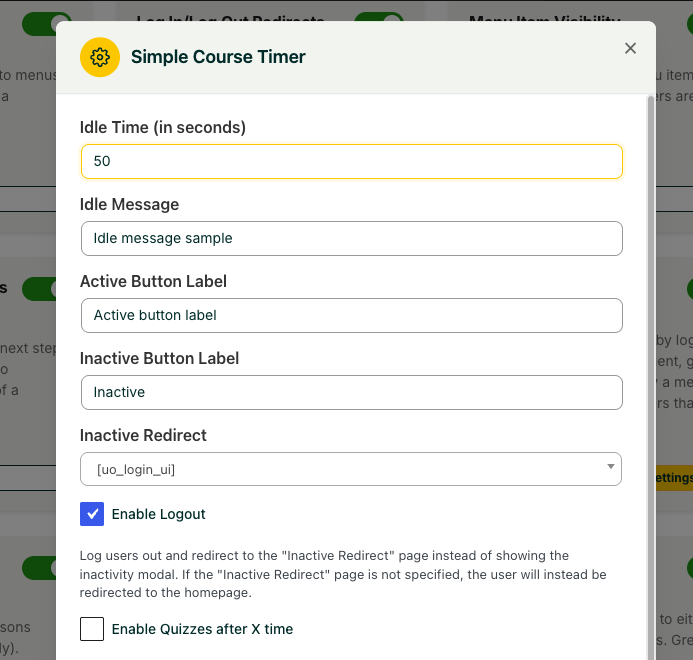
When enabled, the timer stops counting if a learner is inactive for too long, so idle time doesn’t inflate the recorded total. After the idle period a popup asks the learner to confirm they’re still active — confirming resumes the timer; navigating away stops it.
You can customize:
- Default idle time (overridable per lesson, topic, or quiz). Defaults to 900 seconds (15 minutes) if no value is set.
- The timeout message shown to the learner.
- The button labels for confirming activity and for exiting the course.
- The redirect location for learners who choose to exit.
Minimum Course Time Before Quiz
Enable Enable Quizzes after X time to block quiz attempts until a learner has accumulated a minimum amount of time in the course. A field appears on quiz pages where you set the required minutes; learners see a message showing the required time and their current progress until they qualify.

Logout & Redirect on Idle Timeout
Instead of showing the inactivity popup when a learner goes idle, you can enable Enable Logout to log the learner out and redirect them when the idle timeout is reached. The learner is sent to the page set in the Inactive Redirect setting; if no Inactive Redirect page is specified, they’re redirected to the site homepage.
Shortcodes / Blocks
Place any of these on a page to display tracked time. A matching block is available for each.
| Shortcode | What it displays |
|---|---|
[uo_time course-id=""] | Total time spent in the course |
[uo_time_course_completed course-id=""] | Time at the point of completion (populated only after the course is completed) |
[uo_time_lesson lesson-id=""] | Time in a lesson, plus its associated topics and quizzes |
[uo_time_topic topic-id=""] | Time in a topic and its associated quiz |
[uo_time_quiz quiz-id=""] | Time in a quiz |
[uo_time_total user-id=""] | Total time across all courses since the module was activated |
[uo_time_live] | A real-time, live-counting display of active course time |
Reporting
When the Simple Course Timer module is enabled, both total time in course and completion time can be exported in LearnDash reports or displayed onscreen.
Time starts being tracked as soon as the module is enabled. The time columns are also added to the LearnDash course report automatically.
The module also integrates with Tin Canny LearnDash Reporting, adding the same columns there.
Limitations to Know
- Mobile devices: time isn’t tracked when a learner is taken away from WordPress (e.g. opening a PDF or a link in a new window) on iOS/Android, and tracking pauses while WordPress is in a background tab — an operating-system constraint, not a plugin setting.
- Caching: some caching plugins can cause high resource usage with the timer active. If you see performance issues, test with caching disabled.
For Developers
uo_course_timer_time_display(v4.4.1) — Filter the way tracked time is displayed.uo_course_timer_time_display_completion(v4.4.1) — Filter the way completion time is displayed.
Related Articles
- Enhanced LearnDash CSV Reports — Add more learner data to your exports
- Cohort & Membership Programs — Combine the timer with group-based drip content
- Tin Canny Reporting for LearnDash – Overview — Deeper reporting that surfaces course time
Hello,
I am looking for a way to set a minimum time for the course completion before the student has the possibility to download the certificate.
At the moment, students only need to mark lessons as completed to pass the course and we have noticed that some do not take suffficient time to complete the course.
Would the course timer plug-ing allow me to do so ?
Best,
Anna
Hi Anna, we don’t have a minimum time before completing a course, but if you add a quiz as the last step before course completion, the timer does offer the option of requiring users have a minimum amount of time in the course before they can access the quiz. That’s unfortunately the only solution here we can offer; right now we don’t plan to add a timer that restricts when the user can complete the course.
These shortcodes did not work for me.
Can you confirm that you have Toolkit Pro installed and active, and the Simple Course Timer module is active? If that is the case, please do log a support ticket and let us know what you’re seeing onscreen.
is it possibile to export last connection date/time?
Thanks
The LearnDash course CSV report includes data for last login, I’m afraid that’s your best option here. Our plugins do not store or output last connection date/time. Sorry about that.
Hello,
What is the difference between “total time in course” and “completion time”?
Thank you
Hi Paulo,
Total time outputs any time the user has spent in the course, before and after completion. “Completion time” takes a snapshot of the time captured when the user completes the course so you know exactly how long it took a user to complete it. This value will be empty if the user hasn’t yet completed the course, and after completion, the value won’t change if they spend more time in the course. (Total time will still collect time data after completion.)
Can the minimum amount of completion time before a quiz can be taken be set to a specific quiz and not sitewide?
The minimum time for a quiz currently considers time for the course rather than total time sitewide. The value is set on the quiz edit page for the course. If you’re seeing any issues or have questions about the behaviour, we can provide more guidance if you open a ticket.
Hi,
If a user activates/ starts the course and has to step away so they log out of the system and back in say a few hours later is the time paused and then restarted once they launch the course again?
If the user is logged out, no time would be tracked. If the user is signed in but becomes inactive, time tracking would stop when the Idle Timeout feature described above kicks in. When the “Are you still there?” modal is shown, no time is tracked.
Hello,
Your video was published 7 years ago and you explain in it that you track time on finer granularities than the course: at lesson, topic and quiz level.
I’ll need access to this data. What solution do you propose today?
Hi Pierre, that’s where the newer shortcodes like [uo_time_lesson] come in; we also have versions for quizzes and topics. You can use those output time on a more granular level.