
Overview
Control who can view any public-facing page, post, course, lesson, topic, or quiz based on login status, user role, course enrollment, or group membership. Users who don’t qualify are either shown a message or redirected elsewhere.
This module adds an access-control metabox to the Edit screen of every publicly registered post type. You set the requirements on the individual item, so you can lock down a single landing page, a course, or any other content without touching the rest of your site.
Common use cases include gating bonus content behind enrollment, limiting a page to a specific role, or keeping a work-in-progress page hidden from logged-out visitors.
Configure It
Open the Edit Post screen for the page you want to protect and use the restrict-access metabox in the sidebar. Choose the criteria that fit your scenario — you can combine any of them:
- Require login — Check this to prevent logged-out users from accessing the page. The checkbox is labeled “Users must be logged in to view this [post type].” Use it as a baseline when content should never be public.
- Required role — Pick one or more roles when only specific user types should see the page. A user passes if they have any of the selected roles.
- Required course — Pick one or more courses when only enrolled users should see the page. A user passes if they’re enrolled in any of the selected courses.
- Required course completion — Pick one or more courses when only users who have completed a course should see the page. A user passes if they’ve completed any of the selected courses.
- Required group — Pick one or more groups when only members should see the page. A user passes if they’re a member of any of the selected groups. Group leaders of a selected group also pass.
How the access rules combine
The logic differs depending on whether selections are within one field or spread across several:
- Within a single field — match ANY. If you select Sales 101 and Customer Service 101 under Required courses, a user enrolled in either course gets access.
- Across multiple fields — match at least one in EACH. If you set the Customer role and the Sales 101 course, a user must satisfy both conditions: they need the Customer role and enrollment in Sales 101.
What denied users see
Decide what happens when a user doesn’t qualify:
- Redirect — Check the redirect option to send denied users to another location. Choose:
- Page — Select from your publicly available posts.
- Custom URL — Enter any redirect address.
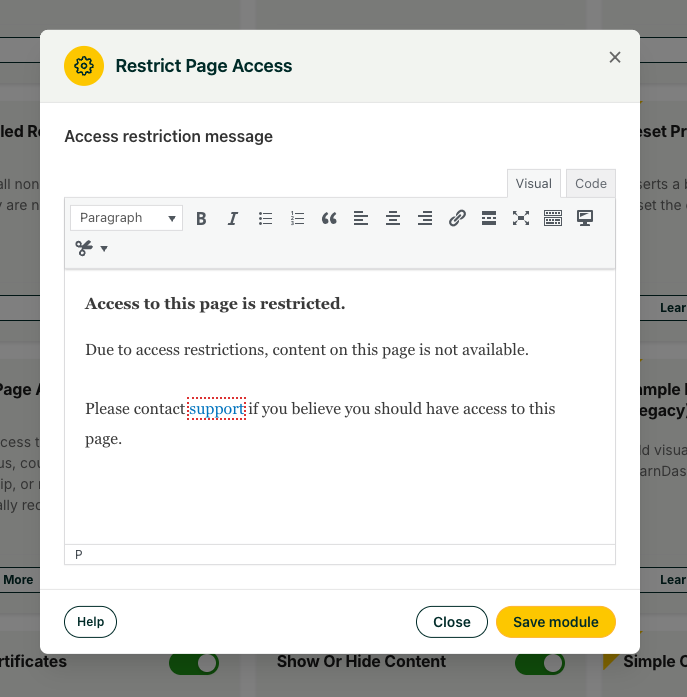
- Message — If you don’t redirect, denied users stay on the page and see a custom message. Configure the message text in the module settings.
Note: The message is set globally in the module settings, so the same message is shown for every restricted page that uses the message option rather than a redirect.
team,
if it doesn’t exist, it would be great to have a “apply restrictions to child pages”.
Thanks,
-Carmine
It doesn’t exist yet, but that is something we could consider. Thanks for the feedback!
Is it possible to force all posts to be restricted rather than having to select it for each one?
Sorry Steve, there are no bulk options currently available. It’s sounds like perhaps a maintenance (for sitewide restrictions) or membership plugin might be a better fit here.