
Overview
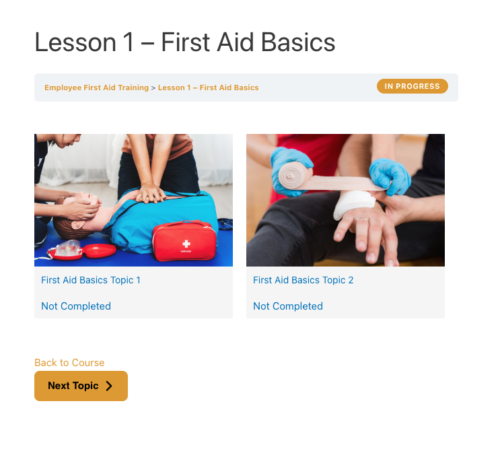
The Enhanced Lesson/Topic Grid displays a course’s lessons — or a lesson’s topics — in a clean, image-led grid. It’s the lesson/topic counterpart to the Enhanced Course Grid, giving you a more visual alternative to LearnDash’s default lesson lists.
Add the grid to any page and it adapts to its context:
- On a course page, it automatically shows that course’s lessons.
- On a lesson page, it automatically shows that lesson’s topics.
By default it renders a 2-column grid with equal-sized featured images. Dripped lessons that aren’t yet available display their availability date, so learners know when content unlocks.
Important: When you place the grid on a course or lesson page, the associated quiz table is hidden — you’ll need to link to quizzes manually. The exception is when the grid is enabled globally for all lessons/topics; in that case the quiz table stays visible.
Configure It
Use the Enhanced Lesson/Topic Grid block or the [uo_lessons_topics_grid] shortcode, then decide:
- Where the grid lives — On a course or lesson page, no IDs are needed; it detects context automatically. On any other page, point it at content explicitly: use
course_idto list a course’s lessons, orlesson_idto list a lesson’s topics. These two are mutually exclusive. - Which items to show — Narrow the grid with
category(a WordPress category slug) ortag(a tag slug). These two can’t be combined. - Layout — Set
cols(1–5; default 2) and toggleshow_imagefor featured images. - Hover styling — Set
border_hoverto change the grid item border color on hover.
You can also enable the grid globally from the module’s settings box, so it appears automatically on all course and lesson pages without adding a shortcode to each one.
Note: Topic grids are supported on LearnDash pages only. The lesson_id topic grid won’t work outside of LearnDash content. If featured images don’t appear, check the module settings.
Shortcode reference
[uo_lessons_topics_grid]
| Attribute | What it does | Values | Default |
|---|---|---|---|
course_id | List a course’s lessons; required off the course page. Can’t combine with lesson_id | Any course ID | The current course’s ID (if on a course page) |
lesson_id | List a lesson’s topics; LearnDash pages only. Can’t combine with course_id | Any lesson ID | The current lesson’s ID (if on a lesson page) |
category | Show only items in a WordPress category. Can’t combine with tag | A category slug | all |
tag | Show only items with a given tag. Can’t combine with category | A tag slug | all |
cols | Columns per row | 1–5 | 2 |
show_image | Show featured images (min. recommended 624 × 468 px; WP crops to 1.33:1) | yes, no | yes |
border_hover | Border color of grid items on hover | A color value | (not specified) |
Customization
CSS: Copy /wp-content/plugins/uncanny-toolkit-pro/src/assets/legacy/frontend/css/lesson-topic-grid-view.css to /wp-content/themes/your-theme/uncanny-toolkit-pro/css/lesson-topic-grid-view.css and edit the copy.
Template override (v3.1+): Copy wp-content/plugins/uncanny-toolkit-pro/src/templates/lesson-topic-grid.php to wp-content/themes/yourtheme/uncanny-toolkit/lesson-topic-grid.php.
Important: Don’t edit CSS or template files inside the Uncanny Toolkit Pro plugin directly — they’re overwritten during upgrades and your customizations will be lost. Always work from the theme override.
The Category and Tag attributes don’t work.
Hi, the usual issue here is confusing between LearnDash categories and tags and WordPress categories and tags. If you can open a support ticket with a screenshot of your edit categories (or tags) page, along with the shortcode you’re using, it will help us identify what’s happening. Usually though it’s an issue with the attribute used for categories and tags and the type (WordPess vs. LearnDash).
How would I modify this to show Learndash Sections?
Sorry Adrian, sections aren’t something we currently support in this module, but we are assessing it as a possible feature request in future.