
Overview
Release lessons to each LearnDash Group on its own schedule, so different cohorts can move through the same course at their own pace. This is for sites that run the same course for multiple groups that started on different dates.
Out of the box, LearnDash can release a lesson a set number of days after enrollment or on a fixed calendar date — but that schedule applies to every student in the course. Drip Lessons by Group lets you set lesson drip dates per LearnDash Group, on specific calendar dates.
Common use cases:
- An employer enrolls successive intakes of staff in the same onboarding course and wants each intake’s lessons to unlock on dates that match when they started.
- A training provider runs the same course for several client organizations, each on its own timeline.
Configure It
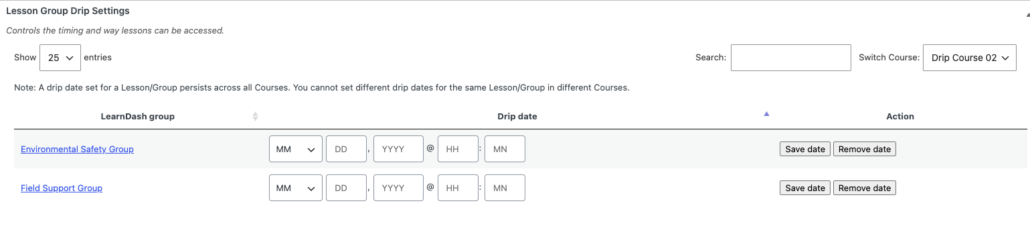
Group drip dates are managed on the lesson itself, under Edit Lesson > Settings in the WordPress admin. When the module is active, a Lesson Group Drip Settings metabox lists every group that has access to the lesson.
Where to find it (Toolkit Pro v4.4.1+): On the lesson edit screen, the Lesson Group Drip Settings are reached through a dedicated Uncanny Toolkit tab in the LearnDash settings header, just below the lesson title. This tab was added in v4.4.1 so the settings stay easy to find under WordPress 7.0’s block editor, which otherwise collapses classic metaboxes out of view. The settings themselves are unchanged — only where you click to reach them.
- To schedule a lesson for a group — enter a drip date for the group and click Save date. The lesson becomes available to that group’s members on the date you set.
- To choose the right course first (shared lessons) — if the lesson belongs to more than one course, pick the course from the Switch Course dropdown before the associated groups appear and before setting any dates.
- To schedule for students who are not in a group — use LearnDash’s standard Lesson Access Settings metabox instead. The group drip settings only apply to group members.
Important: A drip date for a lesson/group combination persists across all courses. If a group can access two courses that contain the same lesson, you can only set one drip date for that lesson — you cannot drip the same lesson on different dates in two different courses for the same group.
Note: If a group has access to the lesson but does not appear in the list, double-check that the correct course is selected in the Switch Course dropdown.
Usage
For end users, lessons stay locked until the drip date set for their group arrives, at which point the lesson unlocks automatically.
Removing a drip date
To remove a drip date for a group, click Remove date next to that group’s date.
Email notifications (LearnDash Notifications plugin)
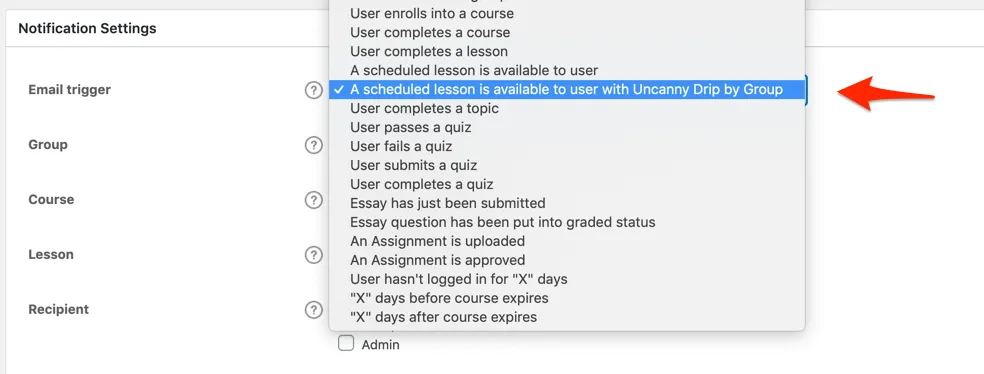
You can email students when a lesson becomes available based on their group’s drip date, using the LearnDash Notifications plugin. Create a notification with the trigger A scheduled lesson is available to user with Uncanny Drip by Group.
Note: If you use both LearnDash’s native “Lesson Release Schedule” and lesson group drip and find that notification emails aren’t going out as expected, add the following filter to your child theme’s functions.php to prioritize group drip notifications:
add_filter( 'uo_drip_ignore_learndash_release_date', '__return_true' );
Have you ever thought of making this available on the front end for group leaders? So if you sell courses to schools, the teachers in that school can control the drip feed of lessons according to their own needs?
It’s a good idea, but I’m afraid that right now we have no plans to do it. You’re the first person to request it, but we’ll consider it for future updates.
Thanks for the feedback!
I would definitely love this!!
Hi there
When adding group dates for a second group I always get a HTTP 500 error and the date is not added. Could you look into it. I’m working with wordpress version 4.9.6 and learndash version 2.5.8 and the PRO toolkit.
Any support tickets for individual sites must come through our ticket system or [email protected]. Check that your PHP version meets the requirements (5.6 or higher) and check the errors logs; most 500 errors will add an entry to the web server error log. For further investigation though we unfortunately must go through our ticketing system.
Is it possible to use a mixture of “make visible x days” and “Make visible specific date” depending on the group? For example, we have three groups that already received their lessons based on “x days” but we would like our newest group to receive their drip on a specific date. Is it possible to do that with this plugin?
I’m afraid this isn’t something our plugins currently support.
Hi I noticed that when setting dates for groups when assigning the date for the second group, i needed to remove the date in the date field after the update for the group. Otherwise the last date was used for everyone regardless which group they where in.
Kind Regards
Sorry for the inconvenience. This issue was fixed in a subsequent release.
Wish this feature was available as well.
As I understand it, this setting can only work for one group. What if I need to make different settings for different groups?
Also another question. Courses have a setting: “Course Access Expiration”. Is it possible to do it for different groups?
Hi Oleg, you can definitely have different settings for different groups, but you must define dates individually for each group. There is no bulk edit option, or a way to apply a date to all or several groups. As for expiring course access based on groups, have a look at https://www.uncannyowl.com/knowledge-base/learndash-group-expiration/. Note, however, that expires access to ALL courses for the group at the same time. We don’t have a way to expire individual course access for groups.
Ryan,
How does setting the lesson date for several groups work? After all, only one group is available for selection. If I change it, what will happen?
Sorry Oleg, it is a bit cumbersome. Choose one group, set the date/time, update the course. Choose another group, set the date/time, update the course. When you go back to the drop-down list you’ll see the dates/times set for the respective groups.
Hi, I am thinking of using groups for a training course based on surgery date. If I name the groups the date of Surgery can this be available for the user to select from woocommerce?
If you want to sell access to Groups with WooCommerce, you’ll need the Uncanny LearnDash Groups plugin. You’ll also need to create a product associated with each group you want to sell.
Hi guys,
I have a course that is dripped week by week for every user that buys access.
Now I want to make a group besides the normal sales that get access on specific dates. Can this drip function do that?
Thanks.
Having this functionality available on the front end for use with your Uncanny Learndash Groups plugin is an absolute must for us and we’d buy both in a heartbeat if this were the case. Has any progress been made in this regard?
Sorry, I’m afraid it hasn’t made progress, and unfortunately still isn’t planned for at least the next 3 months. I know there are now 3 comments here, and getting the feedback helps us plan upcoming features, but relative to other feature requests I’m afraid this one is still low.
Just throwing another request for this on the front end! Would be helpful by learner as well!
Does this work without Uncanny Groups? It will not save my settings..
Please note that any group created with our Uncanny Groups plugin is still just a LearnDash Group, it wouldn’t be related to that. If settings won’t save, you should definitely log a ticket so we can investigate, but it would be a good idea to check your console (right-click on the page, choose Inspect, then have a look at the Javascript Console) for errors. Any problems there might give clues about what’s causing the failure.
Learndash now allows content dripping for all elements, not just lessons. Will you add dripping for topics and quices for groups as well in UCTPro?
Great question. It does seem like a good idea, so we’ll take a look at supporting it next quarter.