
Overview
Mark a LearnDash lesson or topic complete the moment a learner submits a Gravity Form on that page. This is perfect for steps that require an action first — signing an agreement, answering a survey, or submitting feedback — before the learner can move on.
With this module enabled and autocompletion turned on for a specific form, the form’s submit button replaces the standard Mark Complete button. When the learner submits the form, the lesson or topic is marked complete automatically.
Common use cases:
- Acknowledgement or consent forms a learner must complete before continuing.
- Surveys, quizzes, or feedback collected at a specific point in a course.
- Any step where completion should be tied to a deliberate form submission.
Important: For this module to work, lessons must be associated with a course, and topics must be associated with both a lesson and a course.
Configure It
Turn on autocompletion for the form
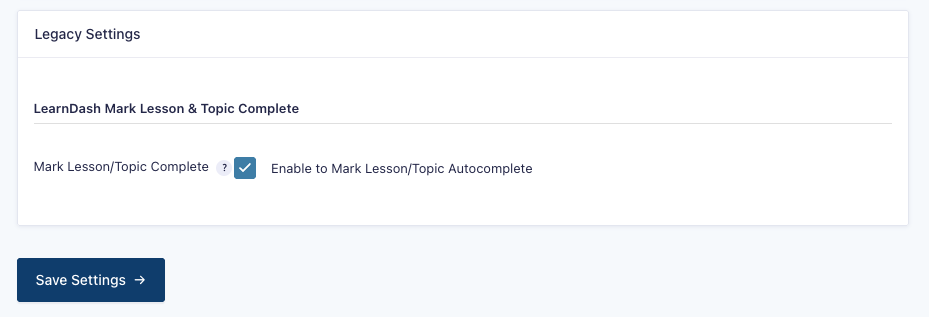
Enable autocompletion in the Gravity Form’s settings (the Mark Lesson/Topic Complete option — “Enable to Mark Lesson/Topic Autocomplete”) so its submit button takes over as the completion trigger for that lesson or topic.
Decide whether learners can resubmit a previously completed form
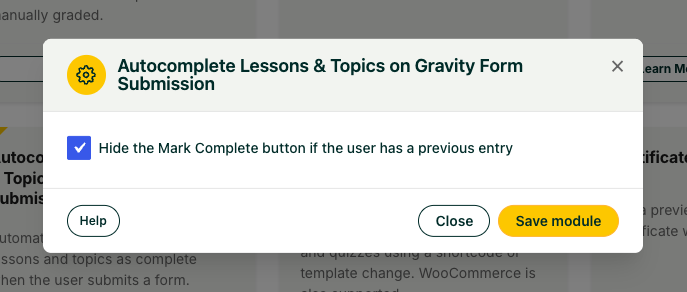
If the same form appears across multiple pages, lessons, or topics, use the Hide the Mark Complete button if the user has a previous entry setting:
- Keep it enabled when a single submission should count everywhere — the learner won’t be asked again once they’ve submitted.
- Disable it when learners should submit the form fresh in each course context — useful for surveys or feedback that need to be collected per lesson, even if an earlier entry exists.
Decide how learners advance after submitting
To advance learners to the next topic or lesson automatically after submission:
- Disable AJAX form submission (use ajax=false in the form shortcode).
- Remove any redirect settings from the form’s confirmation options.
| Attribute | Where it goes | Purpose |
|---|---|---|
| ajax=false | Gravity Form shortcode | Disables AJAX submission so the page reload can trigger auto-advance |
Note: If the form is on the final topic of a lesson, learners return to that lesson after submitting rather than advancing to the next lesson.
Usage
The learner fills in and submits the Gravity Form as usual. On submission, the lesson or topic is marked complete — there’s no separate Mark Complete step.
Important: This module works alongside the standard Autocomplete Lessons & Topics module, which marks content complete on page load. That can conflict with form-based steps that require input first. On pages where a form submission should drive completion, disable page-load autocompletion for that lesson or topic.
Can you have a single form used across multiple courses/lessons? I have a survey that my users need to complete at the end of every course they take. It’s the same survey for all of my courses but I need them to complete it each time. Or do I need to have a form for each course?
You can use the same form across multiple courses/lessons; however, once the user has submitted an entry, the form will no longer block the “Mark Complete” button from appearing for that user. This is to prevent the user from being required to fill out the same form twice to advance to the next topic/lesson. So if you want to prevent the user from completing the lesson until they’ve filled out the form in each course, you would need to create a separate form for each course.