
Overview
The Course Dashboard gives your learners one page where they can browse all of their courses, drill into lessons and topics, jump straight to any quiz, review past quiz results, and grab their certificates — without clicking into each course first. It’s ideal as the centerpiece of a “My Courses” or member dashboard page.
Drop the dashboard onto any page and it renders a collapsible list of courses. Each course expands to reveal its lessons, and each lesson expands to reveal its topics. Along the way it surfaces everything a learner needs to keep moving:
- Links to every quiz at the course, lesson, or topic level
- A list of results from all quiz attempts
- Links to course-level and quiz-level certificates
- A Resume button for each course
- The number of Continuing Education Credits (CEUs) earned or assigned per course (when the Uncanny Continuing Education Credits plugin is active)
The big payoff is direct access: a learner can open any lesson or topic from this single page instead of navigating into a course and drilling down manually.
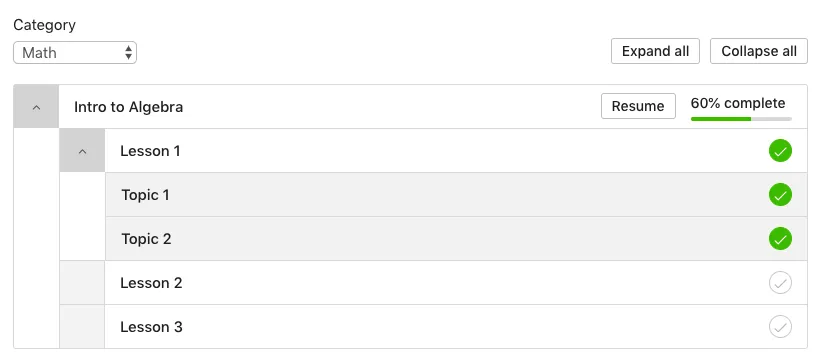
Choosing a theme
The dashboard ships with two themes. Pick based on your LearnDash version and any styling plugins you run:
- 3.0 theme (recommended) — A responsive design built for LearnDash 3.0 with several color customization options. Choose this if you’re on LearnDash 3.0, or if you run themes/plugins that override default LearnDash styles (for example, the Boss theme by BuddyBoss including Social Learner, or LearnDash Visual Customizer by SnapOrbital). It avoids CSS conflicts.
- Legacy theme — The original dashboard design, kept for backward compatibility. Choose this only if you specifically need to match an existing legacy layout.
Note: The theme switcher was added in version 3.2. If you’re on LearnDash 2.x with style-overriding themes or plugins, use the 3.0 theme to avoid CSS conflicts.
Setup
Add the dashboard to any page using either the Course Dashboard block or the [uo_dashboard sample=’sample’] shortcode. That alone renders the full collapsible list of courses, lessons, topics, quizzes, and earned certificates.
From there, the attributes let you shape the page around a few key decisions:
- Whose courses to show — Leave user_id unset to show the logged-in user’s courses, or pass a specific user’s ID to render someone else’s list.
- Which courses appear — Use show to control scope. Pick enrolled (default) for a personal “my courses” page; all to show every course in the system to both logged-in and logged-out visitors; open to behave like enrolled for members while showing only open courses to logged-out visitors; or free to limit to free courses. Use not_enrolled=”yes” instead when you want a “courses you haven’t started yet” list.
- How courses are sorted — Set orderby (title, date, or menu_order; defaults to post ID) together with order (asc or desc).
- Whether to filter by category — You can pre-filter with ld_category (LearnDash course category) or category (WordPress category), or give learners a dropdown with course_categoryselector or categoryselector.
- Whether to expand on load — Set expand_by_default=”yes” if you want every course opened to its lessons and topics when the page loads.
Important: You can’t combine the two category systems. Use either the LearnDash category attributes/selector or the WordPress category attributes/selector — not both at once. Empty categories are automatically hidden from the dropdowns.
Shortcode reference
[uo_dashboard sample=’sample’] — example: [uo_dashboard sample=’sample’ orderby=”title” order=”asc”]
| Attribute | What it does | Values | Default |
|---|---|---|---|
| user_id | Whose course list to show; pass a user ID to override the logged-in user | A registered user’s ID | Current logged-in user |
| show | Which courses display. enrolled: the user’s enrolled courses (nothing for logged-out visitors). all: every course, for everyone. open: like enrolled for members, only open courses for logged-out visitors. free: free courses only. | enrolled, all, free, open | enrolled |
| orderby | Sort field for courses | title, date, menu_order | Post ID |
| order | Sort direction (based on orderby) | asc, desc | asc |
| ld_category | Limit to a LearnDash course category (can’t combine with the dropdown) | all or a LearnDash category slug | all |
| expand_by_default | Expand all lessons and topics on load | yes, no | no |
| course_categoryselector | Show a dropdown to filter by LearnDash course category (empty categories hidden) | show, hide | hide |
| categoryselector | Show a dropdown to filter by WordPress category (empty categories hidden) | show, hide | hide |
| category | Limit to a WordPress category (can’t combine with the dropdown) | all or a WordPress category slug | all |
| not_enrolled | Show only courses the user is not enrolled in | yes, no | no |
Overriding the template
You can customize the dashboard markup in an upgrade-safe way. Copy:
wp-content/plugins/uncanny-toolkit-pro/src/templates/frontend-dashboard/dashboard-template.php
to:
wp-content/themes/yourtheme/uncanny-toolkit/frontend-dashboard/dashboard-template.php
and edit the copy in your theme.
Important: Never edit template files inside the Uncanny Toolkit Pro plugin directly — they’re overwritten on every upgrade and your changes will be lost. Always work from the theme override.
Hello! We recently purchased the pro took kit and are using the updated dashboard view. Is there an attribute to give the option to expand all by clicking on the course title like in the default ld_profile dashboard? I tried (expand_all=”yes”) and it did not work. I see the “expand all” on the right side of the dashboard, but would prefer users seeing it expanded already.
Hi Dan, I already replied to your email, but wanted to post the solution here for anyone else looking. You can drop this code into your page editor (in “Text” mode) just below the shortcode to expand the dashboard by default:
<script>(function($){$(document).ready(function(){flip_expand_all("#course_list");});})(jQuery);<script>Hello,
Is there an attribute for the course grid shortcode that allows a category filter? The LearnDash course grid has one using (course_categoryselector=”true”). I would like to use one with the enhanced course grid that Uncanny Owl has on the pro took kit.
Thanks,
Dan
Hi Dan, unfortunately there’s no category filter attribute; however, that would be a good feature and I’ve added it to our product backlog. In the meantime, if you’ve got a page builder with something like a tab or accordion element in it, we’ve seen some customers use the category attribute to add category-specific grid to each tab/accordion pane, and that lets users switch between categories.
I second the request for this feature.
I triple this request!
We are using the LearnDash Course Dashboard on our membership site, which uses Memberbium. We have a different member home page, than courses, as we have many compontents to our membership site.
How do you remove the automatic redirect that is set up on this page for when users sign in? It overrides Memberium’s user level home page settings.
Thanks!
Hi Michelle, this module doesn’t contain any redirect code, so there must be something else redirecting your users. You could verify this by temporarily deactivating the module or removing the shortcode from the page.
Hello! I’m using Loco translate and am looking for the strings to translate “registered” in the header of the table – and cannot find it. Can you give me a hint where to search? Thanks!
Check line 50 of /src/templates/dashboard-template.php. 🙂
Hello,
I dont know why but the shortcode ld_category is not working. When i make ld_category=”idnumber” or ldcategory=”nameofthecategory” it is not showing anything.
I have test every things possible… Any idea what should block course from showing ?
Assuming you’re using that as a shortcode attributes, and you’re using ld_category as the attribute and passing in the slug, not category name or ID, it should definitely work. A common problem too is using upper case “i” at the beginning instead of lower case “L” at the beginning of the attribute. We also often see LearnDash (“ld”) categories mixed up with WordPress categories, which aren’t interchangeable.
If you’re still having issues please log a ticket and include screenshots of the shortcode with the attribute and of the course category listing.
Hi,
I’m having an issue when trying to use the categoryselector drop down, I click on the category I want to filter by and it loads the page and stays the same. No filtering at all.
I have checked any everything is up to date.
Hi Gaje, can you please submit a support ticket so we can take a look at this issue for you? Thanks!
Hi, I have noticed that since one of the recent updates, you have added the available / earned “CEU” column to the dashboard. As this does not appear to be working consistently (it shows 0/2 CEUs) even thought the course was completed successfully, is there a way to turn this off? I didn’t see anything in the settings. Thanks!
Helma
There’s no way to disable this, but you can use some CSS: .ultp-dashboard-course__ceus {display:none;}. However, if you’re experiencing issues with the numbers, please submit a support ticket so we can take a look at the issue.
Hi, I am currently using the [uo_dashboard] to display profile and course info for my students. I am wondering if there is a way to design the layout of [uo_dashboard] (not just the color but the design of the bar and the toggle and stuffs). Where can I look to have those design? Many thanks.
You could override the template and modify the PHP and class output, but I’m afraid we don’t have any other designs built in.
Having said that, this plugin does allow you to override styles: https://escapecreative.com/products/design-upgrade-learndash/?ref=2. That might let you achieve what you want if you’re not a developer.