
Overview
Check how a LearnDash PDF certificate will actually look before any learner earns it. The Certificate Preview module adds a preview button right on the certificate editor, so you can confirm layout, fonts, and shortcode placement without having to complete a course or quiz yourself.
Designing a LearnDash certificate normally means saving your work, completing a course or quiz as a test learner, and then opening the generated PDF — a slow loop every time you tweak a margin or move a shortcode. Certificate Preview removes that round trip.
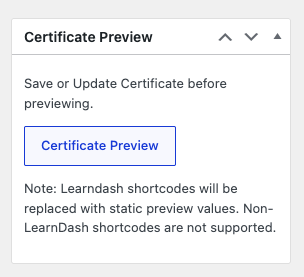
When the module is enabled, the Edit Certificate screen gains a metabox with a Certificate Preview button. Click it and a rendered PDF preview opens, using static sample values in place of the dynamic LearnDash shortcodes. This is ideal while you’re iterating on certificate design and want fast visual feedback.
Usage
- Open the certificate under LearnDash LMS > Certificates and edit it.
- Make your design changes.
- Save the certificate. Previews reflect only saved content.
- Click Certificate Preview in the metabox to open the rendered PDF.
How shortcodes are handled
The preview is a representation of the final certificate, not a live render of real learner data, so some shortcode behavior differs:
- LearnDash shortcodes such as quizinfo and courseinfo are replaced with static placeholder values so you can see roughly where and how they’ll appear.
- Non-LearnDash shortcodes may not render at all and are not supported in the preview.
Important: Save your changes before previewing — unsaved edits will not appear. If the preview returns a critical error, capture the message from your WordPress admin notification email or your server error logs and open a support ticket with that detail.
Hello, I seem to be getting an error every time I attempt to preview my certificate – can you please help?
Below is the error message I am receiving:
There has been a critical error on this website. Please check your site admin email inbox for instructions.
Learn more about debugging in WordPress.
You should definitely open a ticket for this, and please do include the contents of the error message in your ticket. (It will be in the email that’s referenced or in your web server error logs; look for a Fatal Error reference.)