
Overview
Release individual LearnDash topics to each group on its own schedule, so different cohorts can progress through the same course at their own pace. This is for sites that run the same course for multiple groups on different timelines.
LearnDash’s native drip dates apply the same schedule to everyone in a course. Drip Topics by Group lets you set topic drip dates per LearnDash Group, on specific calendar dates, so each group unlocks topics on dates that suit it.
This works the same way as Drip Lessons by Group, but at the topic level — useful when you need finer control than dripping whole lessons.
Configure It
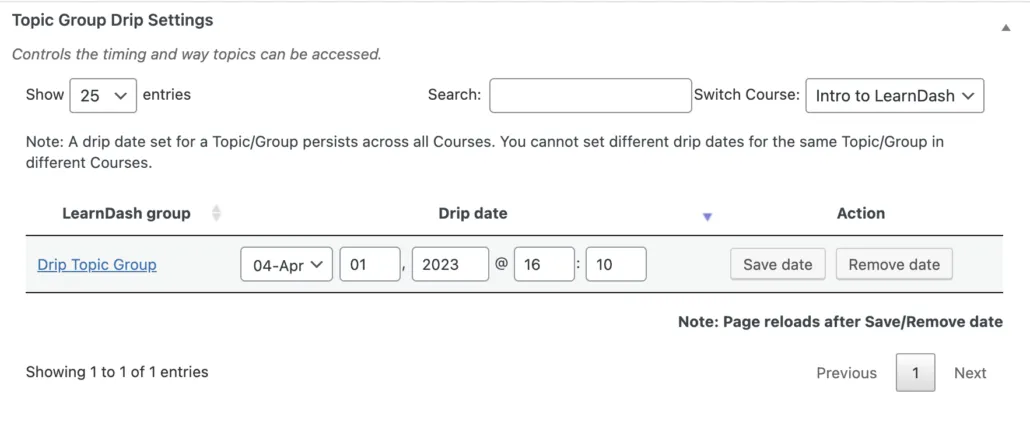
Group drip dates are managed on the topic itself, under Edit Topic > Settings in the WordPress admin. When the module is active, a Topic Group Drip Settings metabox lists every group that has access to the topic.
Where to find it (Toolkit Pro v4.4.1+): On the topic edit screen, the Topic Group Drip Settings are reached through a dedicated Uncanny Toolkit tab in the LearnDash settings header, just below the topic title. This tab was added in v4.4.1 so the settings stay easy to find under WordPress 7.0’s block editor, which otherwise collapses classic metaboxes out of view. The settings themselves are unchanged — only where you click to reach them.
- To schedule a topic for a group — enter a drip date for the group and click Save date. The topic becomes available to that group’s members on the date you set.
- To choose the right course first (shared topics) — if the topic appears in more than one course, pick the course from the Switch Course dropdown before the associated groups appear and before setting any dates.
- To schedule for students who are not in a group — use LearnDash’s standard Topic Access Settings metabox instead. The group drip settings only apply to group members.
Important: A drip date for a topic/group combination persists across all courses. If a group can access two courses that contain the same topic, you can only set one drip date for that topic.
Note: If a group has access to the topic but does not appear in the list, double-check that the correct course is selected in the Switch Course dropdown.
Usage
For end users, topics stay locked until the drip date set for their group arrives, at which point the topic unlocks automatically.
Removing a drip date
To remove a drip date for a group, click Remove date next to that group’s date.
Important: Drip Topics by Group does not currently support the LearnDash Notifications plugin. The notification trigger for this module is not registered (it is commented out in the code), so it cannot be selected in LearnDash Notifications. If you need “topic available” emails, that functionality is not available for this module. (Drip Lessons by Group does register its trigger and supports notifications.)