
Overview
If you installed Uncanny Groups on a site that already has LearnDash groups, you can convert those existing groups into fully managed Uncanny Groups — giving Group Leaders front-end access to enroll users, track progress, and manage seats.
Understanding Group Types
Uncanny Groups recognises two kinds of groups on your site:
| Type | How it was created | Front-end management |
|---|---|---|
| Basic group | Created via LearnDash LMS > Groups > New Group, or created before Uncanny Groups was installed | Not visible on the front end by default |
| Uncanny Group | Created via Uncanny Groups > Create Group, or upgraded from a basic LeaenDash group | Full front-end management for Group Leaders |
Basic groups are not visible on the front-end Group Management page unless you enable the Show “basic” (non-upgraded) groups in front end with access to reports only setting. When that setting is enabled, basic groups appear on the front end with access to reporting functions only — Group Leaders cannot add or remove members from them. Upgrading a basic group converts it to an Uncanny Group and makes it fully manageable.
Before You Start
- Uncanny Groups must be installed and activated.
- You need WordPress administrator access to run the bulk upgrade.
- We recommend reviewing your existing groups first so you understand which ones will be affected.
Bulk Upgrade All Basic Groups
When you first set up Uncanny Groups, the plugin’s settings page includes a one-time option to upgrade all basic groups at once. This is the fastest way to bring every pre-existing LearnDash group under Uncanny Groups management.
- Navigate to Uncanny Groups > Settings in your WordPress admin.
- Locate the Upgrade LearnDash Groups section.
- Click Start Process.
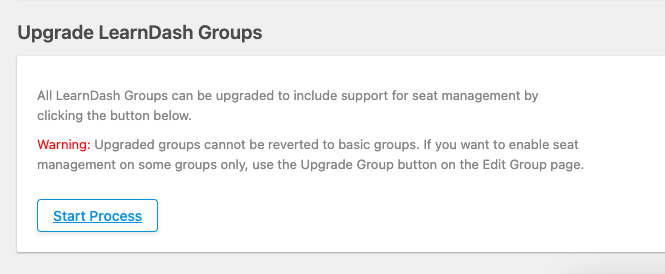
Warning: As noted in this section of the plugin, groups upgraded in bulk cannot be reverted to basic groups via a bulk option (each individual group needs to be downgraded independently). To enable seat management on only some groups, use the Upgrade Group button on each group’s Edit page instead.
Once the process runs, every LearnDash group that was created through the standard interface — including any groups created before Uncanny Groups was installed — becomes an Uncanny Group. Group Leaders for those groups will then be able to manage them from the front-end Group Management page.
How Seats Are Calculated on Upgrade
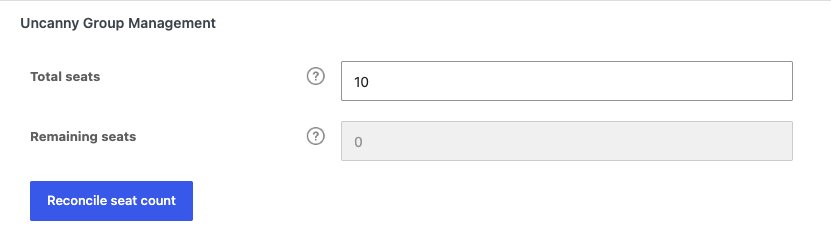
The upgrade automatically sets the seat count for each converted group. The calculation is:
Seats = number of existing group members + number of Group Leaders
Because all current members are set as enrolled users, the remaining seats after upgrade will be 0. If you need additional seats, you can edit the group after the upgrade to increase the total.
Upgrade an Individual Group
If you only want to convert a single group — for example, to test the process before running it in bulk — you can upgrade groups one at a time.
- In your WordPress admin, navigate to LearnDash LMS > Groups.
- Open the group you want to convert by clicking its title to go to the Edit page.
- Select the Uncanny Groups tab (Uncanny Groups 6.1.8+), then click Upgrade Group in the Uncanny Group Management box.
Tip: That same box notes that you can bulk-upgrade every group from the link to Uncanny Groups > Settings.

The group is immediately converted and will appear on the front-end Group Management page for its Group Leader.
Can you downgrade a group?
Any upgraded group can be downgraded. However, downgrading a group permanently deletes all enrollment keys (these are assigned to users to provide seat access).
When a WooCommerce-created group is downgraded, it returns to basic group status, no longer appears on the front-end Group Management page (unless Show “basic” (non-upgraded) groups in front end with access to reports only is enabled), and its Group Leaders lose front-end management access for that group.
What Happens to Basic Groups You Don’t Upgrade
Basic groups remain fully functional in the LearnDash admin. However, they are hidden from the front-end Group Management page unless you enable Show “basic” (non-upgraded) groups in front end with access to reports only in Uncanny Groups > Settings. Enabling that setting lets Group Leaders see their basic groups on the front end with access to reporting functions only — they cannot add or remove members from these groups without fully converting them to Uncanny Groups.
Related Articles
- Uncanny Groups for LearnDash – Plugin Overview — Start here if you’re new to Uncanny Groups.
- Install and Set Up Uncanny Groups — How to install the plugin and complete initial configuration.
- Set Up Group Management Pages — Create the front-end pages that Group Leaders use to manage their groups.
- Using the Group Management Page — A walkthrough of everything a Group Leader can do from the front end.
- Manage Groups as Administrator — How administrators create and configure Uncanny Groups from the WordPress admin.