
Uncanny Groups turns LearnDash’s basic group feature into a complete team-training and course-selling toolkit. It lets Group Leaders manage their own members from the front end — adding learners, sending invitations, and tracking progress — without ever logging into WordPress. You can use it to sell course access to organizations, train your own team, or run cohort programs.
This article helps you choose the right setup for your goal. If you’d rather just dive in, jump to the Getting Started walkthrough.
New to Groups? Start here
If this is your first time, the fastest way to understand Uncanny Groups is to build one working group end to end. Our Getting Started with Uncanny Groups guide walks you from install to enrolled learners and live reports in about 15 minutes.
When you’re ready to choose a long-term setup, use the decision guide below.
Choose how you’ll use Uncanny Groups
There are three ways to run Groups. You can use one, or combine several on the same site.
| Approach | Best for | What happens |
|---|---|---|
| Manual group management | Training your own team; running a course where you control enrollment | You create groups in the admin and assign Group Leaders. Leaders manage members from the front end. |
| Sell custom licenses | Letting buyers choose their own courses and seat counts | Visitors build their own license on a Buy Courses page and check out via WooCommerce, becoming Group Leaders automatically. |
| Sell pre-configured licenses | Offering fixed team packages (e.g. “50 seats – Compliance”) | You define the course bundle and seat count; buyers simply purchase it. |
Selling through WooCommerce? Disable guest checkout in WooCommerce so buyers have an account to manage their group from.
Manual group management — setup steps
- Install and set up Uncanny Groups.
- Create a group and enroll your course(s) — see Manage LearnDash Groups as a WordPress Administrator.
- (Upgrading old groups?) Upgrade existing LearnDash groups.
- Set up your Group Management pages.
- Assign Group Leaders and add users.
Sell custom licenses — setup steps
- Install and set up Uncanny Groups.
- Set up your LearnDash Group Course products.
- Enable users to build custom group licenses.
- Set up your Group Management pages.
- Place a Buy Courses page so visitors can purchase.
- (Optional) Configure bulk discounts.
- (Optional) Sell group access directly to learners.
Sell pre-configured licenses — setup steps
- Install and set up Uncanny Groups.
- Set up your LearnDash Group Course products.
- Create pre-configured group licenses.
- Set up your Group Management pages.
- Add the products to your store.
- (Optional) Configure bulk discounts.
- (Optional) Add seats and courses after purchase.
See Groups in action
Not sure which fits your business? These usage scenarios show what’s possible:
- Sell Online Courses to Businesses & Teams
- Onboard & Train Your Team with LearnDash Groups
- Run Cohort-Based Courses & Group Coaching Programs
How users manage their own groups
Once a group exists, Group Leaders take over the day-to-day work from the front end:
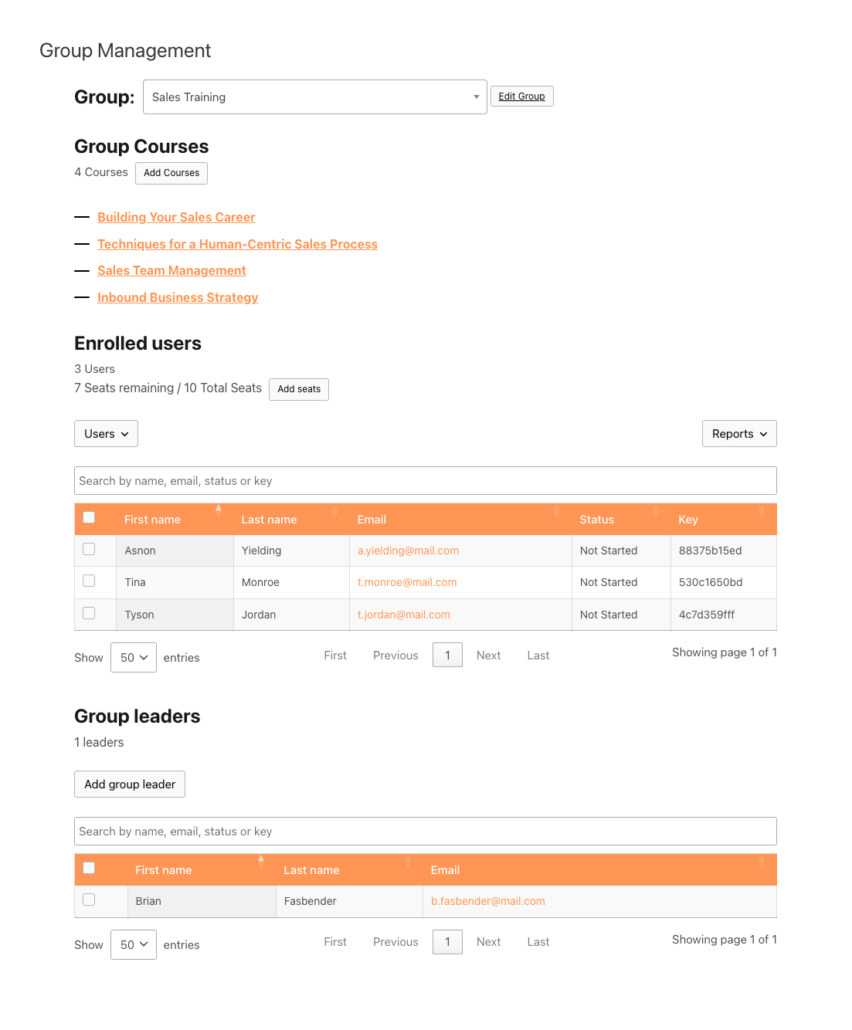
- Using the Group Management Page — add, invite, and remove members.
- Using the Group Reports — track course and quiz progress.