
Overview
Uncanny Groups for LearnDash is fully compatible with WPML. You can translate all plugin strings — labels, buttons, messages, and form text — using WPML’s built-in String Translation interface.
Prerequisites
Before translating, ensure the following plugins are installed and active:
- WPML Multilingual CMS
- WPML String Translation
You will also need at least one secondary language configured in WPML > Languages.
Setting up WPML Language URL Format
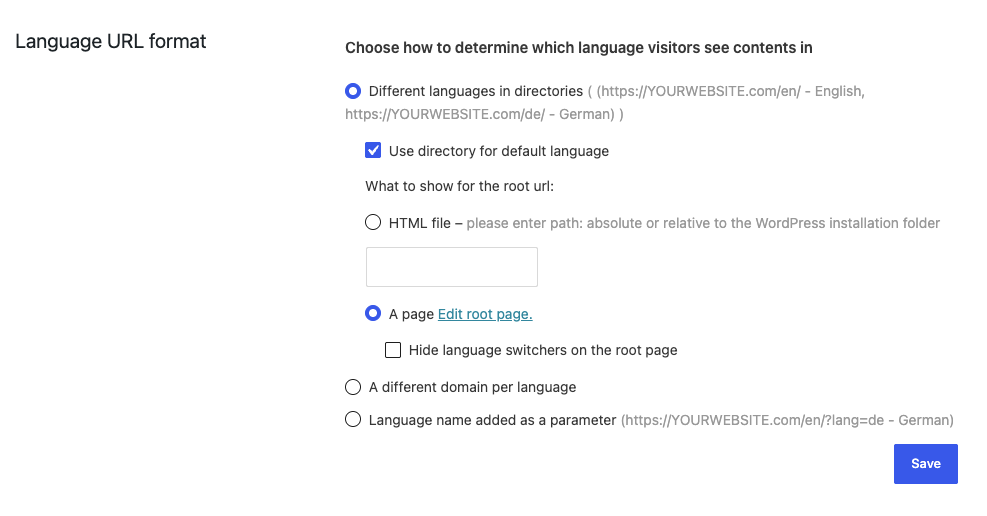
Uncanny Groups requires the WPML Language URL format to be set to Different languages in directories. With this option select for Language URL format, groups will be able to display language specific group user records in Group Management and Report pages.
After selecting the option Different languages in directories, check the option Use directory for default language and then check the option A page (see image below for reference).
Choosing a Translation Method
WPML offers two ways to translate plugin strings. You can use either method independently or combine them.
| Method | Best for |
|---|---|
| PO file export/import | Translating many strings at once, or collaborating with a translator outside WordPress |
| Manual string translation | Translating a small number of strings, or making quick edits to existing translations |
Method 1: PO File Export and Import
This method lets you export all translatable strings to a .po file, edit translations offline using a tool like Poedit, and then re-import the file into WPML.
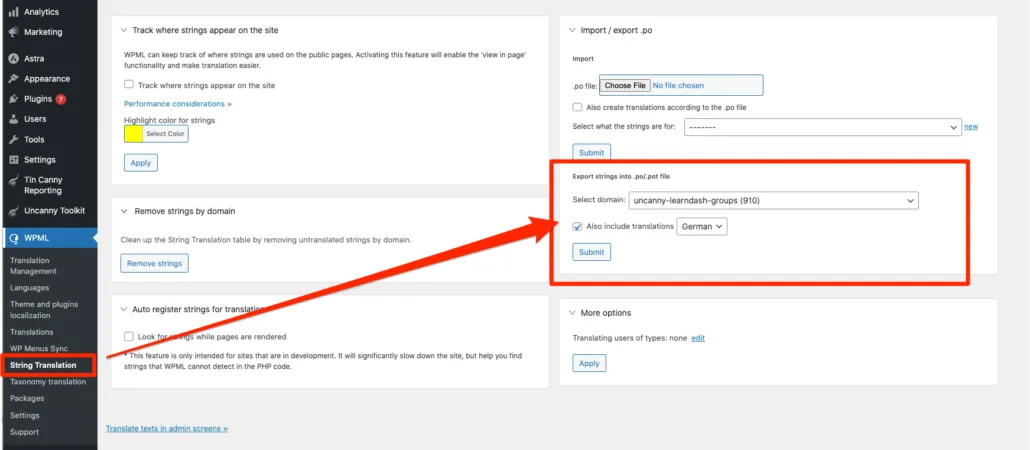
Export the PO file
- In the WordPress admin, go to WPML > String Translation.
- In the Domain dropdown, select uncanny-learndash-groups.
- Check Also include translations to include any strings already translated.
- Click Download to save the .po file to your computer.
Add translations offline
- Open the .po file in Poedit or another .po editor.
- Add or update translations for each string.
- Save the file.
Import the translated PO file
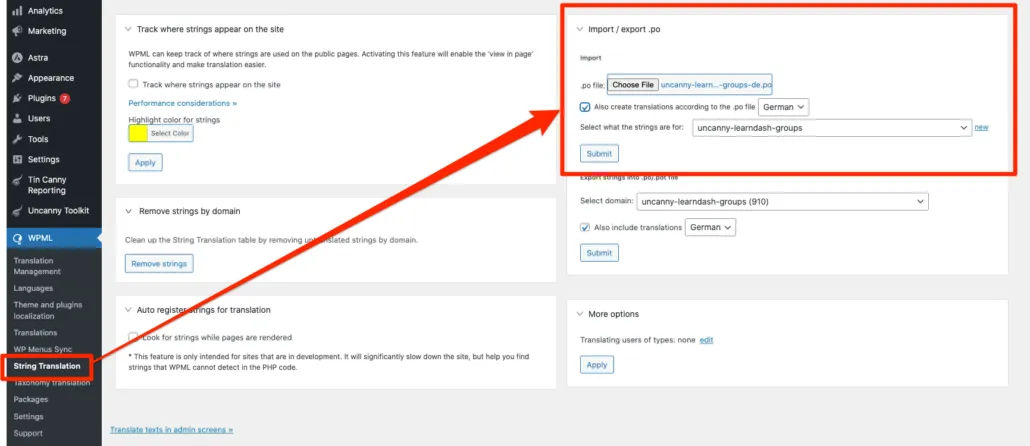
- Return to WPML > String Translation.
- Click Import and select your edited .po file.
- When prompted, select Also create translations according to the .po file to apply all translated strings automatically.
- Click Import. A review page will appear.
- Review the strings to be added and click Add selected strings to finalize the import.
Method 2: Manual String Translation
This method lets you translate individual strings directly inside the WordPress admin without any file downloads.
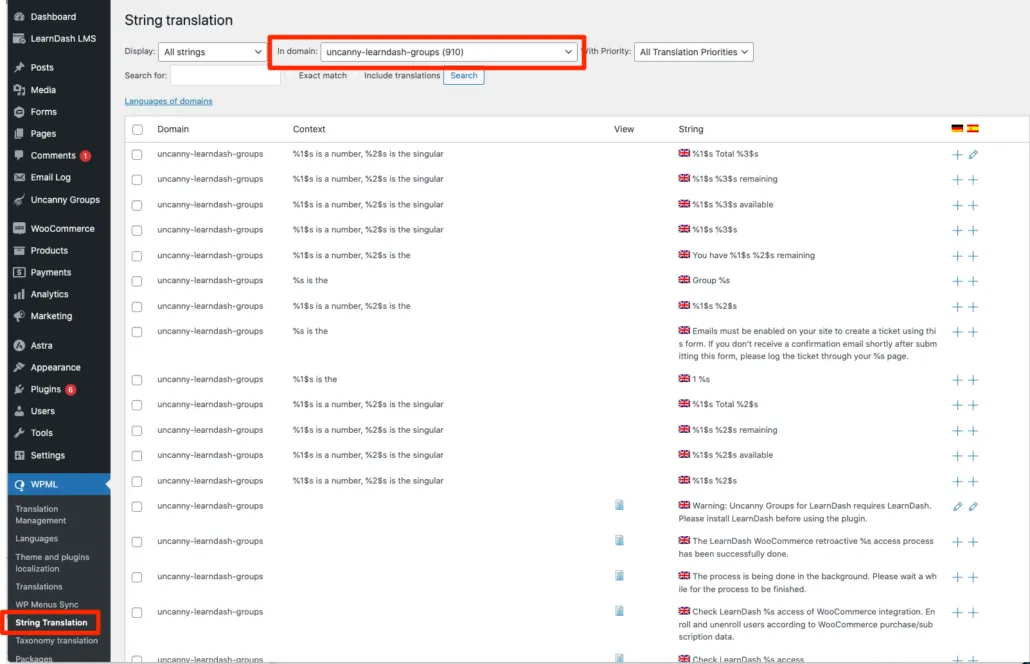
- In the WordPress admin, go to WPML > String Translation.
- In the Domain dropdown, select uncanny-learndash-groups.
- Browse the list of strings or use the search field to find the string you want to translate.
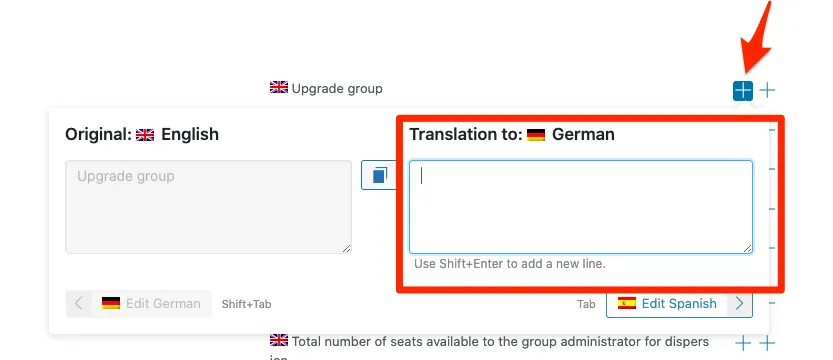
- Click the + (plus) icon next to a string to open the translation field.
- Enter your translation and click Save.
Repeat process for each string you want to translate.
Combining Both Methods
We recommend using the PO file method for your initial translation, then using manual string translation for minor corrections or additions. After a successful PO file import, all imported strings remain individually editable in the String Translation interface — there is no need to re-upload the entire file for small updates.