
Overview
Installing WooCommerce alongside Uncanny Groups for LearnDash unlocks two new product types that power your group-selling workflow. Setting these up correctly is the foundation for everything from simple corporate seat sales to fully self-serve group licensing.
How the Two Product Types Work Together
When WooCommerce is active, Uncanny Groups for LearnDash adds two product types to WooCommerce:
| Product Type | Role | Sold to customers? |
|---|---|---|
| LearnDash Group Course | Represents an individual course that can be bundled into a group license | Rarely — usually only as a standalone fallback |
| LearnDash Group License | The purchasable product that creates a group and grants course access to its members | Yes — this is what Group Leaders and learners buy |
LearnDash Group Course products are the building blocks. Each one maps to a single LearnDash course. On their own they behave like a standard LearnDash–WooCommerce product (purchase = course enrollment), but their real purpose is to be bundled into a LearnDash Group License product so that a single purchase grants group access to one or more courses.
Prerequisites
- WooCommerce installed and active
- LearnDash LMS installed and active
- Uncanny Groups for LearnDash installed and active
- At least one published LearnDash course to associate with the product
Create a LearnDash Group Course Product
You need one LearnDash Group Course product for each course you want to include in group licenses. Create as many as you need — one per course.
- In your WordPress admin, navigate to Products > Add New.
- Enter a Product Name (e.g., “Introduction to Safety Procedures”).
- Optionally add a product description and featured image.
- In the Product Data panel, open the product type dropdown and select LearnDash Group Course.
- In the General tab, set the Regular Price (and optionally a Sale Price). This price is used as the per-seat license for this course when customers purchase a group license through the Buy Courses page..
- In the Courses tab, select the LearnDash course this product represents.
- Click Publish.
- Repeat for each additional course you want to make available in group licenses.
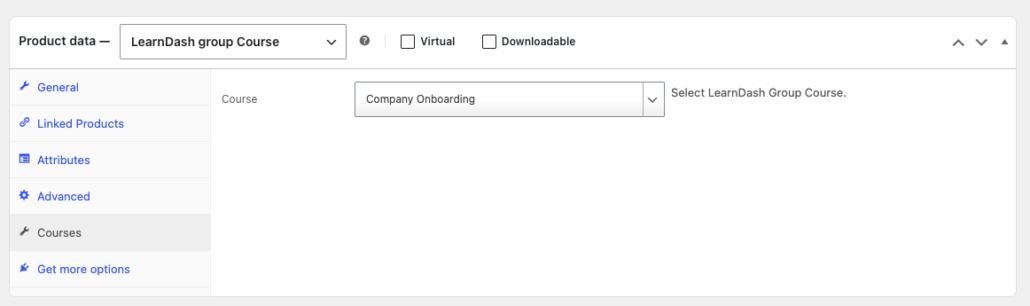
Note: The price you set here appears to Group Leaders when they use the Add Courses feature on the Group Management page. We recommend keeping it consistent with how the course is priced in your Group License products.
What Happens After You Create Group Course Products
Once published, your LearnDash Group Course products become available in two places:
- Backend (admin): When you create a LearnDash Group License product, you can bundle any number of Group Course products into it. The license product is what customers purchase.
- Frontend (Group Leaders): Group Leaders who created their group through a Custom Group License can visit their Group Management page and use the Add Courses button to purchase additional courses for their group. Only Group Course products appear in that list.
Important: Do not delete or trash a Group Course product that is referenced by an active Group License product or an existing group. Doing so can cause errors when Group Leaders try to manage their groups. If you need to retire a course product, unpublish it rather than deleting it.
Product Settings Reference
| Setting | Location | Description |
|---|---|---|
| Product Name | Title field | Displayed to Group Leaders on the Add Courses page |
| Regular Price | General tab | Per-course price charged when adding courses to an existing group |
| Sale Price | General tab | Optional discounted price |
| Course | Courses tab | The LearnDash course this product grants access to |
Related Articles
- Install and Set Up Uncanny Groups for LearnDash — install the plugin and activate your license
- Enable Custom Group Licenses — set up the Group License product type and the Buy Courses page
- Create Pre-configured Licenses — bundle Group Course products into a Group License for sale
- Add Seats and Courses after Group Purchase — how Group Leaders use the Add Courses feature
- Configure Bulk Discounts — apply volume pricing to course and seat purchases