
Overview
Pooled Seats lets a parent group and all of its child groups share a single seat count, so you can allocate capacity flexibly across an organisation rather than locking a fixed number of seats into each group.
What Is a Pooled Seat?
Normally each LearnDash group has its own seat limit — a child group’s seats are entirely separate from its parent group’s seats.
With Pooled Seats enabled, the seat counts for a parent group and all of its child groups are combined into one shared pool. Any child group can draw from that pool when enrolling users. When a seat is used in any group in the hierarchy, the available total decreases for all groups in that hierarchy.
Example: A parent group has 100 seats and one child group has 50 seats. With pooling enabled, the combined pool is 150 seats. If 30 users enrol through the child group, 120 seats remain available across the entire hierarchy.
Prerequisites
- Uncanny Groups for LearnDash v5.0 or later
- LearnDash Group Hierarchies enabled (see below)
- At least one parent group with one or more child groups configured
Enable LearnDash Group Hierarchies
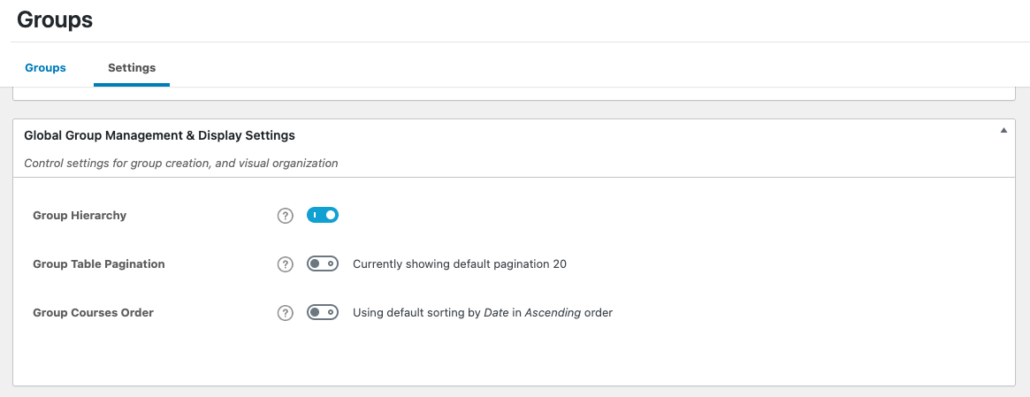
Pooled Seats requires group hierarchies to be active. To enable them:
- Go to LearnDash LMS > Groups > Settings (tab).
- Enable LearnDash Group Hierarchies.
- Click Save Settings.
Important: Only administrators can create group hierarchies. Group Leaders cannot link groups into parent-child relationships unless the front end “Edit Group” option is enabled. See New Edit Group Wizard for more info.
Configuring Pooled Seats
There are two ways to enable Pooled Seats, depending on how much control you want to give Group Leaders.
Option 1: Let Group Leaders Manage Pooled Seats per Hierarchy
Use this approach when you want Group Leaders to decide whether pooling is active for their own hierarchy.
- Go to Uncanny Groups > Settings.
- In the Pooled Seats section, enable Allow Group Leaders to enable seat pooling from the Group Management page.
- Click Save Settings.
Once enabled, Group Leaders will see a Pooled Seats toggle on the Group Management page for any hierarchy they manage. They can turn pooling on or off independently for each hierarchy.

Option 2: Enable Pooled Seats Globally for All Hierarchies
Use this approach when you want pooling active across every hierarchy on your site without requiring Group Leaders to configure it.
- Go to Uncanny Groups > Settings.
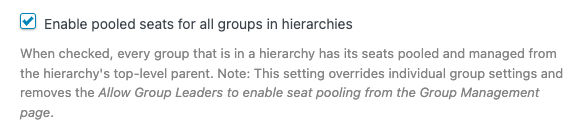
- In the Pooled Seats section, enable Enable pooled seats for all groups in hierarchies.
- Click Save Settings.
When this option is active, Group Leaders do not see a toggle on the Group Management page — pooling is always on for every hierarchy.
How Seat Counts Are Displayed
When Pooled Seats is active for a hierarchy, the seat count shown on the Group Management page reflects the combined pool across the parent and all child groups — not just the seats for the individual group being viewed.
Group Leaders can see at a glance how many seats remain across the entire hierarchy.
Important Limitations
- Hierarchies are admin-only. Group Leaders can use an existing hierarchy but cannot create one. An administrator must set up the parent-child group structure.
- Pooling is per-hierarchy. If you have multiple independent hierarchies, each one has its own pool — seats do not flow between unrelated hierarchies.
- Enrollment keys and child groups. When a user redeems an enrollment key for a child group, they are enrolled in that child group (not the parent). This behaviour was corrected in v6.1.2/6.1.3 — if you were seeing users land in the wrong group after key redemption, updating to the current version resolves this.