
Overview
Uncanny Groups for LearnDash automatically creates front-end report pages that Group Leaders can use to track learner progress — no WordPress admin access required. This article covers the Course Report, Quiz Report, and the individual progress view accessible from the Group Management page.
When the plugin is activated, it creates two report pages:
- Course Report — the Course Report block, or the
[uo_groups_course_report]shortcode - Quiz Report — the Quiz Report block, or the
[uo_groups_quiz_report]shortcode
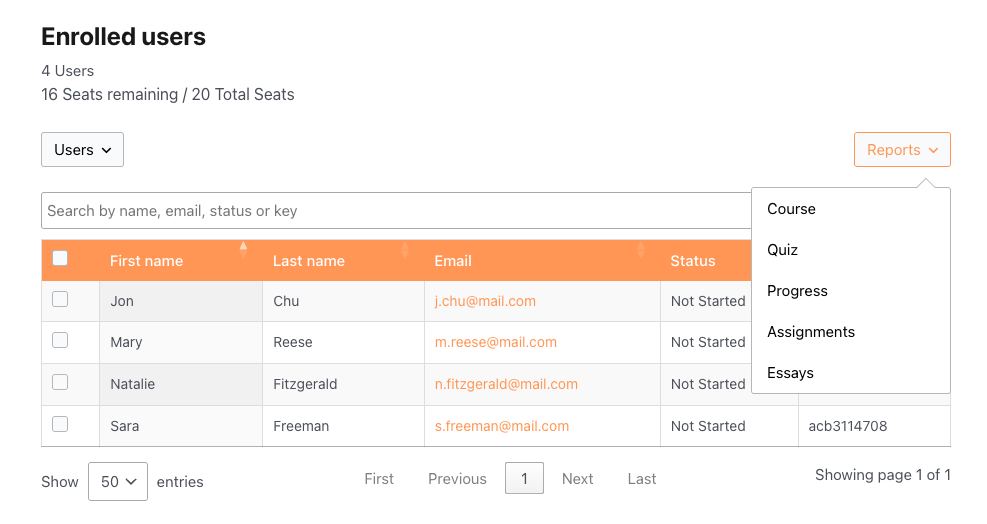
Group Leaders access these pages via the Reports menu on the Group Management page, or you can add them directly to your site navigation. Administrators can also access both pages.
Before you start: The report pages are created automatically on activation. If you need to recreate or reconfigure them, see Set Up Group Management Pages.
Course Report
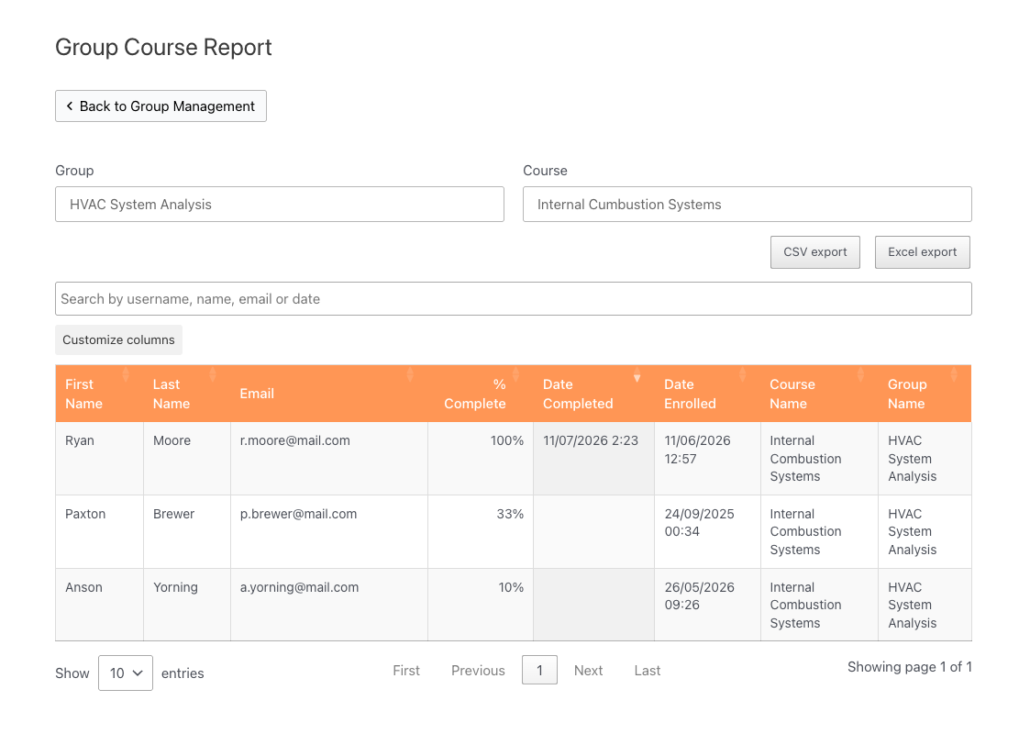
The Course Report gives Group Leaders a completion overview for any group-and-course combination they manage.
Using the Course Report
- Navigate to the Course Report page directly or via the Group Management page by clicking Reports > Course.
- Use the Group dropdown to select the group you want to report on.
- Use the Course dropdown to select the course.
- The report table loads automatically. The default columns include:
| Column | Description |
|---|---|
| User | Learner’s display name |
| Learner’s email address | |
| Completion % | Percentage of course content completed |
| Completion Date | Date the learner completed the course (blank if not yet complete) |
Exporting the Course Report
If export buttons are enabled via shortcode attributes (see Shortcode reference below), Group Leaders can download the report as a CSV or Excel file.
Transcript integration
If you are using the Uncanny Toolkit Pro transcript feature, you can link to a transcript page from within the Course Report. Add the transcript-page-id attribute to the [uo_groups_course_report] shortcode with the ID of your transcript page. A Transcript column will appear in the report table, allowing Group Leaders to view a learner’s full course transcript.
Customizing report columns (developers)
Developers can add, remove, or reorder Course Report columns using the ulgm_group_course_report_columns filter, introduced in Uncanny Groups v6.1.4. This allows teams with custom reporting requirements to tailor the table without modifying plugin files. See Actions/Filters for Developers for implementation details.
Course Report shortcode reference
Add the Course Report block, or place the [uo_groups_course_report] shortcode, on any WordPress page to create a Course Report page:
[uo_groups_course_report]| Setting / Attribute | Values | Default | Description |
|---|---|---|---|
course-order | “ID“, “title“, “date“, “menu_order“ | (empty) | Sort order for the Course dropdown |
columns | comma-separated column keys | user_name, first_name, last_name, user_email, percent_completed, date_completed, date_enrolled, course_name, group_name, transcript_page_url, course_time | Which columns appear in the report table |
orderby_column | column name | Date Completed | Column used to sort the report table |
order_column | “asc” / “desc“ | “desc” | Sort direction for the report table |
csv_export_button | “show” / “hide“ | “show” | Show or hide the CSV export button |
excel_export_button | “show” / “hide“ | “show” | Show or hide the Excel export button |
transcript-page-id | page ID | 0 | Enables the Transcript column when set to a valid transcript page ID |
Quiz Report
The Quiz Report lets Group Leaders drill into quiz results for any combination of group, course, and quiz — including individual question-by-question breakdowns.
Using the Quiz Report
- Navigate to the Quiz Report page directly or via the Group Management page by clicking Reports > Quiz.
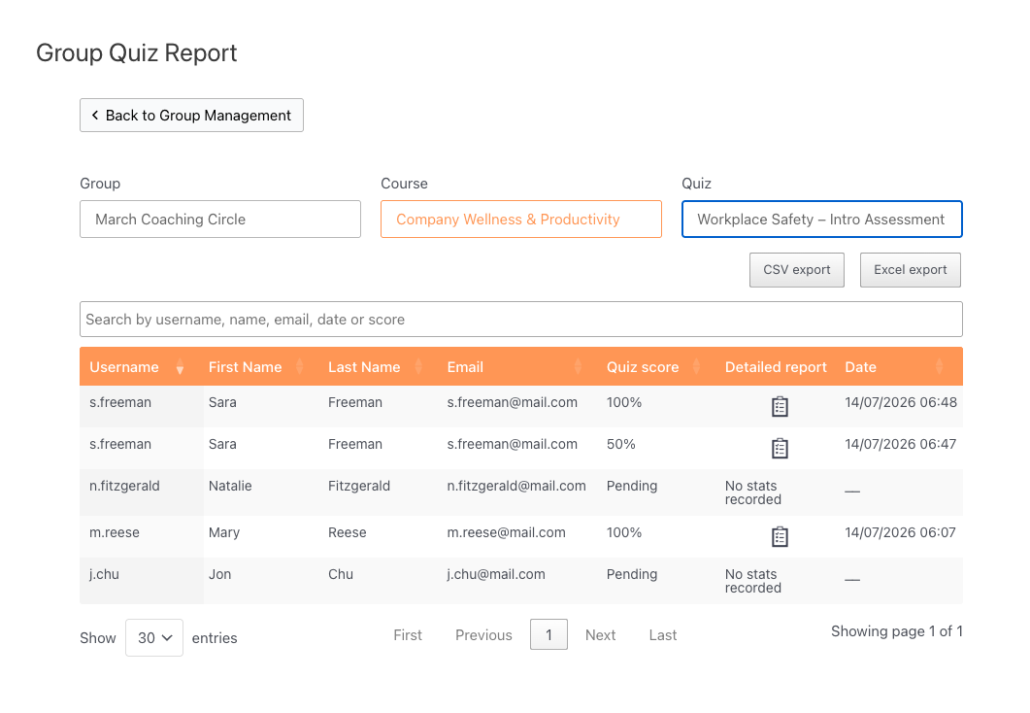
- Select a Group from the first dropdown.
- Select a Course from the second dropdown. The quiz list updates to show all quizzes within that course, including course-level quizzes.
- Select a Quiz from the third dropdown.
- The results table loads, showing every enrolled user’s score for that quiz.
Note: As of v6.1.5, the quiz dropdown correctly includes course-level quizzes alongside lesson and topic quizzes.
Detailed per-attempt report
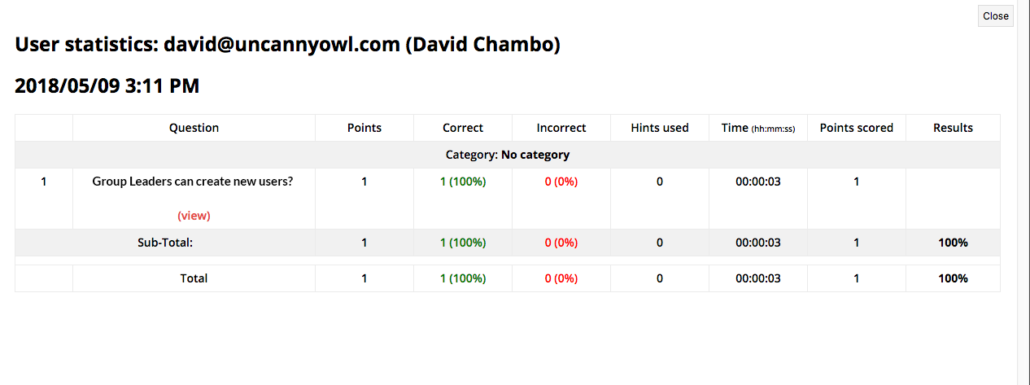
If LearnDash quiz statistics are enabled for a quiz, a detail icon appears next to each user’s result. Clicking it opens a per-attempt breakdown showing:
- Each question in the quiz
- The answer the learner selected
- Whether the answer was correct
This view is read-only — it cannot be used to change quiz scores.
Exporting the Quiz Report
If export buttons are enabled via shortcode attributes, Group Leaders can download results as a CSV or Excel file.
Quiz Report shortcode reference
Place the Quiz Report block or the following shortcode on any WordPress page to create a Quiz Report page:
[uo_groups_quiz_report]| Setting / Attribute | Values | Default | Description |
|---|---|---|---|
course-orderby | “ID“, “title“, “date“, “menu_order“ | “title“ | Sort field for the Course dropdown |
course-order | “ASC” / “DESC“ | “ASC“ | Sort direction for the Course dropdown |
quiz-orderby | “ID“, “title“, “date“, “menu_order“ | “title“ | Sort field for the Quiz dropdown |
quiz-order | “ASC” / “DESC“ | “ASC“ | Sort direction for the Quiz dropdown |
columns | comma-separated column keys | user_name, first_name, last_name, user_email, quiz_score, quiz_modal, quiz_date | Which columns appear in the report table |
score-type | “percent” / “points“ | “percent“ | Whether quiz scores display as a percentage or points |
orderby_column | column name | Date | Column used to sort the report table |
order_column | “asc” / “desc“ | “desc“ | Sort direction for the report table |
csv_export_button | “show” / “hide“ | “show“ | Show or hide the CSV export button |
excel_export_button | “show” / “hide“ | “show“ | Show or hide the Excel export button |
Individual progress view
For a quick look at a single learner’s progress across all their enrolled courses, Group Leaders can use the individual progress view without leaving the Group Management page:
- Go to the Group Management page.
- Find the user in the Enrolled Users table.
- Click the In Progress status link next to their name.
A panel opens showing that learner’s progress across every course they are enrolled in through the group. This view is read-only — to mark items complete or incomplete, use the Manage Learner Progress page instead.
Related Articles
- Using the Group Management Page — The main front-end hub for Group Leaders
- Manage Learner Progress — View and edit individual learner progress from the front end
- Set Up Group Management Pages — Configure and customize the report pages
- Actions/Filters for Developers — Hooks available for customizing Group Leader reports
- Front End Essay Question Management — Review and grade essay submissions from the front end