
Overview
Group Leaders can download, review, and grade LearnDash file assignments directly on the front end — no WordPress admin access required. This makes it practical to delegate assignment review to instructors or managers without granting them backend access.
Prerequisites
- Uncanny Groups for LearnDash
- LearnDash configured with at least one assignment-enabled lesson
- A WordPress page where you can place the block or shortcode
- We recommend a full-width page layout — the assignment table is wide and sidebars will crowd the interface
Adding the Assignment Management Page
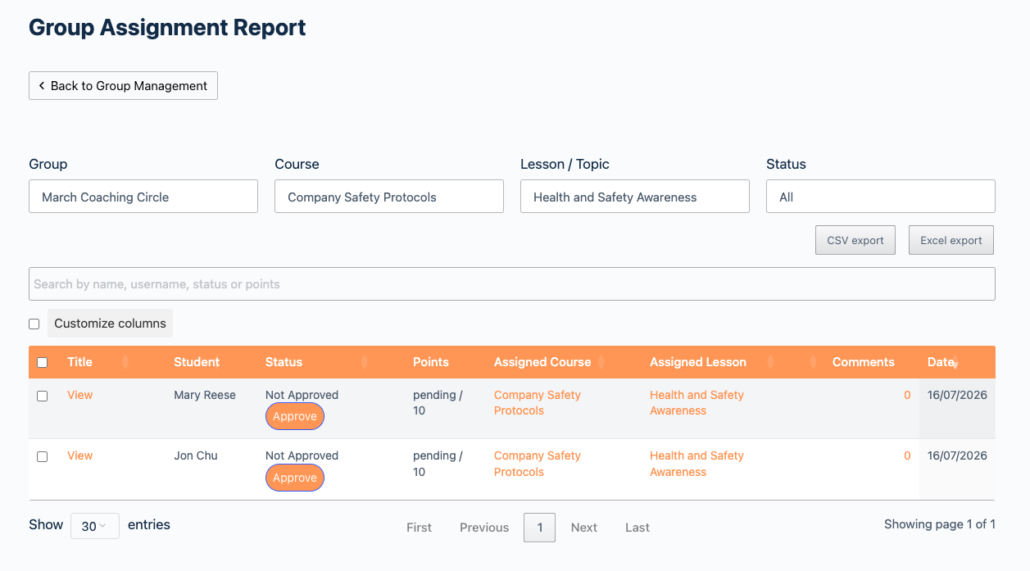
Add the Assignment Report block to any WordPress page (search Uncanny Groups in the block inserter), or place the [uo_groups_assignments] shortcode there. Group Leaders assigned to your site will see a dashboard showing submissions from learners in their groups.
[uo_groups_assignments]Block Settings / Shortcode Attributes
Both attributes are optional. When omitted, the defaults shown apply.
| Setting / Attribute | Description | Accepted Values | Default |
|---|---|---|---|
status | Which assignments load by default | all, graded, ungraded | ungraded |
columns | Columns visible on first load | Title, Student, Status, Points, Assigned Course, Assigned Lesson, Comments, Date (comma-separated) | All columns |
Example — show only core columns and default to ungraded:
[uo_groups_assignments status="ungraded" columns="Title, Student, Status, Points, Assigned Course, Date"]Hidden columns remain accessible — Group Leaders can toggle them using the column visibility controls in the table header at any time.
What Group Leaders Can Do
Once on the assignment management page, Group Leaders can:
- Filter assignments by group, course, lesson, and status
- Search across any visible column
- Sort by any column (click the column header)
- Toggle column visibility and reorder columns via drag-and-drop
- Resize columns to fit their screen
- Hover over an assignment title to reveal download and delete options
- Select checkboxes to perform bulk actions across multiple submissions
- Click an assignment title to open the grading panel, assign a point value, and approve the submission
Group Leaders only see submissions from learners in their assigned groups. Submissions from other groups are not visible.
Exporting Submissions
Add the excel_export_button and/or csv_export_button attributes (or enable the block settings) to display export controls above the table:
[uo_groups_assignments excel_export_button="show" csv_export_button="show"]Exports reflect the current filter state — if a Group Leader has filtered to a specific course or status, only matching records are included in the export.
Related Articles
- Uncanny Groups for LearnDash — Plugin Overview — start here if you’re new to the plugin
- Using the Group Management Page — how Group Leaders manage learners and groups
- Front End Essay Question Management — similar front-end interface for essay questions
- Group Leader Reports — progress and completion reporting for Group Leaders
- Shortcode Quick Reference — all Uncanny Groups shortcodes in one place
Is there any way using this plugin that group leaders can access the awarded certificate to a user other than be emailed a copy on completion? It would be good if they could also access this from the dashboard for compliance type courses.
Hi Ben,
Of course, that’s why we introduced https://www.uncannyowl.com/knowledge-base/manage-learner-progress/. As long as you have that set up on your site, Group Leaders can access all certificates earned by each student (within the context of the course, we don’t have a way Group Leaders can just see all certificates independently in a flat list).
Hi Ryan – all of our assignments are photos, which we’d like to be able to review without having to download each one individually. Is it possible to show the assignment as an image box on the assignment management page?
Right now it is not possible. We maybe consider it for a future release though.
Some of my Group Leaders are having trouble downloading assignments. Can someone help me troubleshoot this?
You should definitely file a support ticket in this situation (from inside your account or via email at [email protected]). When you do, let us know what exactly Group Leaders are seeing, whether you’re offloading files (e.g. to S3), and maybe if the users with issues have multiple roles. Thanks
Hi Ryan, Is it possible to comment on assignments using the plugin? I can’t see how to do that at the moment, so assume it is not possible?
Sorry, I know it’s not clear enough from the screenshots, but the value you see in the comments field is hyperlinked to the comments, which open in a new tab.