
Overview
Instead of selling entire groups to customers, you sell membership to a specific LearnDash group — automatically adding each purchaser to the group and granting them course access the moment their order completes.
How It Works
When you associate a WooCommerce product with a LearnDash Group, every customer who completes a purchase of that product is automatically enrolled as a member of the mapped group. They gain access to all courses assigned to that group, without any manual admin action.
This feature is distinct from the Group Leader purchasing workflow, where an organization creates and manages a group of learners. Here, each buyer simply joins a group as a learner.
Prerequisites
- WooCommerce installed and active
- Uncanny Groups for LearnDash installed and active
- At least one published LearnDash Group to associate with a product
Enable Product–Group Associations
Before you can link products to groups, you must turn on the feature:
- Navigate to Uncanny Groups > Settings.
- Enable Enable association of products and groups.
- Click Save Changes.
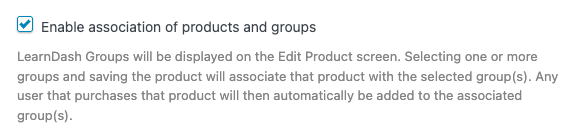
Once enabled, a Related Groups field appears on the General tab of supported WooCommerce product types.
Supported Product Types
Three WooCommerce product types support group associations:
| Product Type | Best for | Notes |
|---|---|---|
| Group | Products whose sole purpose is granting group access | Added by Uncanny Groups when the association feature is enabled; keeps the product simple and purpose-built |
| Simple Product | Complex purchase rules | Use when the product also grants independent course access, has physical components, or needs custom purchase logic |
| Simple Subscription | Recurring group access | Requires WooCommerce Subscriptions; group membership is revoked when the subscription lapses or is cancelled |
For most straightforward group-access sales, Group is the right product type — it is the cleanest option and signals intent clearly to both admins and customers.
Map a Group to a Product
- Create a new product (or edit an existing one) and set its product type to one of the supported types above.
- Open the General tab in the Product Data panel.
- In the Related Groups field, search for and select the LearnDash Group you want buyers to join.
- Set your price, configure any other product settings, and click Publish (or Update).
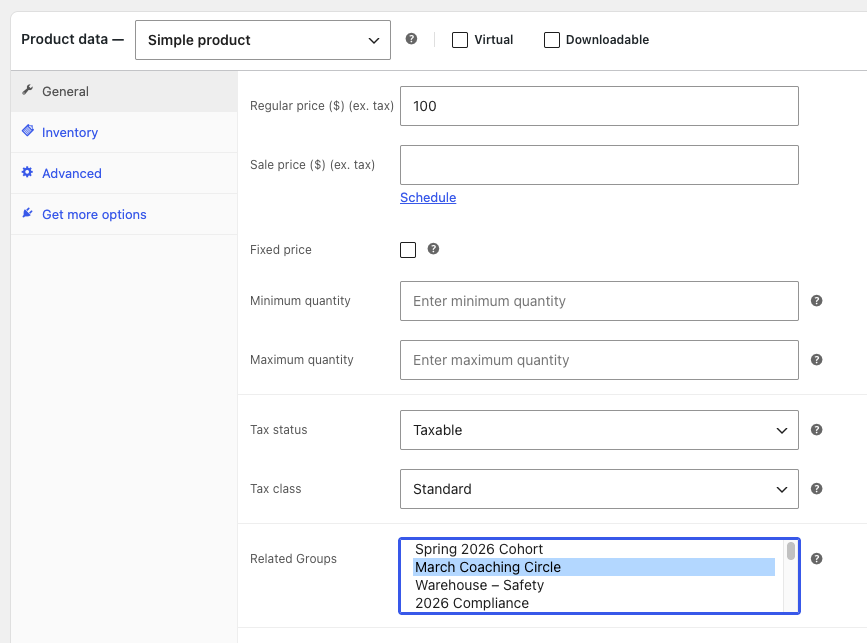
You can map a single product to multiple groups if a purchase should enroll the buyer in more than one group simultaneously.
Important Notes
Order status must reach Completed. Group enrollment is triggered when a WooCommerce order reaches Completed status. If your payment gateway leaves orders in Processing by default, we recommend enabling automatic order completion for virtual/downloadable products in WooCommerce > Settings > Products — otherwise learners will not receive access until you manually complete the order.
Purchases do not change user roles. Buyers are added to the group as members with the standard Customer role. They are not made Group Leaders and cannot manage the group.
Subscription expiry removes access. For Simple Subscription products, group membership is automatically revoked when the subscription is cancelled, expires, or lapses. No manual action is required.
Do not delete products or orders tied to active groups. If you delete a WooCommerce product or order associated with an active group, users may encounter errors and the group may lose its associated data. Unpublish products rather than deleting them, and archive orders rather than trashing them.
Related Articles
- Uncanny Groups Plugin Overview — understand how groups, leaders, and members fit together
- Install and Set Up Uncanny Groups for LearnDash — install the plugin and activate your license
- Enable Custom Group Licenses — sell group licenses to organizations instead of individual learners
- Add Seats after Subscription Purchase — manage seat counts for subscription-based groups
- Using the Group Management Page — what Group Leaders can do once a group is created
in my store users are forced to buy one classroom at a time. Each class has 40 students in it. But schools typically are forced to buy several times in order to reach the number of classes they have. Is there a way to be able to purchase several classrooms on a single bill and create a different subscription for each?
Hi Darrin,
Thanks for the feature request. We do plan to do something here, hopefully by later this summer, but at this time we don’t have a firm ETA.