
Overview
Uncanny Groups supports several ways to enroll learners into groups — from manually distributed enrollment keys to self-service registration forms and third-party form integrations. This article covers the available enrollment methods and how to configure each one.
How Enrollment Keys Work
Each group can have a pool of enrollment keys. Group Leaders distribute these keys to invited learners, who redeem them to join the group and access the associated courses.
Key lifecycle:
- Available — the key has not yet been redeemed
- Used — a learner has redeemed the key and is enrolled in the group
Keys are tied to the group they were generated for. If a child group has its own keys, redeeming one of those keys places the learner in the child group (not the parent group). This behaviour was corrected in Uncanny Groups v6.1.2 and v6.1.3.
For details on generating and managing keys, see Using the Group Management Page.
Registration Page
A registration page lets new users create an account and redeem an enrollment key in a single step. This page is optional — it’s only needed when you’re distributing keys to users who don’t yet have a WordPress account.
Because email templates do not include a registration page variable, we recommend adding the page URL manually to your email templates or linking to it from the site menu.
See Configure Group Emails for guidance on editing email templates.
Built-In Registration Form
The plugin includes a lightweight registration form by adding the Enrollment Key Registration block or shortcode for new user sign-up and key redemption:
[uo_groups_registration_form]Add the Enrollment Key Registration block, or place the [uo_groups_registration_form] shortcode, on any WordPress page to create the registration page.
Registration Form Settings / Attributes
| Setting / Attribute | Description | Accepted Values | Default |
|---|---|---|---|
redirect | Page to redirect the user to after successful registration | Relative or absolute URL | None (user stays on the same page) |
code_optional | Whether the enrollment key field is required | yes, no | no |
auto_login | Whether the user is automatically logged in after registering | yes, no | yes |
role | WordPress role assigned to newly registered users | Any valid WordPress role slug (e.g., subscriber, group_leader) | subscriber |
Example:
[uo_groups_registration_form redirect="/dashboard" auto_login="yes" code_optional="no"]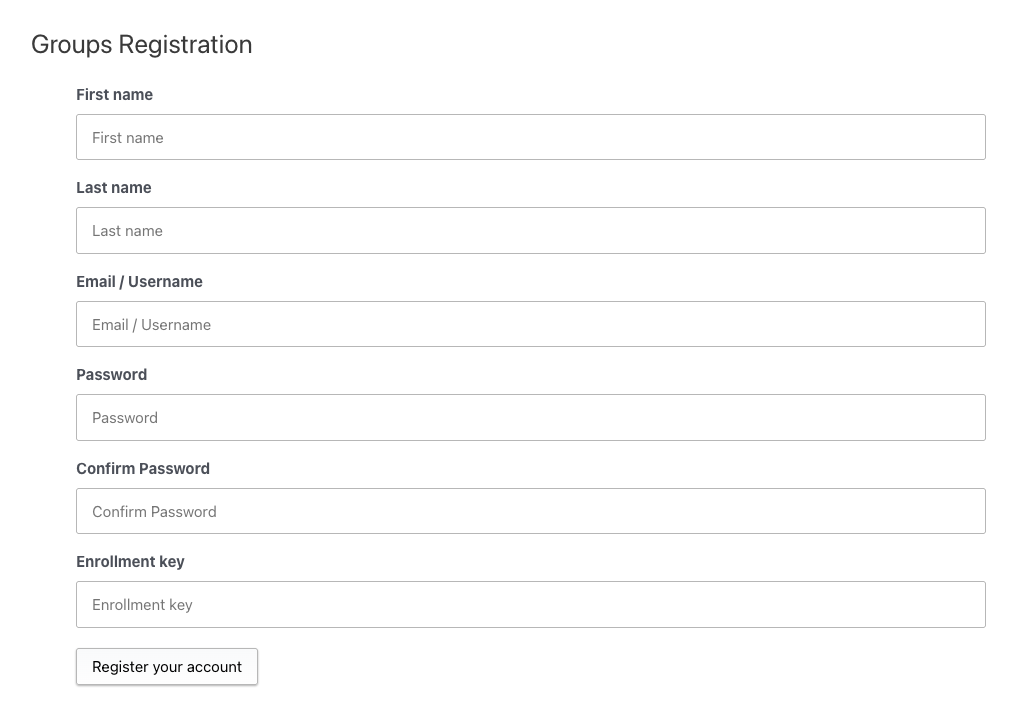
Terms & Conditions
Administrators can define a custom Terms & Conditions statement in the plugin settings. When enabled, a checkbox is automatically added to the registration form requiring acceptance before submission.
This setting does not apply when using Gravity Forms for group registration.
Enrollment Form for Existing Users
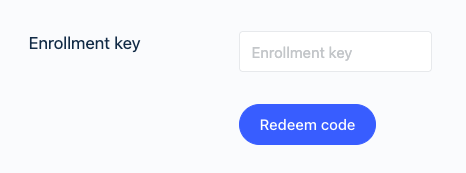
For learners who already have a WordPress account, add the Enrollment Key Redemption block or use the redemption form shortcode. Logged-in users enter their enrollment key to join the associated group:
[uo_groups_redemption_form]This shortcode supports the redirect and role attributes described in the registration form table above.
CSV Enrollment
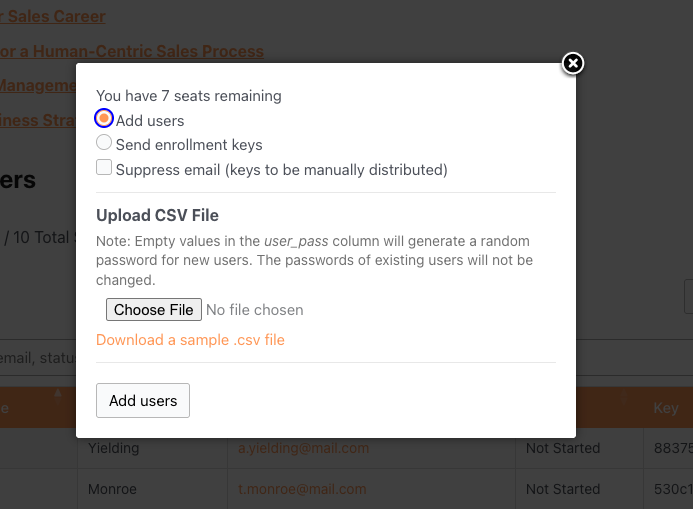
Administrators can bulk-enroll users by uploading a CSV file from the Group Management page. Each row represents one user.
Required CSV format:
user_email,user_pass,first_name,last_name- Columns are comma-separated (the importer also auto-detects semicolons)
- Include a header row matching the format above
- For new users,
user_passsets the initial password; if the user already exists, the account is reused - Users who don’t yet have an account are created automatically and enrolled
Gravity Forms Integration
Uncanny Groups v4.0 and later support enrollment key redemption through Gravity Forms.
Requirements:
- Gravity Forms installed and active
- Gravity Forms User Registration add-on (required when registering new users during key redemption)
Setup:
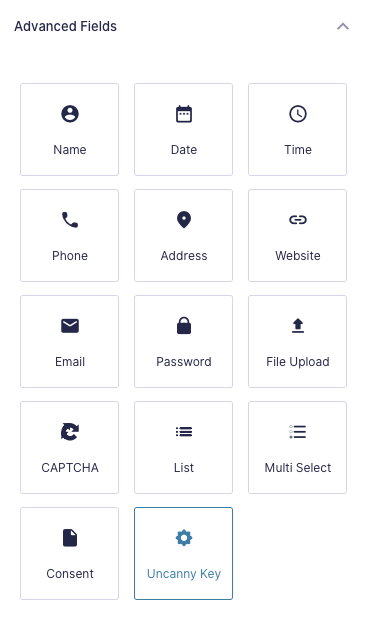
- Edit your Gravity Forms form
- Add the Uncanny Key field from the Advanced Fields section
- Save the form
Behaviour:
- A signed-in user submitting a valid key is added to the associated group
- A new user submitting a registration form with a valid key is created and added to the group
Gravity Forms User Verification is supported for users who register and redeem a key in the same submission.
WPForms Integration
Uncanny Groups v4.0 and later support enrollment key redemption through WPForms.
Requirements:
- WPForms Pro or higher (required for registering new users directly into groups)
Setup:
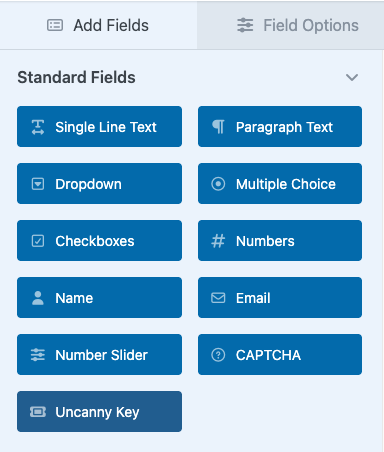
- Edit your WPForms form
- Add the Uncanny Key field type from the “Standard Fields” picker
- Save the form
When a user submits a valid key, they are added to the associated group and the key is marked as redeemed.
Formidable Forms Integration
Uncanny Groups v4.0 and later support enrollment key redemption through Formidable Forms.
Setup:
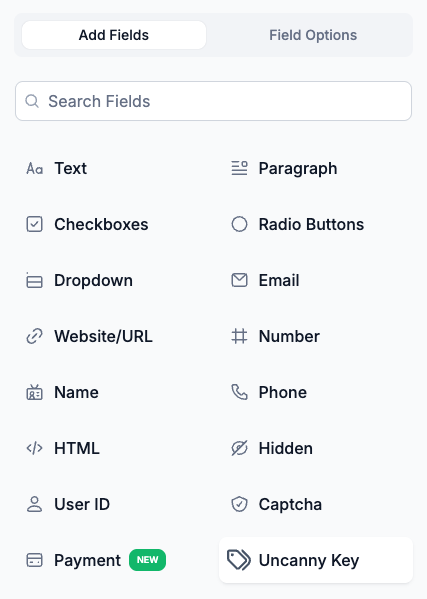
- Edit your Formidable Forms form
- Add the Uncanny Key field type
- Save the form
When a user submits a valid key, they are added to the associated group and the key is marked as redeemed.
Theme My Login Integration
Uncanny Groups v2.6 and later support enrollment via Theme My Login registration forms.
Setup:
- Create a Theme My Login registration form on a new page and confirm it works correctly
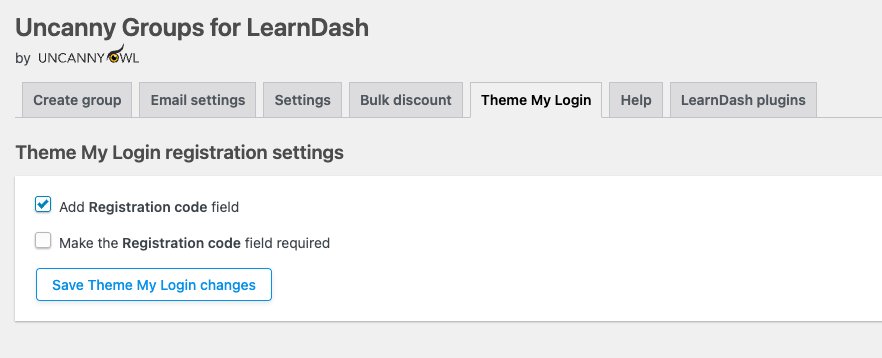
- Navigate to Uncanny Groups > Theme My Login in the WordPress admin
- Check Custom Theme My Login registration form including registration code field
- An enrollment key field is automatically appended to the registration form
Related Articles
- Using the Group Management Page — generate and manage enrollment keys, view key status
- Configure Group Emails — set up invitation emails that include enrollment key links
- Uncanny Groups for LearnDash — Plugin Overview — feature overview and getting started
- Manage Learner Progress — track and update learner course progress after enrollment
- Group Leader Reports — reporting tools available to Group Leaders
Hi Team,
My Client has learndash. They want to maintain the Group. They want to allow the user to register their course. Also, Group Leader wants to maintain their Student progress.
They need group leaders to be able to do:
Manage students in their group and their course progress
Register/invite new students
For this client query, How can fulfil the Uncanny Group plugin? I need your comments. Kindly help me to move forward.
Thank you.
Hi Bart,
The best way to reach us for presales questions is via [email protected] or by submitting a form on our website.
The Groups plugin can do what you want, yes. For registering and inviting students this article will help, and for managing students you can have a look at https://www.uncannyowl.com/knowledge-base/group-management-page/, and for managing progress please see https://www.uncannyowl.com/knowledge-base/manage-learner-progress/. I hope that helps!
Unfortunately, the two built-in forms are not displayed correctly in Safari. As far as I can understand, this is due to the table layout. display:block; does not work in Safari for td elements. Is there a fix for this? In general, I also wonder why the forms are formatted using tables?
Hi Christian, I had our dev team review this but we aren’t able to reproduce this in Safari version 15.1 (17612.2.9.1.20). It seems like it might be a conflict and perhaps not directly related to Safari. It would definitely help if you could open a ticket and confirm whether you’re still seeing this on a Staging site with only LearnDash and our plugin active.