
Overview
When group purchases are tied to WooCommerce Subscriptions, you can let customers buy additional seats without disrupting their existing subscription — each seat block gets its own subscription for clean renewal management.
Prerequisites
- Uncanny Groups for LearnDash installed and active
- WooCommerce and WooCommerce Subscriptions installed and active
- At least one LearnDash group product set up as a subscription in WooCommerce
Enabling the Feature
This is a global setting — once enabled it applies to every subscription-based group on your site.
- Go to Uncanny Groups > Settings in your WordPress admin.
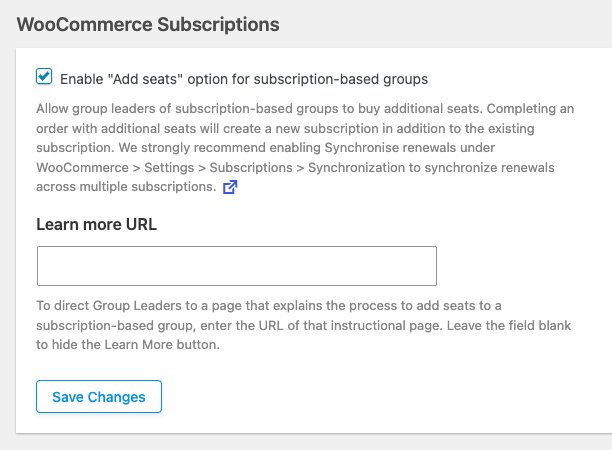
- Locate the WooCommerce Subscriptions section.
- Enable the Enable “Add seats” option for subscription-based groups option.
- Click Save Changes.
Optional: Synchronise Renewal Dates
When a customer adds seats, a new subscription is created for those additional seats. If you want all of a customer’s seat subscriptions to renew on the same date, enable renewal date synchronisation in WooCommerce:
- Go to WooCommerce > Settings > Subscriptions.
- Enable subscription renewal synchronization.
We recommend enabling this — it simplifies billing for your customers and reduces support queries about multiple renewal dates.
Optional: Add a “Learn More” Link
You can add an optional Learn more link that appears on the Group Management page for users interested in buying more seats. Use it to point customers to a page explaining how additional seats are billed and renewed.
Configure this link using the Learn more URL field in the same WooCommerce Subscriptions section of Uncanny Groups settings.
What Happens When Seats Are Added
When a Group Leader or customer purchases additional seats for an existing subscription-based group:
- A new subscription is created in WooCommerce for the additional seats.
- The original group subscription remains unchanged.
- The new seats are immediately added to the group.
Cancellation and Reactivation Behaviour
Uncanny Groups modifies the default WooCommerce Subscriptions cancellation behaviour so that all subscriptions tied to a group are managed together.
Cancellations
Cancelling a group membership cancels all associated subscriptions for that group simultaneously — the original subscription and any additional-seat subscriptions.
Reactivations
Reactivation behaviour depends on the subscription status at the time of reactivation:
| Situation | What happens |
|---|---|
| Subscription is pending cancellation (not yet expired) | All group subscriptions reactivate together |
| Subscription has fully expired | The user creates a single new subscription sized to match their current group needs |
Important Limitations
Before enabling this feature, be aware of the following constraints:
- Global setting only. This cannot be enabled for individual groups — it applies to all subscription-based groups on your site.
- Courses cannot be added. It is not possible to add courses to subscription-based groups. If you need to add courses after purchase, use a standard (non-subscription) group product instead.
- One-time purchase groups are unaffected. The Add Seats button for non-subscription groups works independently and is documented separately (see Adding Seats and Courses after Group Purchase).