
Overview
Let buyers build and purchase their own group license — picking the courses they want and the number of seats they need — all from a single page on your site. They check out through WooCommerce and instantly become a Group Leader who can manage their own team. It’s the most flexible way to sell to organizations, with zero manual setup on your end per sale.
A custom group license lets the customer decide what they’re buying: they name their group, choose how many seats they need, and select from your available courses. Pricing and any bulk discounts are calculated automatically before checkout. Once the order completes, the group is created and the buyer becomes its Group Leader.
This is ideal when you want to offer choice — for example, a training provider whose clients each need a different mix of courses and team sizes.
Prerequisites
- Uncanny Groups installed and activated — see Getting Started.
- At least one LearnDash Group Course product set up.
Set up a Buy Courses page
When Uncanny Groups is installed alongside WooCommerce, a Buy Courses page is created for you automatically. To build one manually:
- Create a new page.
- Add the Buy Courses block, or insert the shortcode
[uo_groups_buy_courses]. - Publish the page.
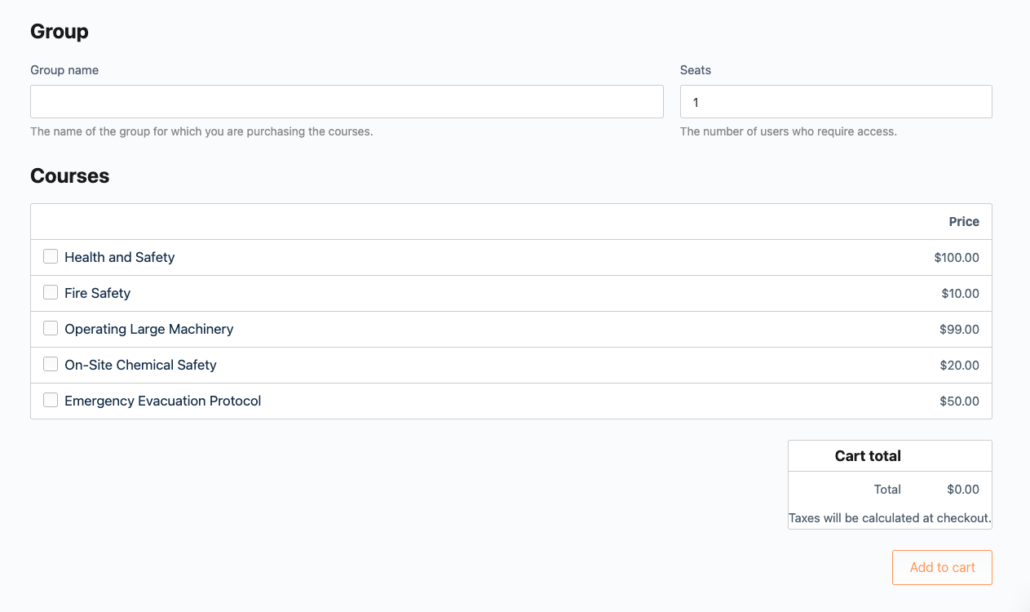
Buy Courses page options
The [uo_groups_buy_courses] shortcode and block accept optional attributes to control which courses appear and how many seats buyers can purchase:
| Attribute | What it does | Example |
|---|---|---|
product_cat | Shows only courses in the given product category IDs — useful for multi-organization or multi-catalog sites | product_cat="193,203" |
product_tag | Shows only courses with the given product tag IDs | product_tag="179,398" |
min_qty | Sets the minimum number of seats a buyer must purchase | min_qty="5" |
max_qty | Sets the maximum number of seats a buyer can purchase | max_qty="10" |
Combined example:
[uo_groups_buy_courses product_cat="193,203" product_tag="179,398" min_qty="5" max_qty="10"]What the buyer does
From the Buy Courses page, the customer:
- Names their group — this becomes the license/group name.
- Chooses a seat count.
- Selects one or more courses from your available Group Course products.
- Reviews the auto-calculated price (including any bulk discounts) and checks out.
After checkout, they land in their front-end Group Management page, ready to invite their team.
Things to know
- Orders must reach “Completed” status before the group is created. If orders sit in “Processing,” install an autocompletion plugin or enable the auto-complete setting for virtual products. See the FAQ.
- Abandoned licenses are cleaned up automatically — a license tied to an incomplete purchase is removed after 24 hours.
- Don’t delete the products or orders tied to active groups — doing so can break group functionality.
- Linking from a WooCommerce shop: to surface the Buy Courses page in your shop, create an External/Affiliate product that links to it.