
Overview
Tin Canny includes three front-end quiz reports that consolidate LearnDash quiz scores and SCORM/xAPI (Tin Canny) scores, so administrators, Group Leaders, and learners can see results without logging into the WordPress dashboard. Each report can be placed on any page with a block or its matching shortcode.
These are front-end reports for placing on a page. For the back-end admin report of question-by-question xAPI responses, see xAPI Quiz Report.
Before you start
- The easiest way to add a report is with a block — when editing a page, click +, search Tin Canny, and choose the report. Each block has a matching shortcode if you’d rather paste one in (use a Shortcode block in the editor).
- Quiz reports render wide tables, so use a full-width page template with no sidebar for the best layout.
- Reports inherit your theme’s styles; on some themes you may want light CSS adjustments for spacing or table width.
Group Leader Quiz Report
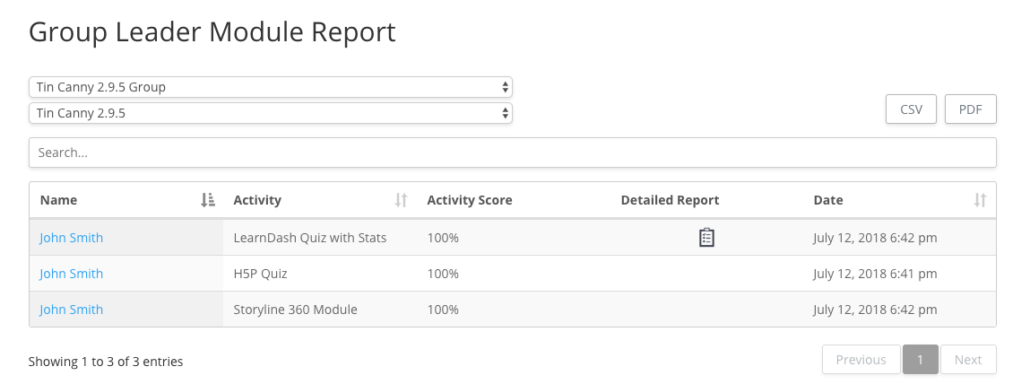
Add the Tin Canny Group Quiz Report block, or use the [uo_group_quiz_report] shortcode.
Shows consolidated quiz data and Tin Canny scores (H5P, iSpring, Storyline, etc.) by group and by course. It reports the highest score from multiple attempts, and — when statistics are enabled — can link through to detailed results.
- Who can view: Administrators and Group Leaders (Group Leaders see only their own groups).
- Attribute: user_report_url=”%URL%” — turns each learner’s name into a link to their individual user report. Replace %URL% with the page that holds the User Quiz Report ([uo_individual_quiz_report]), enabling drill-down from the group report to a single learner.
Developers: the userReportUrl value can also be set globally with the uo_tincanny_quiz_report_user_report_url filter. See Actions/Filters for Developers.
User Quiz Report
Shows the viewing learner’s own LearnDash quiz scores plus SCORM/xAPI scores across all of their courses. Because it’s scoped to the current user, this is the report you place on a learner-facing “My Results” page.
Add the Tin Canny Individual Quiz Report block, or use the [uo_individual_quiz_report] shortcode.
- Who can view: Students, Group Leaders, and Administrators (each sees their own scores).
- Attribute: exclude_non_course_quizzes=”yes” — added in v5.0. Hides quizzes that aren’t mapped to a course, so the report shows only course-based quizzes. Default is no.

Linking Group Quiz Report with the User Quiz Report
What’s especially powerful with the 2 new reports is that they can be linked, so users listed in the Group Leader report are hyperlinked to the user report. Administrators and Group Leaders can then drill down into a user to see their results across everything.
Use the “user_report_url” attribute with the uo_group_quiz_report shortcode to link them:
[uo_group_quiz_report user_report_url="%URL%"]Replace %URL% in the example above with the URL of the user report on your website (the page that contains the [uo_individual_quiz_report] shortcode). You can use a static or relative URL, and as long as it’s populated correctly, the Group Report will now link to individual score reports.
Detailed Quiz Report
Use the [uotc_ld_quiz_report] shortcode. (This report is shortcode-only — there is no block for it.)
The most comprehensive view: it shows all attempts for all users, including learners who have access but haven’t attempted a quiz, and it lists all records regardless of course mapping (no course-selection filter). Columns are customizable.
- Who can view: Administrators and Group Leaders. By default an administrator sees all users (not only group-linked users); visibility is customizable via filter.
- How it differs from the other two: all attempts rather than highest-score-only, includes records for users that have not attempted the quiz yet (this can be disabled using the following filter:
add_filter( ‘uotc_quiz_report_hide_unattempted_users’, ‘__return_true’ );), ignores course mapping, and offers customizable columns.

This report can also be used by additional custom roles. Here’s a code example:
<?php
/**
 * Allow my_custom_role to access the LearnDash reports.
 *
 * @param array $allowed_roles - Default is array( 'administrator', 'group_leader' )
 *
 * @return array
 */
add_filter( 'uotc_ld_allowed_roles', 'my_uotc_ld_allowed_roles' );
function my_uotc_ld_allowed_roles( $allowed_roles ) {
	$allowed_roles[] = 'my_custom_role';
	return $allowed_roles;
} ?>
And for even more control over outputting users that have attempted vs. not attempted a quiz, here’s an example of isolating results based on group ID or quiz ID:
<?php
/**
 * Hide unattempted users from the quiz report
 *
 * @param bool $hide_unattempted_users - Default is false
 * @param int $quiz_id - The ID of the quiz
 * @param int $group_id - The ID of the user group
 */
add_filter( 'uotc_quiz_report_hide_unattempted_users', 'my_uotc_quiz_report_hide_unattempted_users', 10, 3 );
function my_uotc_quiz_report_hide_unattempted_users( $hide_unattempted_users, $quiz_id, $group_id ) {
	// Only hide unattempted users for quiz ID 123
	if ( $quiz_id === 123 ) {
		return true;
	}

	// Only hide unattempted users for user group ID 456
	if ( $group_id === 456 ) {
		return true;
	}

	return $hide_unattempted_users;
} ?>
Related Articles
- xAPI Quiz Report — the back-end, question-by-question xAPI report
- Front End LearnDash Reports — the combined [tincanny] reporting interface
- Tin Canny Blocks & Shortcodes Quick Reference — every report block and shortcode
- Give Managers Their Own Reports — the self-serve reporting use case
Hi,
I’m using tincanny reporting plugin, I purchased that one, I need to know how should I use this shortcode [uo_group_quiz_report user_report_url=”%URL%”] so that when I click on course, and then that course user then I get the quiz report for selected user using this shortcode so I can check the detailed reporting for that particular user.
Thanks
It’s a good point, what you want to do isn’t currently supported but we should make that possible. We’ll take a look for an upcoming release.
This should actually be supported. Maybe you can submit a support ticket if it’s not working on your site (let us know what happens when you click in to a user on the learner report page) and we can take a look.
The list shows only one, the best attempt to pass each test?
Hi Oleg, that is correct. And when multiple attempts have matching high scores, we look at the most recent for stats.
how do i remove the table title from the following short code? [uo_individual_quiz_report]
If you’re referring to the text “Activity Report for [User Name]”, try this CSS: #wpProQuiz_user_overlay + h2 {display:none;}