
Overview
The Uncanny Toolkit is a free, modular plugin that fills the gaps in LearnDash — adding the login pages, navigation, and front-end features that course creators reach for most. Turn on only the modules you need, and skip the custom code.
What the Toolkit Does
LearnDash is a powerful LMS, but building a polished learner experience around it usually means stitching together shortcodes, snippets, and workarounds. The Uncanny Toolkit packages those common needs as ready-to-use modules you enable from a single settings screen — no developer required.
Each module is self-contained and independent. Activate a branded front-end login, add course breadcrumbs, hide the admin bar from students, show learners their certificates — or all of the above. Because the Toolkit adds almost no styling of its own, modules inherit your theme’s design and stay out of your way.
The Toolkit is the free foundation; Uncanny Toolkit Pro adds advanced modules such as course timers, group registration, CSV reporting, and more.
The Modules
Enable any of these under Uncanny Toolkit > Modules. We recommend turning on only the modules you actively use.
Login & Access
- Front End Login — Branded login, forgot-password, and reset-password forms anywhere on your site, with optional modal login, reCAPTCHA, and two-factor authentication.
- Log In/Log Out Links — Add login, logout, and register links to menus and pages with shortcodes.
- Log In/Log Out Redirects — Send users to the right page after they log in or out.
- Not Enrolled Redirect — Redirect visitors who aren’t enrolled in a course to a sales or landing page.
Navigation & Learner Experience
- Breadcrumb Links — Add course → lesson → topic breadcrumbs so learners always know where they are.
- Resume Button — Drop learners back exactly where they left off.
- Quiz Completion Advances to Next Step — Automatically move learners forward after they complete a quiz.
- Menu Item Visibility — Show different menu items to logged-in and logged-out visitors.
- Show or Hide Content — Conditionally display content based on login status with shortcodes.
- Hide Admin Bar — Remove the WordPress admin bar for students for a cleaner front end.
Certificates
- Show Certificates — Make earned course and quiz certificates available to learners.
- Certificate Widget — Display a learner’s certificates in any widget area or via shortcode.
Administration & Tools
- Groups in User Profiles — See a user’s LearnDash group memberships right on their profile.
- User Switching — Log in as another user to troubleshoot, then switch back instantly.
- Disable Emails — Block all outgoing email — ideal for staging and testing.
- Topics Autocomplete Lessons (Legacy) — A legacy auto-completion module retained for backward compatibility.
A Refreshed Admin Experience
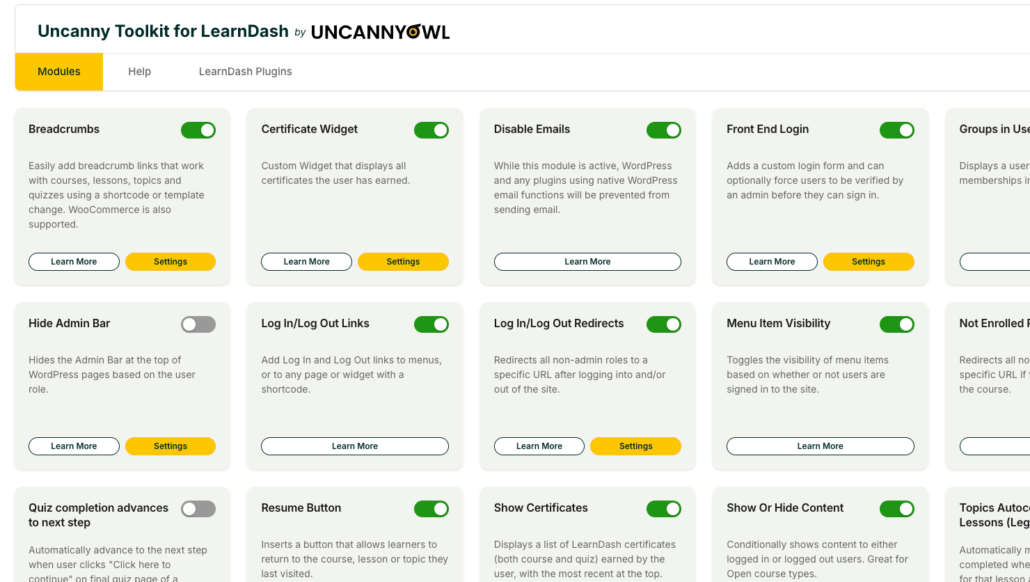
As of v3.8.0, the Uncanny Toolkit uses the standardized Uncanny Owl admin interface — a cleaner, consistent settings design shared across Uncanny Owl plugins. Your modules and settings work exactly as before; the screens are simply easier to navigate.
Getting Started
- Install the Uncanny Toolkit and activate it.
- Open Uncanny Toolkit > Modules and enable the modules you need.
- Configure each module under Uncanny Toolkit > Settings.
New to the plugin? Start with the workflow-based Getting Started with the Uncanny Toolkit guide to find the right modules for your goals.
Related Articles
- Install the Uncanny Toolkit for LearnDash — Installation and first-time setup
- Uncanny Toolkit – Quick Reference — Every shortcode in one place
- Uncanny Toolkit Pro for LearnDash — Advanced modules for growing course sites
Do you have a video about uploading articulate SCORM files?
A screencast of this particular piece isn’t currently available (and will be changing a fair bit in the next release of Tin Canny), but representative screenshots and instructions are available in this article: https://www.uncannyowl.com/knowledge-base/storyline-captivate-uploader/.