
Overview
Course completion rises when learners aren’t fighting the interface. A cluttered admin bar, a confusing sense of “where am I?”, and the friction of finding where you left off all chip away at momentum.
This guide combines several free Toolkit modules into a focused, learner-first experience — the kind of polish that makes a LearnDash site feel like a purpose-built learning platform rather than a WordPress blog with courses bolted on.
The Modules You’ll Use
| Module | What it contributes |
|---|---|
| Hide Admin Bar | Removes the WordPress toolbar for students |
| Breadcrumb Links | Shows learners exactly where they are in a course |
| Resume Button | One click back to where they left off |
| Quiz Completion Advances to Next Step | Auto-advances learners after a quiz |
| Menu Item Visibility | Shows students only the menu items relevant to them |
Enable each under Uncanny Toolkit > Modules.
The Workflow
Step 1: Remove the Admin Bar for Students
The WordPress admin bar is useful for you, but it confuses learners and breaks the immersion.
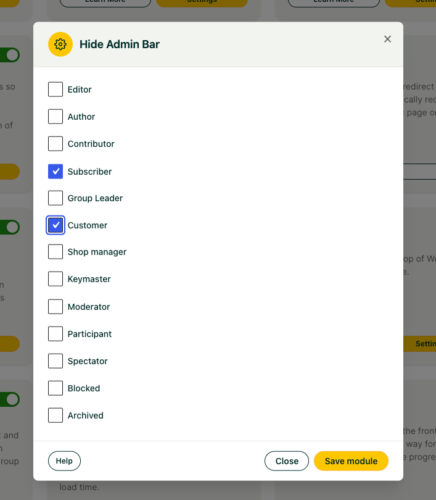
- Enable Hide Admin Bar.
- Go to Uncanny Toolkit > Settings > Hide Admin Bar.
- Check the roles whose admin bar should be hidden — typically Subscriber, Customer, and any student role. Leave it visible for administrators and instructors.
Step 2: Give Learners a Sense of Place
Add breadcrumbs so learners always know where they are in the course hierarchy.
- Enable Breadcrumb Links.
- Add the [uo_breadcrumbs] shortcode to your course, lesson, and topic templates (or use the template function if your theme supports it).
- Optionally customize the separator and the dashboard label in the module settings.
Step 3: Make It Easy to Resume
Nothing kills momentum like hunting for the next lesson.
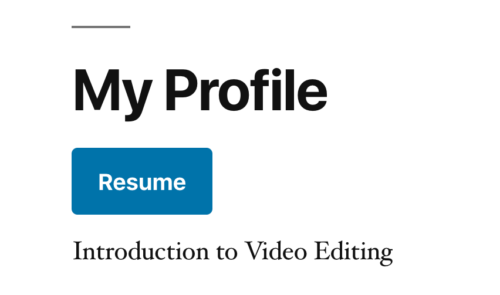
- Enable the Resume Button.
- Add the resume shortcode to your course dashboard.
Step 4: Keep Learners Moving After Quizzes
- Enable Quiz Completion Advances to Next Step.
- Once active, completing a quiz automatically moves the learner to the next step — no extra clicks, no dead-end “quiz complete” screen.
Step 5: Simplify the Menu
Use Menu Item Visibility so logged-in learners see a clean, course-focused menu (My Courses, Resume, Log Out) without marketing or sign-up links meant for visitors.
The Result
A learner logs in and sees a clean page with no WordPress chrome, breadcrumbs telling them exactly where they are, a Resume button to jump back in, and quizzes that flow straight into the next lesson. The experience feels intentional — and learners who don’t get lost are learners who finish.
Recommended Enhancements
- Pair with a branded login experience so the polish starts at sign-in.
- Add Show Certificates and the Certificate Widget so learners can celebrate and download their achievements.