
Overview
The Uncanny Toolkit is a free plugin available from the WordPress.org plugin directory. Installation takes a couple of minutes, and you choose which modules to enable afterward.
Requirements
- WordPress 5.8 or higher, with the LearnDash LMS plugin installed and active
- PHP 7.4 or higher
- LearnDash 4.2 or higher
Installation
- Log in to your WordPress admin dashboard.
- Go to Plugins > Add New.
- Search for Uncanny Toolkit for LearnDash.
- Click Install Now, then Activate.
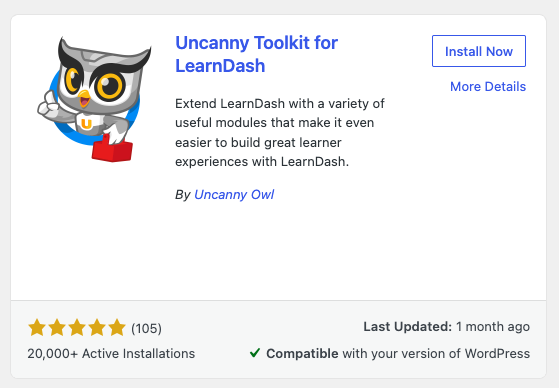
After activation, a new Uncanny Toolkit menu appears in your WordPress admin.
Enable Your Modules
The Toolkit ships with every module turned off so you can enable only what you need.
- Go to Uncanny Toolkit > Modules.
- Find the module you want and toggle it on.
- Click Save if prompted.
- Configure the module under Uncanny Toolkit > Settings.
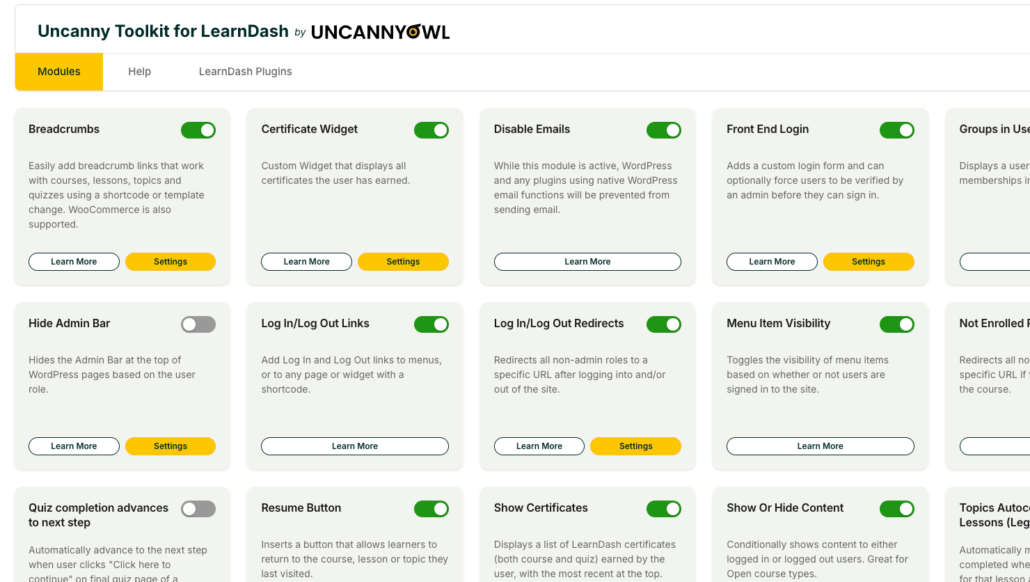
We recommend enabling only the modules you actively use. Each active module adds a small amount of processing, so leaving unused modules off keeps your site lean.
A Note on Styling
The Toolkit intentionally includes very little CSS of its own. This keeps modules from clashing with your theme — front-end elements like login forms and breadcrumbs inherit your theme’s design. If you want to fine-tune the appearance, you can add your own CSS or, for login forms, use the Front End Login Modern theme colour selectors.
A Refreshed Admin Interface
As of v3.8.0, the Toolkit uses the standardized Uncanny Owl admin design that’s shared across Uncanny Owl plugins. Everything works as before — the settings screens are simply cleaner and more consistent.
Installing Toolkit Pro Alongside the Free Version
Uncanny Toolkit Pro runs alongside the free Toolkit and adds advanced modules. You can keep both active at the same time — Pro modules appear in the same Modules and Settings screens. Install Pro by uploading its ZIP under Plugins > Add New > Upload Plugin and entering your license key.
Next Steps
- Review the Introduction to the Uncanny Toolkit to see what each module does.
- Enable and configure the modules that match your goals.
- Keep the Quick Reference handy for shortcodes.
Related Articles
- Introduction to the Uncanny Toolkit for LearnDash — Module overview and directory
- Front End Login — A popular first module to set up
- Uncanny Toolkit – Quick Reference — All shortcodes in one place
How do I install the Pro version?
Hi Velma,
There will be a link to the Toolkit Pro plugin in your purchase confirmation. You can also download a copy at any time from your account at https://www.uncannyowl.com/my-account/downloads/. Both the free Toolkit and Toolkit Pro must be installed and active to use the Pro modules.
If you are still having issues you should file a ticket and we can see what might be happening for you.