
Menu Item Visibility
Show different menu items to logged-in and logged-out visitors, so each audience sees only the links that matter to them. The Menu Item Visibility module adds a simple per-item control to your WordPress menus, with no code required.
What This Module Does
When enabled, Menu Item Visibility adds a visibility setting to every item in your WordPress menus. You can choose whether each item appears for everyone, only for signed-in users, or only for signed-out users.
This is ideal for streamlining navigation. For example, you can hide a Log In link from members who are already signed in, or show a My Courses link only to logged-in students.
Enabling the Module
- In your WordPress dashboard, go to Uncanny Toolkit.
- Find Menu Item Visibility in the list of modules.
- Turn the module on.
No further configuration is needed at the module level. Once it’s active, the new visibility controls appear automatically inside your menu editor.
Setting Visibility on a Menu Item
Visibility is set individually for each menu item under Appearance > Menus.
- Go to Appearance > Menus.
- Select the menu you want to edit.
- Click a menu item to expand its settings.
- Under the Display Mode control, choose who should see the item:
- Everyone (default)
- Logged In Users
- Logged Out Users
- Repeat for any other items you want to control.
- Click Save Menu.
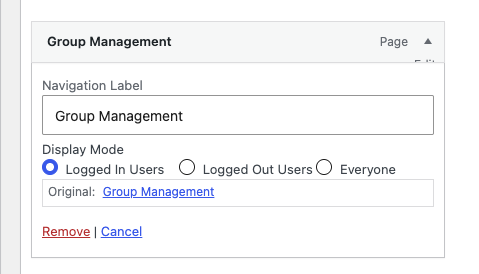
That’s it. The visibility rule applies immediately on the front end of your site, and any item without a rule continues to display for everyone.
What This Module Doesn’t Do
Menu Item Visibility controls visibility based on login status only. It does not offer role-based granularity, so you can’t restrict a menu item to a specific user role (such as showing a link only to a particular group or membership level).
If you need per-role menu control, we recommend the free Nav Menu Roles plugin instead.
Important: Conflict with Nav Menu Roles
Menu Item Visibility and the Nav Menu Roles plugin cannot run at the same time. If you use Nav Menu Roles, disable the Menu Item Visibility module in the Uncanny Toolkit to avoid a conflict between the two.
Choose one approach based on your needs:
- Use Menu Item Visibility for simple logged-in vs. logged-out control.
- Use Nav Menu Roles if you need to target specific user roles.
Thanks for this article, I needed to show some menus only Logged in users and it helped me.
I noticed that this breaks the Avada theme builder’s menu design options. So if you want to have a cart button in the nav, you can’t if you activate this module.
Yes, we’ve had a handful of reports of this. In most cases, if themes do something unique with their menu support that conflicts with what we’re doing, our module simply won’t work.
Are there any plans on implementing the full functionality of Nav Menu Roles?
No, for now we prefer a simpler and lighter version, and if users need more capabilities than Nav Menu Roles is a great option. If we do add more features, it’s likely that we would tackle LearnDash-specific things like group member and Group Leader capabilities rather than generic options like WordPress role.