
Overview
The Hide Admin Bar module removes the WordPress admin bar from the front end for the user roles you choose, giving students a clean, professional, distraction-free experience that keeps them focused on your courses instead of the dashboard.
By default, WordPress displays a black admin bar across the top of the screen for logged-in users. For students, this bar adds clutter and can tempt them to wander into the dashboard. The Hide Admin Bar module lets you switch off that bar on the front end for any roles you select, while leaving it intact for the administrators and managers who actually need it.
The module is role-based: you simply check off the roles that should not see the admin bar, and those users will browse your site without it.
Configuring the Module
- In your WordPress dashboard, go to Uncanny Toolkit and open the Modules screen.
- Locate the Hide Admin Bar module and click to enable it.
- Open the module’s Settings.
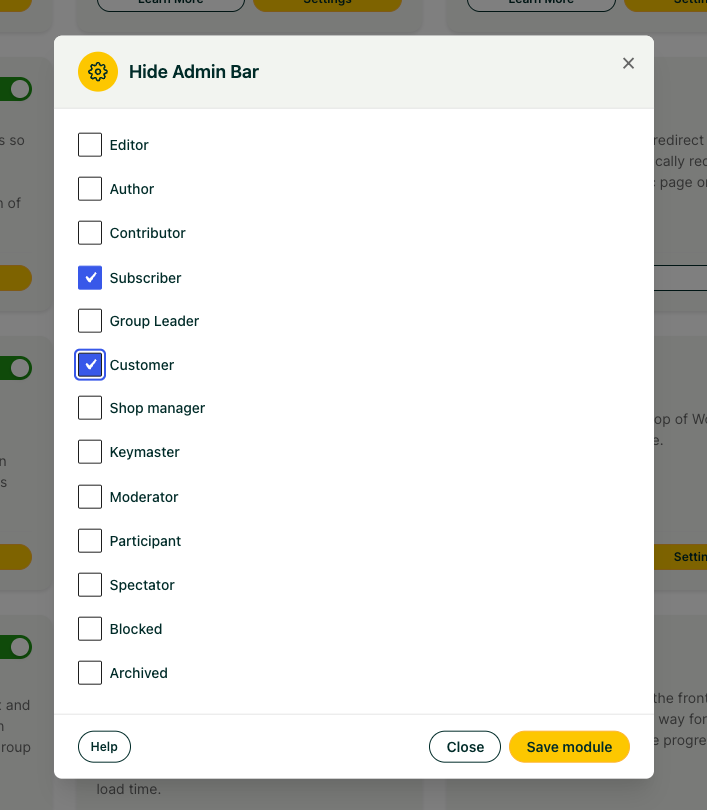
- You’ll see a list of user roles, each with its own checkbox. Check off every role that should not see the front-end admin bar.
- Save your settings.
Once saved, members of the selected roles will no longer see the WordPress admin bar when viewing the front end of your site.
How Roles Behave
A few details determine which roles appear in the list and how they’re handled:
- Administrators are always protected. Any role with the manage_options capability is excluded from this module and will not appear in the list of roles. This typically includes Administrators and any other roles that have been granted that capability through a role-editing plugin. These users always keep the admin bar.
- Only eligible roles are shown. The role list contains the roles you can safely hide the bar for, such as Subscriber, Customer, and any custom student roles that lack the manage_options capability.
We recommend hiding the admin bar for your student-facing roles. On a typical LearnDash site, that means checking off the Subscriber and Customer roles so learners get a polished front-end experience while your team retains full dashboard access.
After the new Uncanny Owl update, this function isn’t working properly. It either hides the admin bar for everyone, or shows it for everyone. Selecting individual roles (such as editor, subscriber, etc.) no longer works
Hi Brooke, thanks for the feedback; we’re looking into this on our development server.
I am having same issues as Brooke Elise – admin bar not appearing.
Unfortunately, we weren’t able to reproduce these issues on our test server; the admin bar was hidden for the selected roles only. Can you try disabling plugins and/or switching themes to identify what’s causing the issue so we can investigate further?
Hi Ken, This may give some idea. Some users have multiple roles. Just did some testing and here’s what I found (I was about to create a ticket lol)
In LD, I have found I need to have BOTH roles “Administrator” AND “Group Leader” for things to work properly. Using the UO “hide admin bar” module, it seems now to now respect any selection and force it.
For instance, If I set “admin” to SHOW, and “group leader” to HIDE, the toolbar is hidden. If I remove my group leader role, the toolbar shows again.
So checking one is overriding having one not checked. Hope that makes sense.
Hi James, we strongly recommend you don’t combine roles to achieve the results you want. Inevitably you will have issues, including with our plugins. As an admin setting up and testing things for your users, we recommend you have one admin user, one Group Leader user and a regular user for testing, and that you switch between them for testing each user experience. This is far safer than adding multiple roles to admin users. This holds true as well for Group Leaders assigned at the group level; if someone is assigned to a group as a Leader, make sure they have the Group Leader role. Don’t assign admins as leaders of a group. With this approach you shouldn’t see issues like the ones you describe.
I generally agree with this in theory however I also run workshops and am personally a group leader for students in my own classes, and would like to benefit from reporting tools. There are other work-arounds I’ll explore, thanks for the reminder of best practices. I thought I’d just chime in because of the issues other were having, as it may be related.
I am having the same issue. It worked fine before the recent update.
In the next release, any user with the manage_options capability (typically only Administrators) will be able to see the bar, no matter what other roles they have. This should fix most issues with the bar not being visible to admins.
Just installed the latest version of the plugin.
It appears that when a user has multiple roles, e.g. Administrator & Group Leader, where the admin bar is ticked for one and not the other, the admin bar is not displayed at all. I would expect ‘displayed’ to take priority over ‘not displayed’
Hi Johanna, you’re right, this has been something we’ve had a few complaints about over the last few months. We decided to err on the side of caution (and we don’t really recommend users have multiple roles anyway, particularly Admin/Group Leader), but given the feedback we may consider adding a switch to the settings to indicate priority over the admin bar visibility.
Thanks Ryan. Just checking: will thus be adequate for your typical webmaster to have the admin bar visible?
Yes, it should be; it’s how we handle everything on our own sites.
Hi – have just enabled the hide-admin-bar feature on a LearnDash V3+ site and it seems to have no impact on currently registered users who fally into the category (subscriber) selected. Is it working with the V3+?
We haven’t seen issues related to LearnDash 3.x, but if you use other plugins (e.g. BuddyBoss or BuddyPress) that force the admin bar, our plugin would operate at a lower priority and wouldn’t hide it. If this is still happening with a bare install (default theme, only LD and the Toolkit activated) and you have a Toolkit Pro license, definitely file a support ticket and we can take a look.
Hi, Ryan. I am curious now, above you say that: “We really don’t like our learners seeing the WordPress admin bar. It’s confusing and it exposes the WordPress dashboard to regular users (there are much better ways for users to manage their profiles).” I totally agree and I don’t want any course registrants seeing the WP dashboard or even the WordPress logo. My question is, how can a user manage their profile w/o entering the admin dashboard? In particular I am thinking about the user avatar, I have decided to hide that because I can’t think of any way to allow a course registrant to edit it without entering the WordPress admin area. If there is an alternative, I’m all ears. Thanks and thank you for the great plugins that you’ve created!
We generally use form building plugins for this, typically Gravity Forms, Formidable Forms or WPForms. They all have User Registration add-ons with profile feed options that allow tight control in the front end over user details. There are also dedicated profile management plugins, and some management and ecommerce plugins also offer these functions.