
Overview
Troubleshoot learner issues by stepping directly into a user’s account to see your site exactly as they do, then switch back to your own account instantly. It is the fastest way to confirm what a student is (or isn’t) seeing without ever asking for their password.
What the Module Does
The User Switching module lets administrators log in as another user, view the site from that person’s perspective, and return to their own account with a single click. It is built on John Blackbourn’s well-established User Switching plugin.
This is invaluable for LearnDash support and troubleshooting. When a learner reports that a lesson won’t unlock, a quiz won’t submit, or content appears to be missing, you can switch into their account and see precisely what they see, instead of guessing from screenshots or descriptions.
Note: Any action you take while switched is recorded as if that user performed it. Completing a lesson, submitting a quiz, or posting a comment will be attributed to them. We recommend creating a dedicated test account for trying out site behavior, and reserving live learner accounts for cases where you specifically need to inspect that user’s real progress and data.
Enabling the Module
- Go to Uncanny Toolkit in your WordPress admin menu.
- Locate the User Switching module and toggle it on.
Once enabled, the module automatically gives administrators the ability to switch between user accounts. No further configuration is required.
Who Can Switch Users
Switching is available to administrators and any user who has the capability to edit users. Because this capability grants full access to other accounts, it should remain limited to trusted, high-level roles.
How to Switch to Another User
- Go to Users > All Users.
- Find the user you want to view the site as.
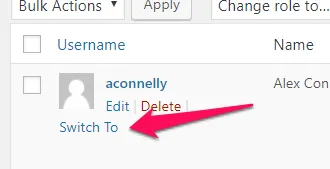
- Hover over their username and click the Switch To link beneath it.
You are now logged in as that user and will see the site exactly as they do.
How to Switch Back
While you are switched into another account, a link to return to your own account appears in the admin bar at the top of the screen, and/or at the bottom of the page. Click it to instantly switch back to your original administrator account.
Security Considerations
Note: User Switching never reveals passwords. It uses WordPress’s own secure cookie authentication to move between accounts, so you can view a user’s experience without ever knowing or changing their credentials.
If you also use the Hide Admin Bar module, be aware that hiding the admin bar can hide the switch-back link along with it. We recommend confirming the switch-back link remains accessible at the bottom of the page so you are never stranded in another user’s account. Some themes can also affect where the switch-back link appears, so it is worth verifying its placement before relying on the module in production.
Hi,
I tried the User Switching plugin. However, it’s not working. When i click on switch user a new page opens with this message – “could not switch user”.
Will be glad if you can help with identifying the issue. I am using Learndash + Social Learner.
If the user switching module isn’t working, give this plugin a try: https://en-ca.wordpress.org/plugins/user-switching/ Our module is based on it.
Hi Ken,
The switch to functionality is not working for us. We have the toolkit pro. Please advise
Unfortunately, we aren’t seeing any issues with the user switching module. Could you try the following:
Please post back here with the results of your testing to help us identify the issue.