
Overview
Uncanny Codes is a natural fit for corporate training and L&D teams that need to enroll employees, partners, or customers in training programs. Instead of manually adding users to courses one by one, you generate a batch of codes and distribute them to a department, organization, or partner — and each person self-enrolls by redeeming their code.
This article walks through the complete workflow for distributing enrollment codes at scale, from generating the batch to tracking completion.
Why Use Codes for Corporate Training?
Manual enrollment is manageable for 5-10 users, but it breaks down quickly when you’re onboarding 50, 200, or 1,000 learners across multiple organizations. Codes solve several specific problems:
- Self-service enrollment. Learners enroll themselves — no admin bottleneck.
- Delegated distribution. Give a batch of codes to an HR manager or training coordinator and let them handle distribution within their organization.
- Trackable. Every code is individually trackable — you know exactly which codes were redeemed, by whom, and when.
- Controlled access. Each code can only be redeemed once (or a set number of times), so you control exactly how many seats are issued.
- Expiration dates. Set an expiration on the batch so codes are only valid during a specific enrollment window.
The Workflow
Step 1: Create a Code Batch for the Program
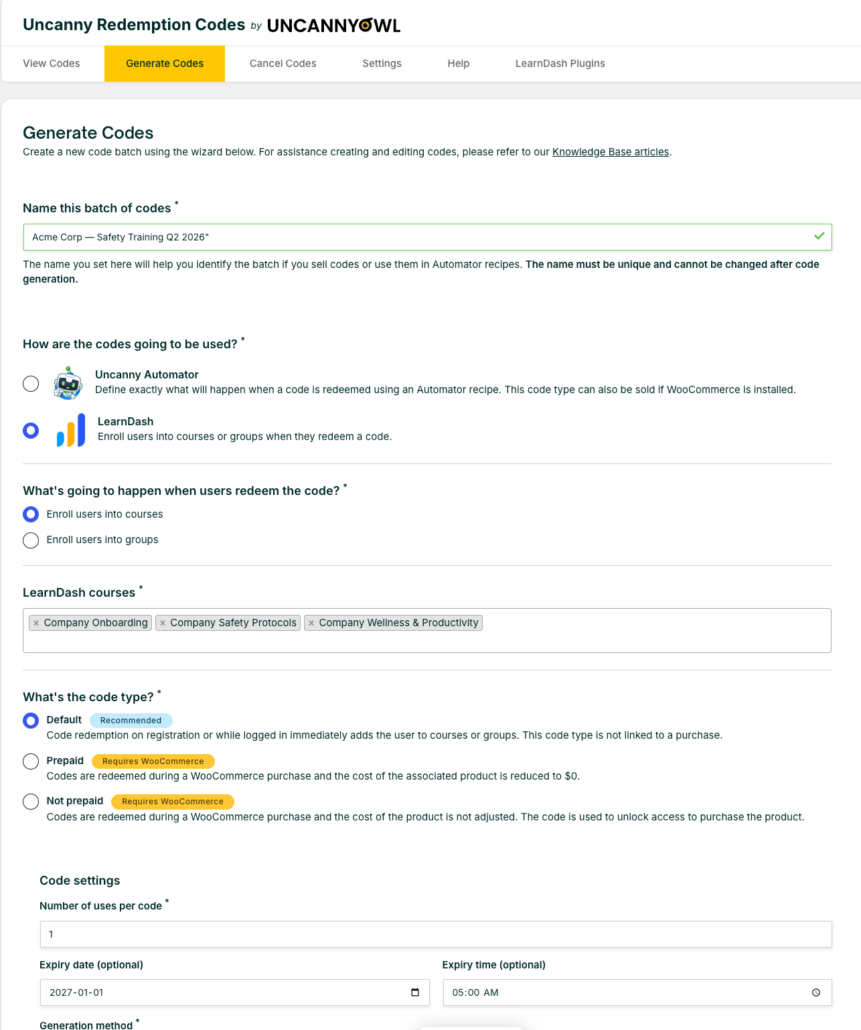
- Navigate to Uncanny Codes > Generate Codes
- Name the batch descriptively — include the client or program name and date (e.g., “Acme Corp — Safety Training Q2 2026”)
- Choose the code type:
- LearnDash — if the code should directly enroll users in specific courses or groups
- Automator — if you want the code to trigger an Automator recipe (useful for multi-step onboarding workflows)
- For LearnDash-type batches, select the courses and/or groups the code should grant access to
- Set the number of codes to match the number of seats purchased or allocated
- Set an expiration date if the enrollment window is time-limited
- Click Generate Codes
Step 2: Export and Distribute
- Navigate to Uncanny Codes > View Codes and select your batch
- Click Download CSV to export the codes
- Send the CSV to the training coordinator or HR contact at the organization
The coordinator can then distribute individual codes to their team members via email, an internal portal, or however they normally communicate.
Tip: If you’re distributing to multiple organizations, create a separate batch for each one. This makes it easy to track enrollment per organization and manage seat counts independently.
Step 3: Set Up the Redemption Page
Create a page on your site where learners can redeem their codes. You have two options:
For existing users (learners who already have accounts on your site):
Add the standalone redemption shortcode to a page:[uo_user_redeem_code]
For new users (learners who need to register first):
Add a registration form with a code field using Gravity Forms, WPForms, or the built-in registration shortcode. See Setting Up Code Redemption Forms for setup details.
Include clear instructions on the page: what the code looks like, where to enter it, and what happens after redemption.
Step 4: Track Enrollment Progress
Monitor code usage from the admin:
- Uncanny Codes > View Codes — See which codes have been redeemed, by whom, and when. Download updated CSV reports at any time.
- LearnDash > Groups — If using group-based enrollment, view the group’s member list to see who has enrolled.
- Uncanny Groups — If you use Uncanny Groups for LearnDash, group leaders can access front-end reports showing enrollment progress, course completion, and quiz scores — without needing admin access.
Step 5: Report Back to the Client
Use the CSV download from the View Codes page to generate a redemption report for the client or internal stakeholders. As of v4.4, the CSV includes columns for Status, Issue Date, Order ID, Linked Product, and Redeemed Times, giving you comprehensive data for reporting.
Combining Codes with Uncanny Groups
For enterprise scenarios, Uncanny Codes works best alongside Uncanny Groups for LearnDash. The combination gives you:
- Code-based enrollment — learners self-enroll by redeeming a code
- Group leader dashboard — a designated coordinator can view their team’s progress, manage assignments, and run reports from the front end
- Group-specific course dripping — release content on a schedule specific to each group’s start date
- Front-end essay and assignment management — group leaders can grade submissions without admin access
This is the recommended setup for any organization managing more than one cohort of learners.
Multi-Batch Strategy for Large Deployments
For organizations with multiple departments, locations, or training programs, we recommend a multi-batch strategy:
| Batch Name | Courses | Seats | Expires |
|---|---|---|---|
| Acme Corp — Sales Team — Product Training | Product 101, Product Advanced | 25 | 2026-06-30 |
| Acme Corp — Engineering — Safety Certification | Safety 101, Safety 201, Safety Exam | 40 | 2026-09-30 |
| Acme Corp — All Staff — Compliance Annual | Compliance 2026 | 200 | 2026-12-31 |
Each batch maps to a specific training program, has its own seat count, and can have its own expiration. You can report on each independently and generate additional codes if a department needs more seats.
Related Articles
- Getting Started with Uncanny Codes — Overview of all Codes workflows
- Generating or Adding New Codes — Code batch configuration details
- Viewing and Editing Codes — Track redemptions and download reports
- Uncanny Groups for LearnDash — Group management for corporate training
- Codes + Automator: Advanced Workflows — Multi-action onboarding recipes