
Overview
Uncanny Automator transforms Uncanny Codes from a simple enrollment tool into a full workflow automation engine. When a user redeems an Automator-type code, Automator can trigger any combination of actions across 200+ connected plugins and external services — all from a single code redemption.
This article goes beyond the basic Automator connection guide to show you real-world recipes that demonstrate what’s possible.
Prerequisites
- Uncanny Redemption Codes installed and activated
- Uncanny Automator installed and activated
- At least one Automator-type code batch created
- The plugins relevant to your desired actions installed and activated
Recipe Building Basics
Every Codes + Automator workflow follows the same structure:
- Create an Automator-type code batch in Uncanny Codes
- Create an Automator recipe with the trigger: “A user redeems a code from a batch”
- Add one or more actions that fire when the trigger occurs
- Set the recipe to Live and distribute the codes
Automator passes useful data from the trigger to your actions via tokens — including the user’s name, email, the code string, and the batch name. You can use these tokens in email templates, CRM fields, Slack messages, and anywhere else that accepts dynamic values.
Recipe Examples
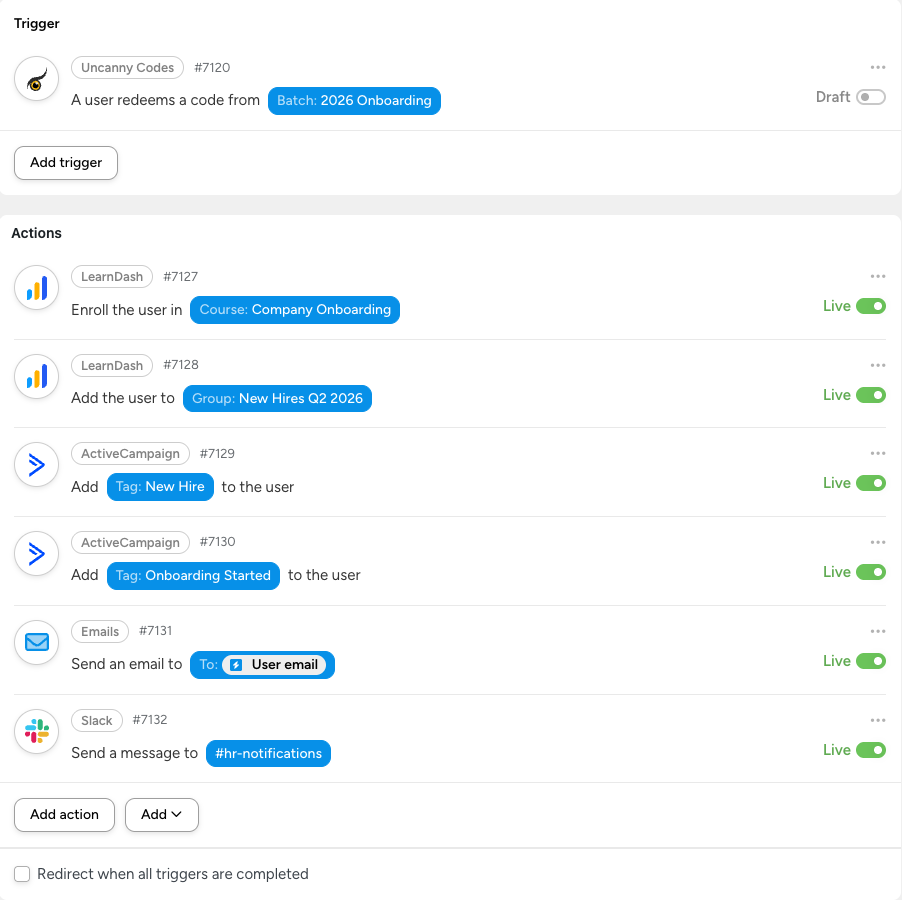
Recipe 1: New Employee Onboarding (LearnDash + CRM + Slack)
Scenario: A corporate training team distributes codes to new hires. When redeemed, the employee is enrolled in onboarding courses, tagged in the CRM, and the HR channel is notified.
| Component | Configuration |
|---|---|
| Trigger | A user redeems a code from the “2026 Onboarding” batch |
| Action 1 | LearnDash — Enroll the user in “Company Onboarding” course |
| Action 2 | LearnDash — Add the user to the “New Hires Q2 2026” group |
| Action 3 | ActiveCampaign — Add the “New Hire” and “Onboarding Started” tags |
| Action 4 | Automator — Send a welcome email with login instructions and course links |
| Action 5 | Slack — Post to #hr-notifications: “New hire {user_email} has started onboarding” |
Why this works: One code redemption replaces what would otherwise be 5 manual steps across 3 different platforms. HR just hands out a code and everything else is automated.
Recipe 2: Premium Content Unlock (No LearnDash)
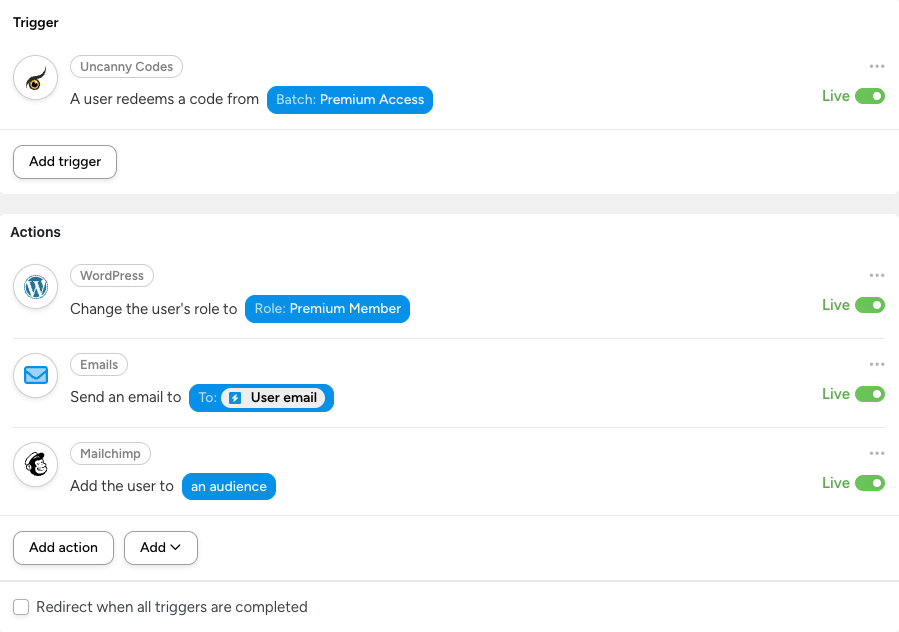
Scenario: A publisher distributes codes that grant access to premium content by upgrading the user’s WordPress role.
| Component | Configuration |
|---|---|
| Trigger | A user redeems a code from the “Premium Access” batch |
| Action 1 | WordPress — Change the user’s role to “Premium Member” |
| Action 2 | Automator — Send an email: “Your premium access is now active. Here’s what’s available…” |
| Action 3 | Mailchimp — Add the user to the “Premium Members” audience segment |
Why this works: No LearnDash needed. The user’s WordPress role change unlocks content gated by any membership or role-based access plugin (MemberPress, Restrict Content Pro, WooCommerce Memberships, etc.).
Recipe 3: Conference Follow-Up (Event + CRM + Email Sequence)
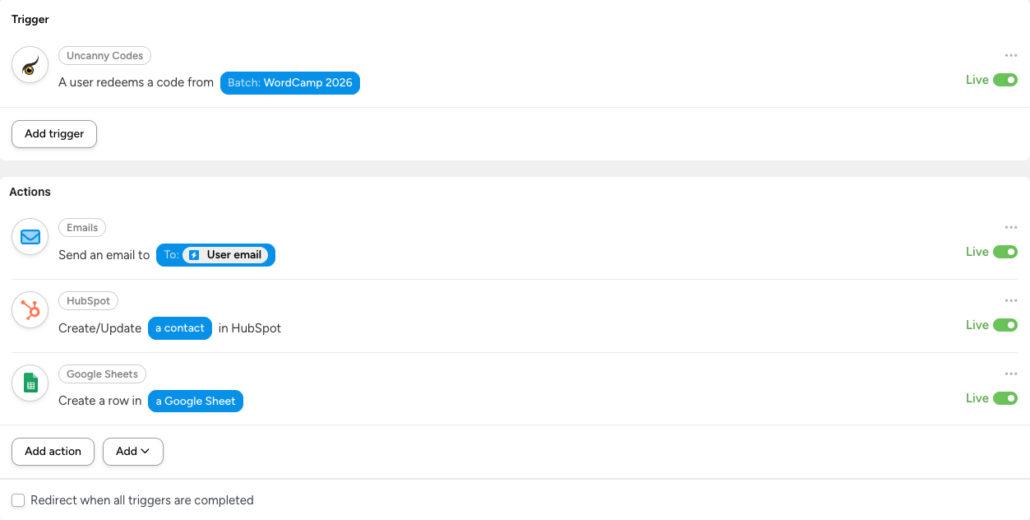
Scenario: An event organizer prints codes on attendee badges. When scanned/redeemed after the conference, the attendee receives follow-up materials and is tagged for post-event nurturing.
| Component | Configuration |
|---|---|
| Trigger | A user redeems a code from the “WordCamp 2026” batch |
| Action 1 | Automator — Send an email with presentation slides and resource links |
| Action 2 | HubSpot — Create or update a contact with the “WordCamp 2026 Attendee” property |
| Action 3 | Google Sheets — Add a row to the “Event Attendee Log” spreadsheet |
Why this works: Redeemable codes bridge the gap between in-person events and digital follow-up. The organizer distributes physical codes and lets automation handle the rest.
Recipe 4: Partner Referral Codes (WooCommerce + Affiliate Tracking)
Scenario: You give partner organizations unique code batches. When their referrals redeem a code, the partner gets credit and the new user gets a discount.
| Component | Configuration |
|---|---|
| Trigger | A user redeems a code from the “Partner — Acme Corp” batch |
| Action 1 | WooCommerce — Create a coupon for the user (20% off first purchase) |
| Action 2 | WordPress — Set user meta referred_by to “Acme Corp” |
| Action 3 | Automator — Send an email to [email protected]: “Your referral {user_name} has signed up” |
| Action 4 | Google Sheets — Log the referral in the partner tracking spreadsheet |
Why this works: Each partner gets their own batch, so you can track referral volume per partner. The Automator recipe handles the credit, discount, and notification automatically.
Recipe 5: Conditional LearnDash Enrollment (Multi-Batch Strategy)
Scenario: A training provider offers different certification tracks. Instead of one generic code, they create separate batches per track so that each code automatically enrolls the user in the right courses.
| Batch | Recipe Actions |
|---|---|
| “Safety Certification” batch | Enroll in Safety 101, Safety 201, Safety Exam + Add to “Safety Track” group |
| “Leadership Certification” batch | Enroll in Leadership 101, Leadership 201, Leadership Capstone + Add to “Leadership Track” group |
| “Compliance Certification” batch | Enroll in Compliance Annual, Compliance Ethics + Add to “Compliance 2026” group + Set CEU credit type |
Each batch has its own Automator recipe with different enrollment actions. This is cleaner and more maintainable than using conditional logic within a single recipe.
Why this works: The code itself determines the entire enrollment path. Administrators don’t need to manage enrollment manually or create complex conditional rules.
Recipe 6: Community Membership + Gamification (BuddyBoss)
Scenario: A community site uses codes to gate access to private groups and award points on join.
| Component | Configuration |
|---|---|
| Trigger | A user redeems a code from the “Community VIP” batch |
| Action 1 | BuddyBoss — Add the user to the “VIP Members” group |
| Action 2 | BuddyBoss — Set the user’s profile type to “VIP” |
| Action 3 | GamiPress — Award 500 points to the user |
| Action 4 | Automator — Send a welcome email with community guidelines and group links |
| Action 5 | BuddyBoss — Post an activity update: “Welcome our newest VIP member!” |
Why this works: Code redemption becomes a complete community onboarding event — group access, profile configuration, gamification reward, welcome communication, and public announcement, all in one step.
Tips for Advanced Workflows
Use Separate Batches for Separate Workflows
Rather than trying to build complex conditional logic into a single recipe, create separate code batches for each workflow and give each batch its own recipe. This keeps recipes simple and makes it easy to track which codes map to which actions.
Leverage Tokens for Personalization
Automator tokens let you insert dynamic data from the trigger into your actions. For code redemptions, available tokens typically include the user’s display name, email, the code string, and the batch name. Use these in email templates, Slack messages, and CRM fields to personalize the experience.
Test with a Small Batch First
Before generating hundreds of codes, create a test batch with 2-3 codes and run through the full workflow. Verify that all actions fire correctly and the user experience is what you expect.
Monitor with Automator Logs
Automator Pro includes recipe logs that show every trigger and action execution. Use these to troubleshoot failed actions, verify timing, and confirm that all steps in your workflow completed successfully.
Related Articles
- Connecting Codes to Uncanny Automator — Basic connection setup
- Using Codes Without LearnDash — Non-LearnDash use cases and setup guide
- Getting Started with Uncanny Codes — Overview of all Codes workflows
- Generating or Adding New Codes — Create Automator-type code batches