
Overview
Many industries require employees to complete a set amount of training every year — safety, HIPAA, anti-harassment, financial compliance, and more. Uncanny CEUs is built for exactly this: assign credits to your training courses, set an annual requirement, and let the plugin track who’s on track and who’s falling behind.
A compliance program usually comes down to one rule: every learner must earn at least X credits within each compliance period. Uncanny CEUs turns that rule into an automated system.
- Learners earn credits automatically as they complete courses.
- A rollover date defines the start of each compliance period.
- A required credits value sets the minimum each learner (or group) must reach.
- A Deficiency Report shows exactly who hasn’t met the requirement yet.
- Reminder emails nudge learners before the deadline.
The result is a self-running compliance tracker that replaces the spreadsheets most organizations rely on.
Why Use Uncanny CEUs for Compliance
- Audit-ready records. Every earned credit is stored permanently, with course name, amount, and date — even if a course is later edited or reset. When an auditor asks for proof, the data is there.
- Annual reset without losing history. The rollover date starts a fresh period each year while keeping lifetime totals intact.
- No manual chasing. Reminder emails and the Deficiency Report surface at-risk learners automatically.
- Works per group. Set different requirements for different departments or locations using LearnDash groups.
The Workflow
Step 1: Assign Credits to Your Compliance Courses
For each required course, set a credit value on the course edit screen. A one-hour module might be worth 1 credit; a half-day course, 4. See Adding Credits to Courses.
Step 2: Set Your Rollover Date
Under Uncanny CEUs > Settings, set the rollover date to the first day of your compliance period — for example, January 1 for a calendar-year program.
The rollover date is a single, site-wide day and month (it has no year), so the same period applies to every learner. The plugin does not support per-learner rollover dates tied to individual hire or enrollment dates. The rollover date is what makes annual tracking work: credits earned “since rollover” are what count toward the current period’s requirement.
Step 3: Set the Required Credits
Define how many credits each learner must earn in a period:
- Per group — Edit a LearnDash group and set its required credits. Everyone in that group inherits the requirement. Ideal for “all warehouse staff need 6 safety credits per year.”
- Per individual — Set a requirement on a specific user’s profile when one person’s obligations differ from the group.
When a learner belongs to more than one group, the plugin applies the highest requirement.
See Required Credits for the full setup.
Step 4: Turn On Reminder Emails
In Settings, enable reminder emails and choose how many days before the rollover date they should send. Learners who haven’t met their requirement receive a personalized nudge with their name, how many credits they still need, and the deadline.
Tip: When you have a large learner base, stagger reminders or test with a small group first to avoid sending a large volume of email all at once.
Step 5: Monitor with the Deficiency Report
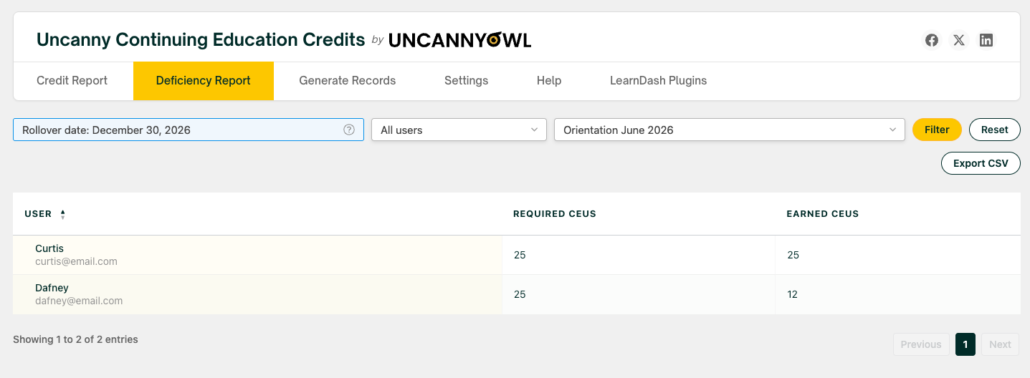
Open Uncanny CEUs > Credit Report and go to the Deficiency Report tab. It lists every learner who hasn’t met their requirement, filterable by user and group. Learners who have met their requirement drop off the list automatically — so anyone showing up still needs to act.
Export the report to CSV or Excel for management or compliance officers.
Showing Learners Their Status
Help learners stay ahead of the deadline by displaying their progress on a dashboard or profile page:
[uo_ceu_credits_remaining]— How many credits they still need this period[uo_ceu_days_remaining]— Days left until the rollover date[uo_ceu_total_rollover]— Credits earned this period
See Continuing Education Shortcodes for all display options.
Scaling to Multiple Departments
For organizations with several teams or locations, use LearnDash groups to set per-group requirements, and pair Uncanny CEUs with Uncanny Groups for LearnDash. Group leaders can then run the front-end Continuing Education Report on their own team — checking who’s compliant without needing admin access.
If your program runs across a hierarchy of groups, enable the child groups option in the report settings so a parent group’s report includes its sub-groups. See Continuing Education Admin Reports.
Related Articles
- Required Credits — Requirements, rollover dates, and reminders
- Continuing Education Admin Reports — Deficiency Report and exports
- Getting Started with Uncanny Continuing Education Credits — Choose the right workflow
- Uncanny Groups for LearnDash — Group leader reporting for departments and locations