
Overview
Uncanny CEUs can issue a certificate automatically when a learner earns enough credits or completes a defined set of courses, then email it to the learner — and optionally to group leaders and administrators.
CEU certificates are separate from LearnDash’s standard per-course certificates. They’re designed for milestones that span more than one course, such as:
- Credit-based certificates — awarded when a learner’s total earned credits reach a threshold you set.
- Multi-course certificates — awarded when a learner completes a specific combination of courses.
Because these certificates are triggered by cumulative achievement rather than a single course completion, they’re delivered by email. A copy can also be stored on your server.
Certificates are attached to emails as PDF files and can be optionally stored on the server (in /wp-content/uploads/ceu-certs/ for easy FTP access).
Enabling Certificates
- Go to Uncanny CEUs > Settings and open the certificate email settings.
- Enable the certificate type(s) you want to use — credit-based, multi-course, or both.
- Set the email subject and message, and choose who receives the email (learner, and optionally group leaders and administrators).
- Optionally enable server storage. Stored certificates are saved to /wp-content/uploads/ceu-certs/.
The email subject and message support personalization variables, the same way reminder emails do.
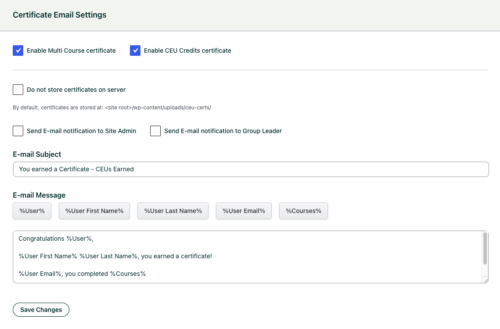
Note: The certificate email subject, message, and recipient settings apply to all CEU certificate types. Make sure your wording works for every certificate you issue.
Configuring a Certificate Trigger
CEU certificates are configured on the LearnDash Certificate itself.
- Edit (or create) the certificate under LearnDash > Certificates.
- In the Uncanny CEUs certificate settings on that screen, choose the trigger:
- Required courses — Select the courses a learner must complete to earn this certificate.
- Credit threshold — Enter the number of credits a learner must earn to be awarded this certificate.
- Optionally add a description explaining what the certificate represents. You can display this text elsewhere on your site using the
[uo_ceu_certificate_description]shortcode — see Continuing Education Shortcodes. - Save the certificate.
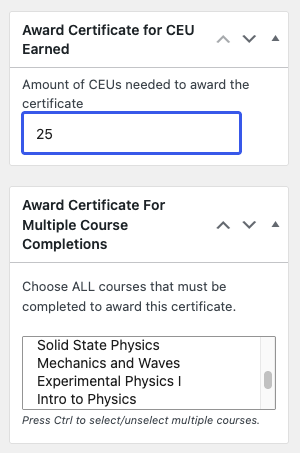
Important: A credit-threshold certificate is awarded once per learner. If you later raise the threshold, learners who already received the certificate are not issued a new one.
How Learners Receive Certificates
Because CEU certificates are triggered by cumulative achievement, they’re delivered by email rather than through LearnDash’s standard certificate display (such as the ld_profile shortcode). Email delivery is how learners get these certificates, so confirm your site can reliably send email before relying on this feature.
Note that generating historical credit records (see Generate Historical LearnDash Course Credits) backfills credit data but does not trigger new certificate emails.
Related Articles
- Continuing Education Shortcodes — Display certificate descriptions with
[uo_ceu_certificate_description] - Required Credits — Set the credit requirements that pair with credit-based certificates
- Set Up the Uncanny Continuing Education Credits Plugin — Configure credit labels and email settings