
Overview
The Tin Canny Uploader is the tool that will allow you to upload your xAPI and SCORM modules to your WordPress site. The Uploader is integrated with the both the Classic Editor and Gutenberg so you can quickly attach an e-learning module as part of your content creation workflow.
Tin Canny Uploader and Gutenberg Block Editor
To upload and embed your module using Gutenberg block editor, follow these steps:
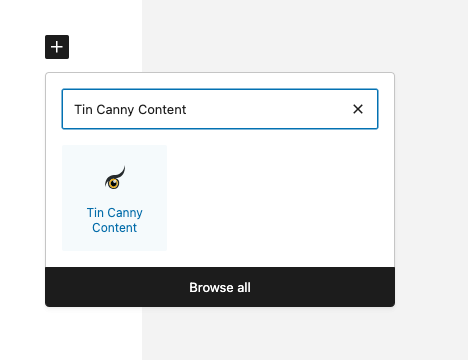
- On your page or post, click the “+” icon to add a new block.
- When the block selector appears, search and select the Tin Canny Content block.
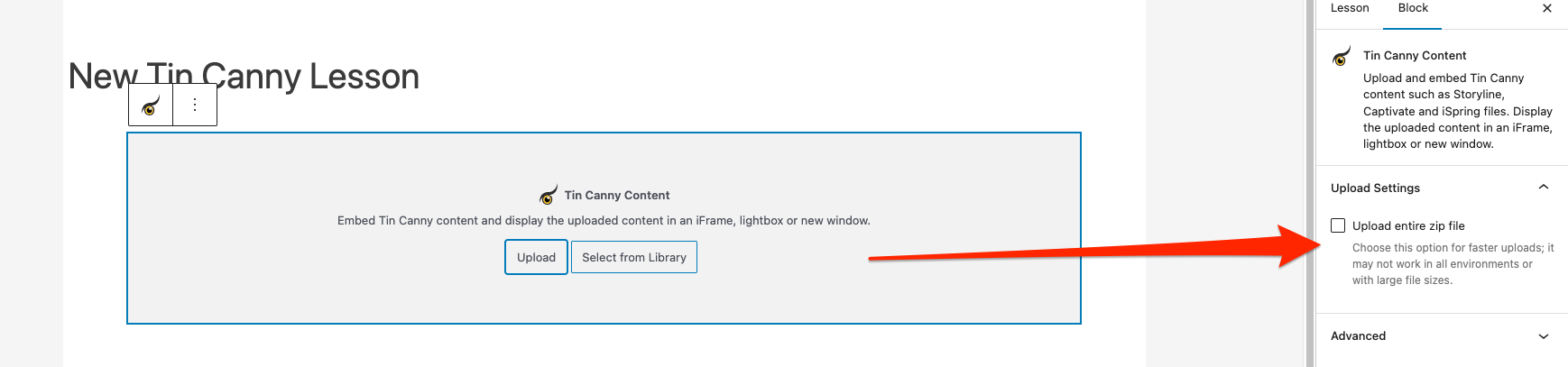
- After the block is added, you have 2 options*:
- Upload
- Click Upload.
- Find and select your module ZIP file from your computer and click Open.
- The module will upload, register and the content block will embed on your page.
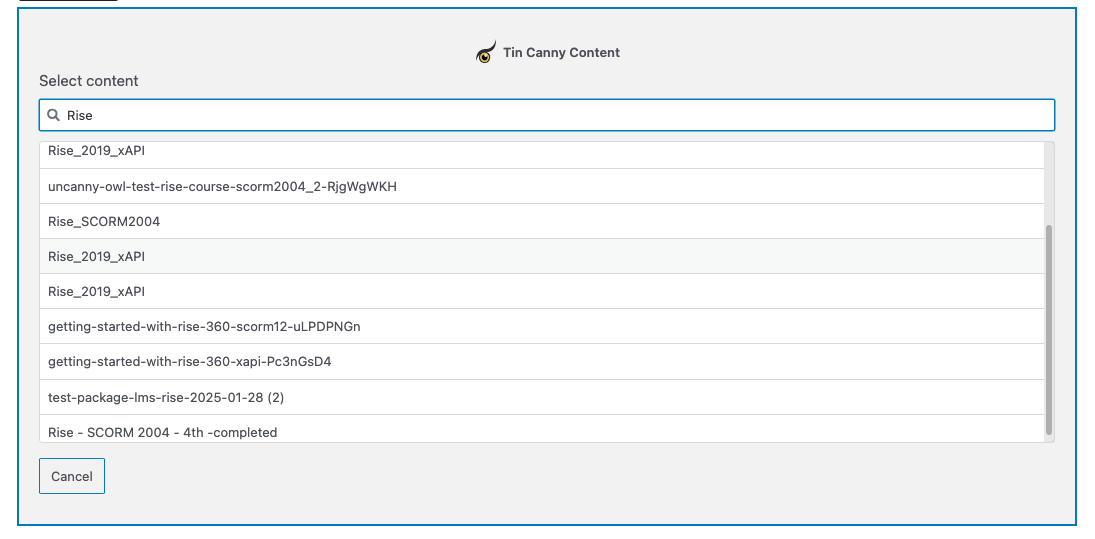
- Select from Library
- Search and/or select a module that has already been uploaded to your site.
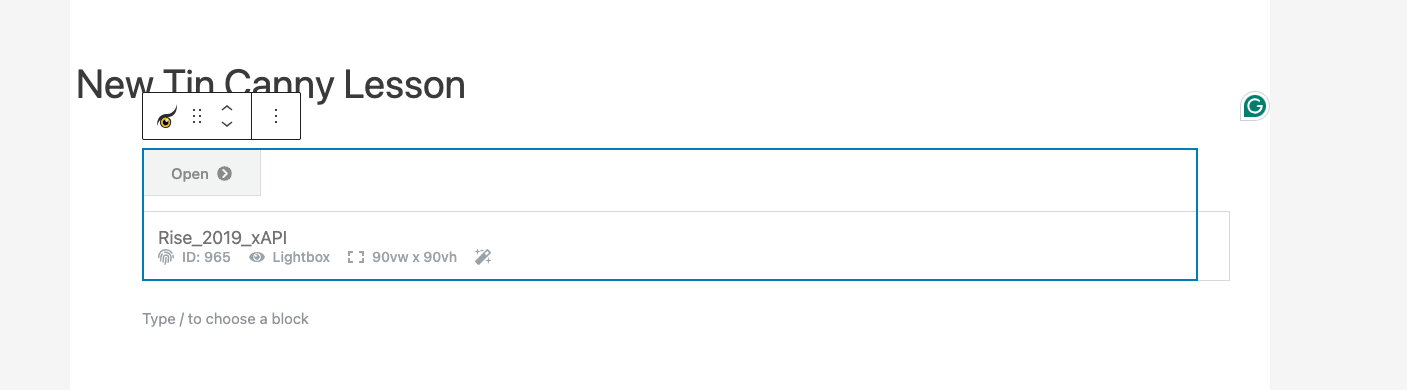
- The content block will embed on your page.
- Upload
- After you embed the content block, you will be able to select your display option from the side menu**.
- You have 3 options:
- iFrame
- Lightbox
- New tab
- You have 3 options:
- After selecting your display option, save your page and the module will display in the front end.
*In step 3, if you are selecting the “Upload” option, depending on the size of your ZIP file, you can check the option “Upload entire zip file” in the side menu. This option provide a must faster upload experience.
** When using the block editor, you can change your display option at any time without needing to re-upload your module.

Tin Canny Uploader and the Classic Editor
To upload and embed your module using the Classic editor, follow these steps:
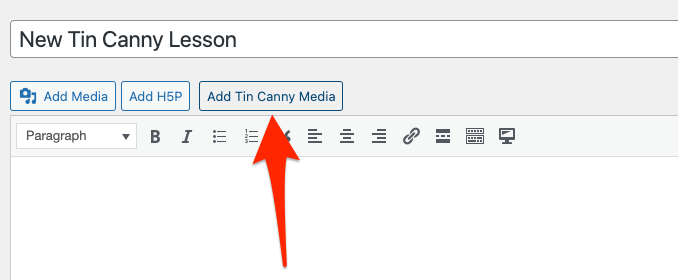
- On your page or post, click the Add Tin Canny Media button.
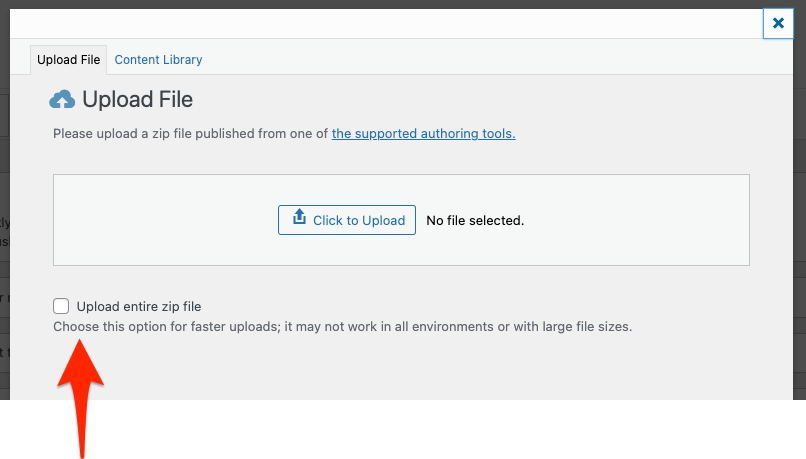
- A modal box will open and give you 2 options:
- Upload File
- Click the button labelled “Click to Upload” (before you click this button, you can also enable the option “Upload entire zip file” below).
- Find and select your module ZIP file from your computer and click Open.
- When the module finished uploading, you will have to select a display option. You have 3 options:
- iFrame
- Lightbox
- New tab
- After you select the display option, click Insert Into Post.
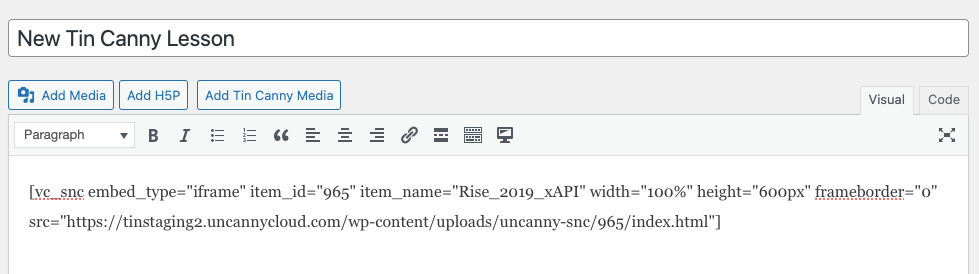
- The module be added as a shortcode in the Classic Editor.
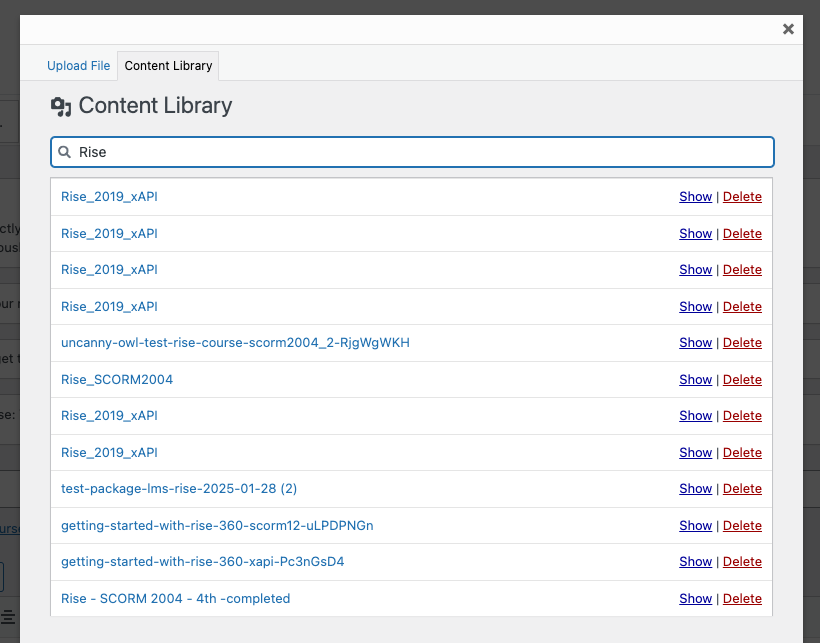
- Content Library
- Search and/or select a module that has already been uploaded to your site and click the Show button.
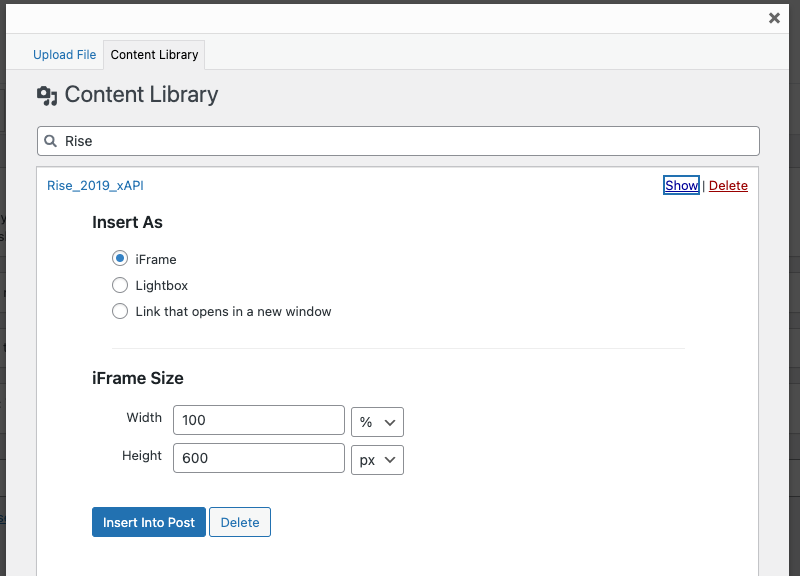
- You will have to select a display option. You have 3 options:
- iFrame
- Lightbox
- New tab
- After you select the display option, click Insert Into Post.
- The module be added as a shortcode in the Classic Editor
- Upload File
- After selecting your display option, save your page and the module will display in the front end.
Elementor/WP Bakery Page Builder/Other Editors
If you are using a pagebuilder such as Elementor or WP Bakery Page Builder, look for a “text” module and add that to the page. The editor in the text module should display the Add Tin Canny Media button (see above), which you can use to insert your content.
Important: Upload zip files published directly from your authoring tool only. All modules must be uploaded through our upload tool, as it modifies some javascript files in the modules to ensure that statements are tracked properly.
Please note that file names must contain fewer than 100 characters and should not contain any special characters.
Tin Can/xAPI Data
In order to capture Tin Can data, your Storyline/Rise, Captivate, or iSpring module must have been published to xAPI or SCORM (1.2 or 2004). If not, the module will still be displayed, but will not send statements to Tin Canny. We recommend publishing to xAPI if the option is available, as in some situations it offers performance advantages over SCORM tracking.
Very large files
If for any reason the zip file is too big to upload inside WordPress (this would typically include files over 100 MB), this workaround is available but should only be performed for large files:
- Publish the zip file as you normally would.
- Extract the contents of the zip file. (Don’t use a Mac for this, as it can add hidden files that break the upload process.)
- Move the big media files elsewhere and remember the folder they were in.
- Zip the files back up so the structure is the same (minus the large files; just make sure the XML file is still in the root).
- Upload the zip file through the Tin Canny uploader as before. if there’s an error, maybe it wasn’t zipped back up again properly.
- On the lesson/topic edit page, note the identifier in the shortcode. You’ll see an snc one.
- Connect to the site by FTP. Navigate to /wp-content/uploads/uncanny-snc/.
- Find the # corresponding with the shortcode in step 6 and go into it.
- Upload the large files to wherever they’re supposed to be.
Multisite
If you use Tin Canny in a multisite network, it is possible to broadcast Tin Canny modules to other network sites using the Broadcast plugin from Plainview Plugins. See https://broadcast.plainviewplugins.com for more information.