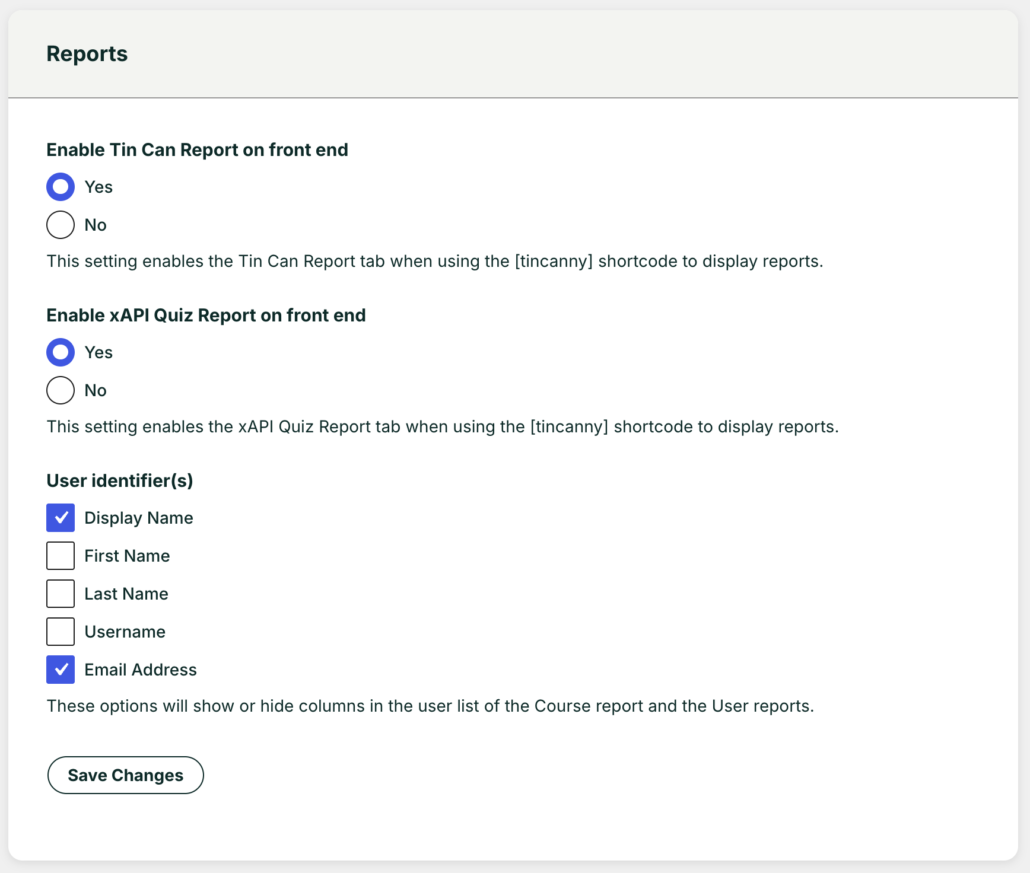
Tin Canny for WordPress includes a settings page that lets you configure how various aspects of the plugin function. The page can be found at Tin Canny Reporting > Settings.
General Settings
Enabling/Disabling Tin Can/SCORM Data Capture
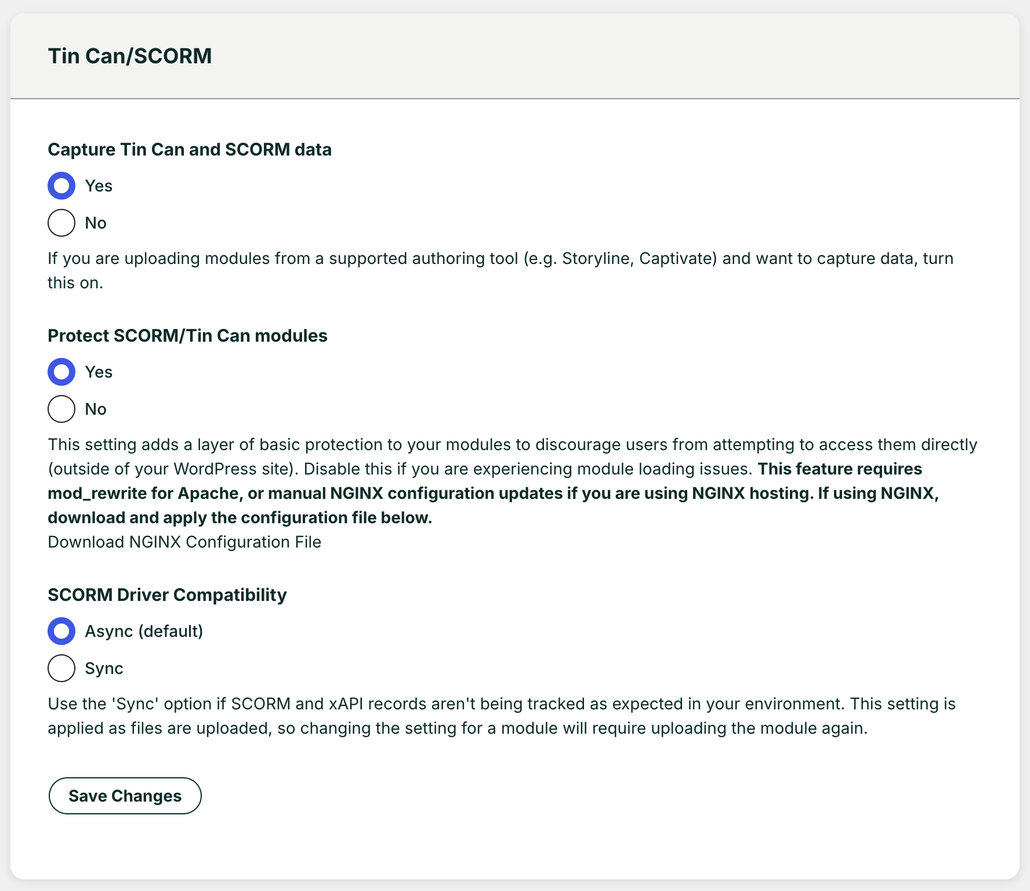
If you don’t want to capture Tin Can/SCORM statements sent by uploaded modules, you can set this to “No”. This option will also remove the Tin Can and xAPI Quiz Report tabs from the reporting page.
Protecting SCORM/Tin Can Modules
When uploading Storyline/Rise, Captivate and other xAPI/SCORM content to your courses, you can enable basic protection of your content that restricts viewing of the content to signed-in users only. Anonymous users who navigate to the URL where that module is available will not be able to see it or use it. This basic protection makes it difficult for your users to share the content with anonymous users.
Note: Tin Can data from an anonymous user session is not stored or available via your reports.
There are also cases where a site owner might want to turn off content protection. For example, publishing an open course where there may be anonymous users allowed, or where you may want to feature course content to outside users.
Setting protection at the page or post level
If content protection is enabled globally (in Tin Canny settings), it can be disabled in specific pages and posts from the Edit Page or Edit Post screen:
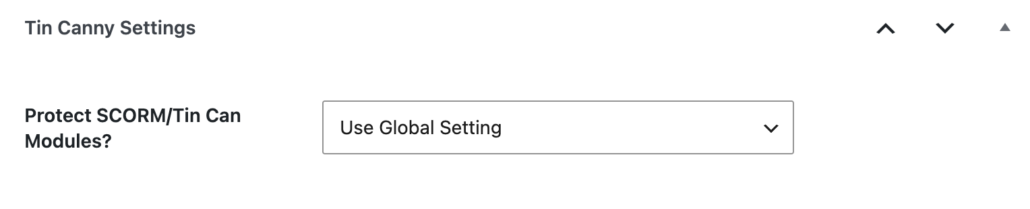
Due to the way the content protection works, if it is disabled globally, protection cannot be enabled at the page/post level and this option is not available.
Lightbox Settings
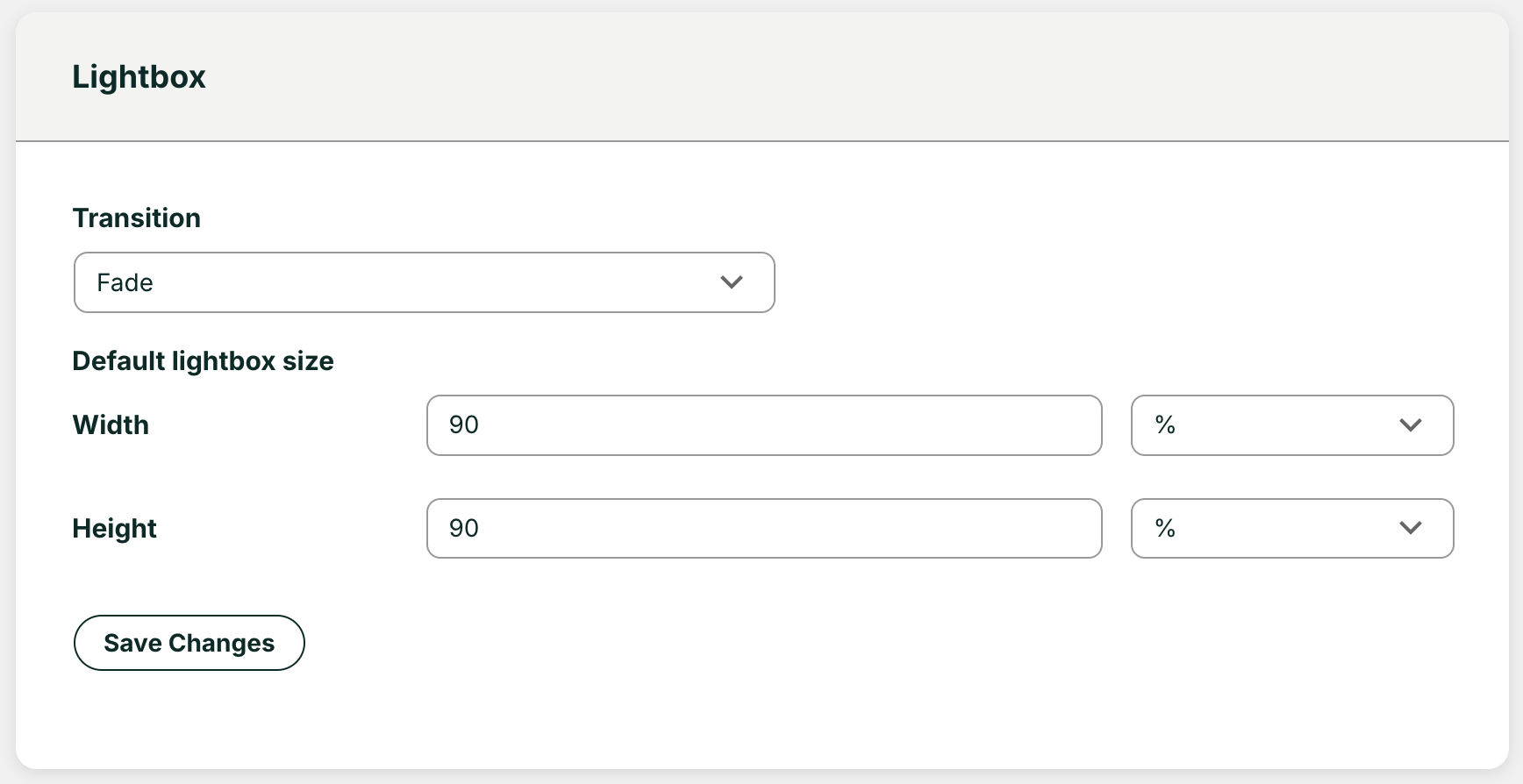
These settings enable you to set the default values when embedding content in a lightbox. These can be overridden at the lesson/topic level.
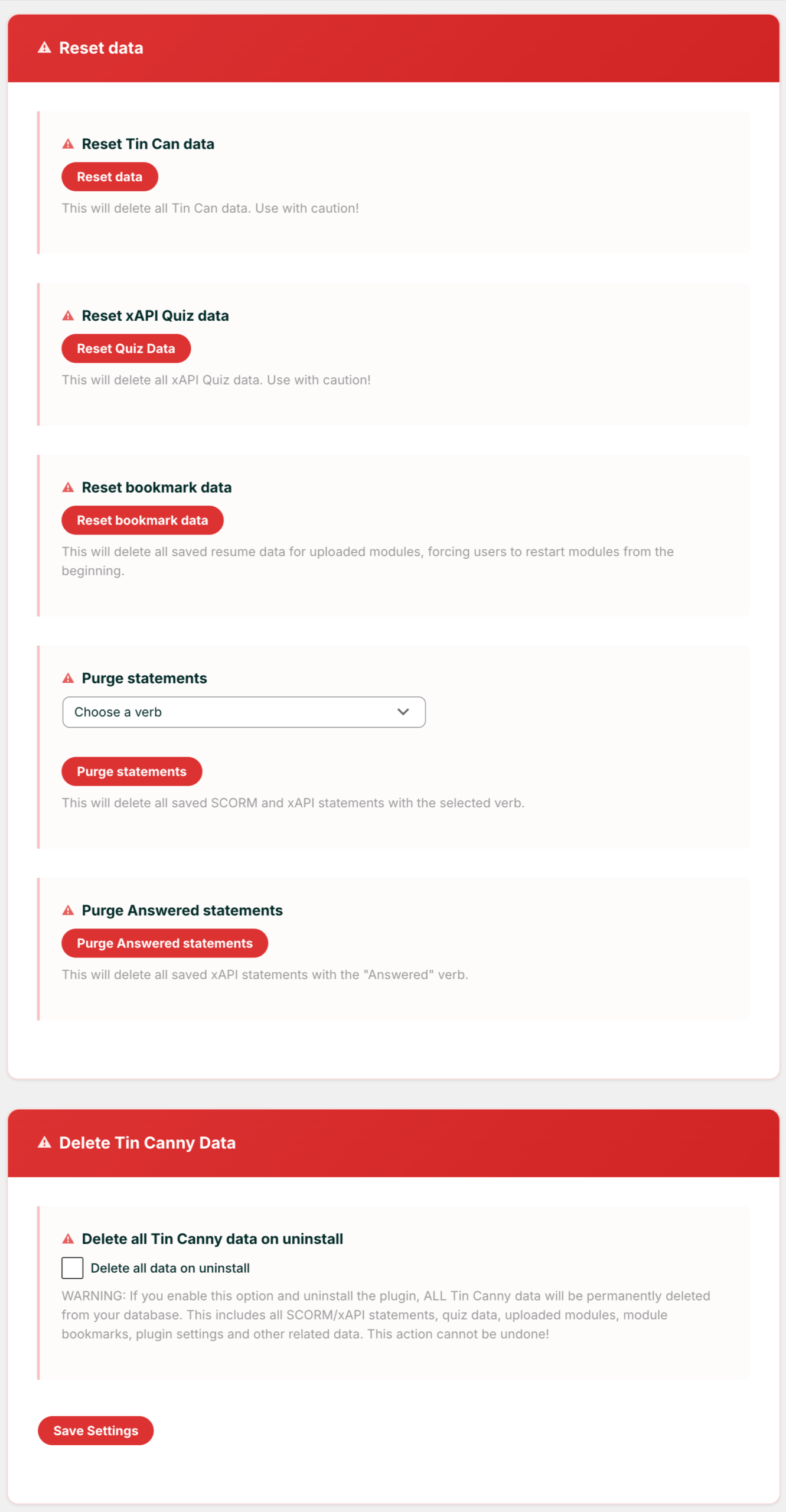
Resetting Data
Tin Canny LearnDash Reporting comes with several functions to reset data. Use these functions with caution, as the operations are irreversible.