WordPress the LMS: Working with LearnDash
LearnDash is a low-cost Learning Management System (LMS) plugin for WordPress. Installing it adds LMS features to your WordPress instance, including courses, quizzes, certificates and progress reports. In this post, I’ll review some of the ins and outs of working with LearnDash and how we used it to create Grade Hacks, our study skills program.
Installation

The WordPress admin menu after installing LearnDash.
Installation of LearnDash is as straightforward as installing any plugin in WordPress. You purchase the plugin at learndash.com, download the .zip file, and upload it to WordPress through the Plugins page. Doing so adds new menu items to your WordPress admin panel including Lessons, Courses, Quizzes and Certificates and Advanced Quiz.
Setting up courses
Setting up your first course in LearnDash involves creating a course, then creating a lesson and associating it with the course. If you wish to further divide your content you may create a topic and link it with a lesson*, or create a quiz and link it to a lesson.
Because the admin interface is organized by content type (course, lesson, topic, quiz) rather than by course, setting up a course is a bit of a disjointed process. You are constantly jumping between the the course, lesson, topic and quiz screens, linking them all together with course associations. Many LMS platforms have you “select” or “enter” a course, with any subsequent actions you take applied automatically to that course. It’s a more natural way of thinking and working because users tend to focus on one course at a time. But due to the way LearnDash uses WordPress custom post types to implement the course, lesson, topic and quiz objects, creating that type of editing paradigm isn’t possible.
Thankfully, you eventually get used to jumping around and if you only have a few courses to develop it works quite well. But if you intend to have many courses, with no way to filter lessons by course or topics by lesson, it could become tedious to find what you’re looking for.
After setting up a course, you must also provide a way for users to access the course on the site’s front end, either through a menu or a link on some other page on your site. You can link to the specific course or the default course list page (at /courses).
Creating content
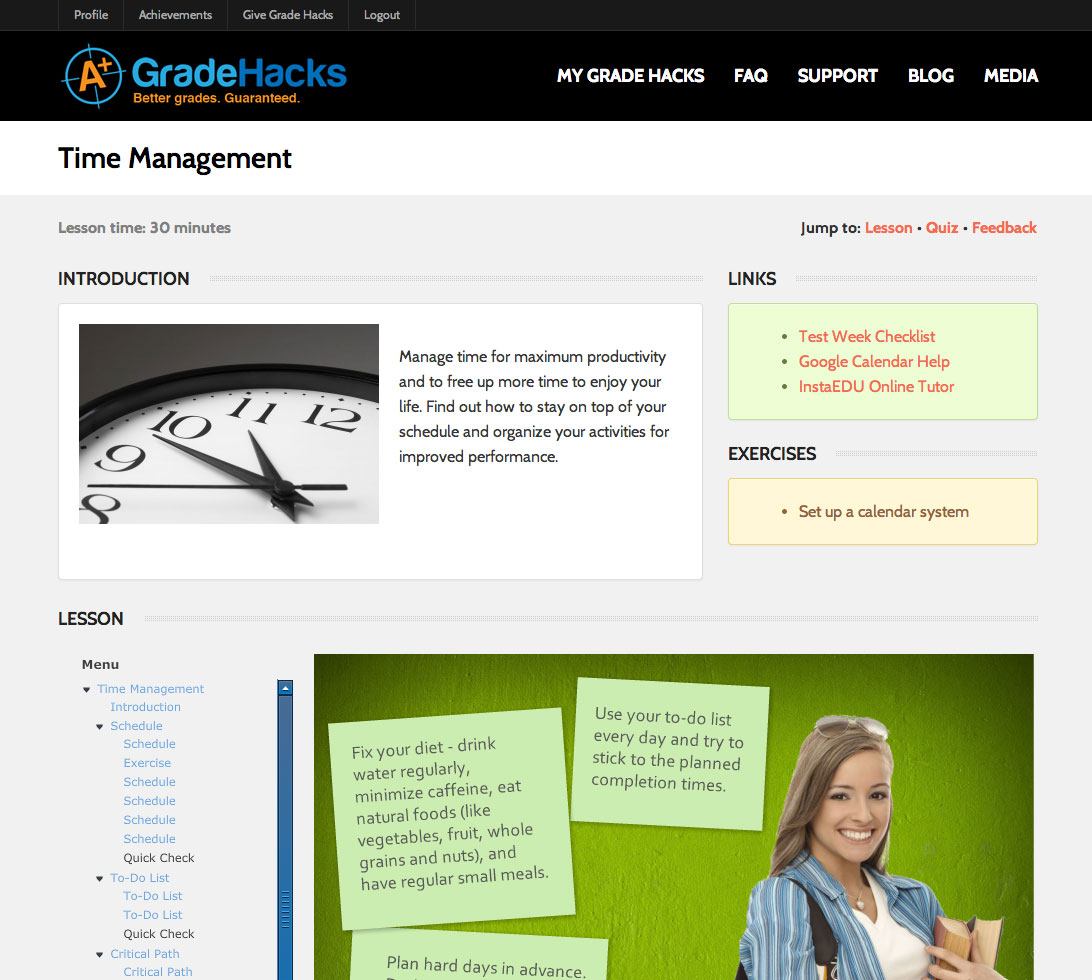
A customized LearnDash lesson page.
Other than quizzes, LearnDash does not provide any content creation tools beyond the standard WordPress post/page authoring interface. We leveraged the excellent Visual Composer plugin to set up some nice page layouts with sections to related resources and exercises. We used Articulate Storyline to create content that provided a more immersive, interactive experience than static text and images. Using shortcodes, we then embedded the Storyline content in several formats to target the various devices our users may be using to view the content. On desktop and laptop, we instructed WordPress to display the Flash-based Storyline content, as this was “truest” to what we saw in the Storyline authoring environment. On iPad, the content was displayed in the Articulate Player app, which provided a nice “native” experience for the learner. On other platforms, the system falls back to HTML5.
For quiz creation, LearnDash currently offers the most powerful assessment tools of any WordPress-based LMS, unfortunately wrapped in an awkward interface. Functionality is accessed through standard or advanced quiz types, with standard being too basic for many applications and advanced offering a dizzying array of options. Both types use different interfaces for managing questions and you can’t switch between the two, so you may find yourself halfway through the creation of a standard quiz only to realize you need the functionality of an advanced quiz and have to start over. The quiz UI could really use an overhaul that creates a single, unified quiz interface that exposes the most commonly used controls while hiding the rest for power users.
User Experience
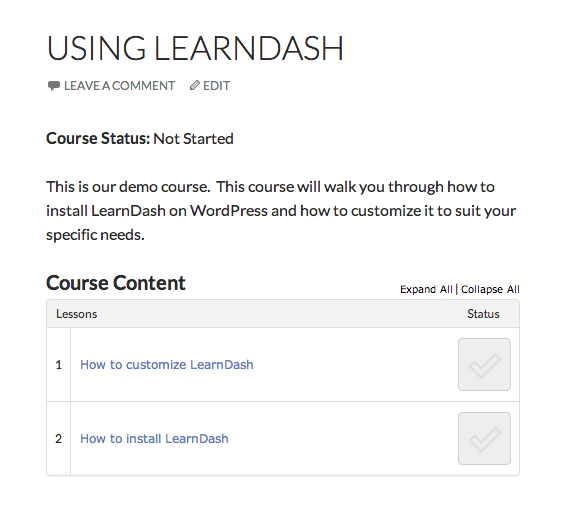
The default course homepage using the “Twenty Fourteen” WordPress template.
Out of the box, the LearnDash user experience is quite good, providing an intuitive course/lesson/topic structure which works well for most situations. Visually, course and lesson pages were redesigned in the version 1.5 release and now provide a simple, pleasing interface to the user. You’ll run into small niggles here and there though; for example, after successfully completing a quiz, the learner must then click a button labeled “Click here to continue” for their progress to be recorded. If they instead leave the quiz by some other method or close the window, their progress is lost and they are forced to retake the quiz. The plugin author is aware of this issue and has promised a fix.
The experience of using WordPress as an LMS is also not without its quirks. Logging into WordPress does not, by default, change the site’s menus or navigation, which means that logged-in users may have a hard time distinguishing between marketing pages and paid content. We used the Nav Menu Roles plugin to display different menu items to logged-in users, which created the impression of a separate public site and learner portal.
Customizability
LearnDash provides a number of options for customizing your LMS, as well as shortcodes for outputting various types of LearnDash content on any page or widget. Like most plugins, LearnDash can be customized through CSS overrides in your template files or a CSS plugin. Advanced developers used to working with WordPress hooks, however, will be disappointed. LearnDash includes few actions and filters, and those that are included are poorly documented. LearnDash also does not support template overrides, so for major customizations you’re stuck making changes to core files.
Support
The LearnDash plugin author, Justin Ferriman, is very responsive to customer feedback and maintains an active support forum available to paying customers only. Users who post a question will usually receive a response within a day.
Conclusion
LearnDash is probably the most full-featured LMS plugin available for WordPress today. It’s still early in its development, but it’s being updated quickly and once you get used to it you’ll find it’s capable of delivering a solid experience for your learners at a low cost.
In a future blog post we’ll cover the ins and outs of using LearnDash and WooCommerce to sell your courses online.
*In version 1.5.0.0, in addition to assigning topics to lessons you must also assign them to courses for them to be tracked properly. This seems redundant since you assign topics to lessons, which are themselves assigned to courses, and will hopefully be updated in a future release.
 Bring Your Own Device (BYOD) policies are quickly gaining enterprise support and many elearning programs aren’t ready. In the past, elearning professionals could design and test for a handful of devices and be confident that their materials would work. That’s all changing. A 2013 Cisco study revealed that 9 in 10 Americans currently use their phones for work purposes, and 62% of companies planned to support BYOD officially by the end of 2013.
 A lot of our website visitors come from Google and are looking into elearning for the first time. I’m sure it’s the same for many elearning companies; new clients find you because they need web-based training, but they don’t necessarily know what’s involved or how projects work. We really want people to know we’re a trusted partner that’s looking out for their best interests, so we decided to put together some guidance to help businesses tackle their first elearning projects.